
Place Terminal, Accessory, or Equipment
Available with Archicad Collaborate
The MEP Library contains specially configured MEP elements that you can place using the Accessory, Equipment and Terminal tools - these can be used to start and end MEP routes.
Note: The Object library contains additional library parts that are MEP compatible and/or can be converted to Equipment. See MEP-compatible Objects.
Use the Terminal, Accessory, and Equipment tools to place these MEP elements in the Floor Plan or 3D windows.
•Select the accessory or fitting tool, then click once on a route segment to place it
•The element placed second (route or accessory) inherits the MEP System of the first element’s connection point
•If accessory and route shapes match: accessory takes the route’s size by default
•If shapes differ: accessory keeps its own size, and transitions are added automatically
•If there’s not enough space or if the fitting is not in line with the route: a standalone accessory is placed, not connected to the route
Accessory setting: Inherit route size
By default, a placed accessory matches the size of route element. To change this default for each element, uncheck the Connection size option in the Info Box:
If checkbox is off: accessory keeps its own size and a transition is added if needed.
Flip accessory direction
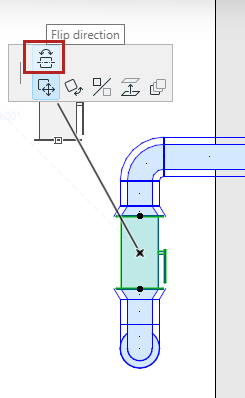
After placing an accessory, you can use the pet palette’s “Flip direction” command to change its orientation:
When connecting a route to a terminal, accessory or equipment, use the up and down arrow keys to see alternative paths to connect the route
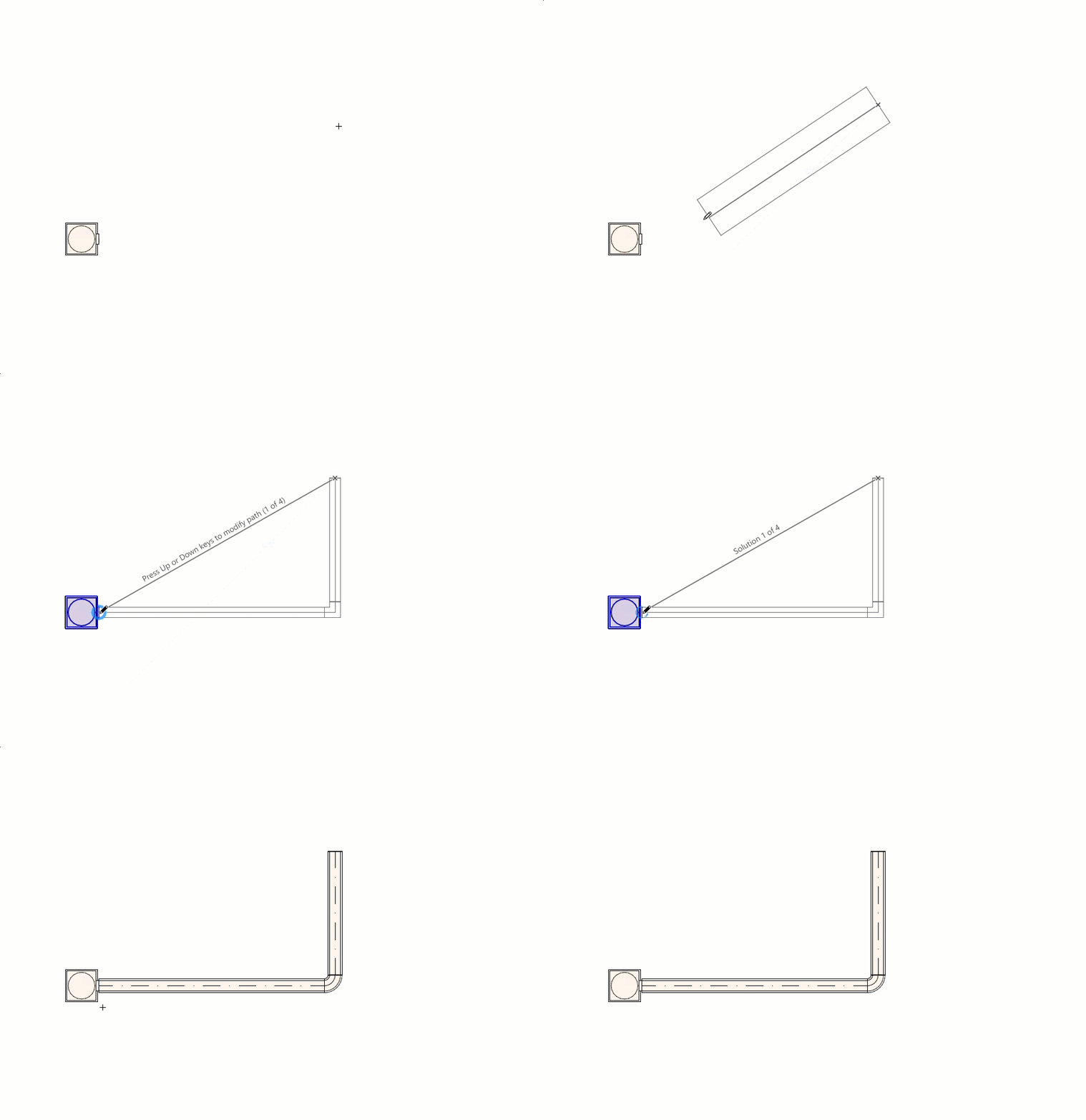
Press up/down arrows to see path alternatives