Refine an image using AI Visualizer
Create images with the AI Assistant, then refine and save them with AI Visualizer.
The AI Assistant and AI Visualizer are now connected, allowing you to turn your ideas into visuals in one continuous flow.
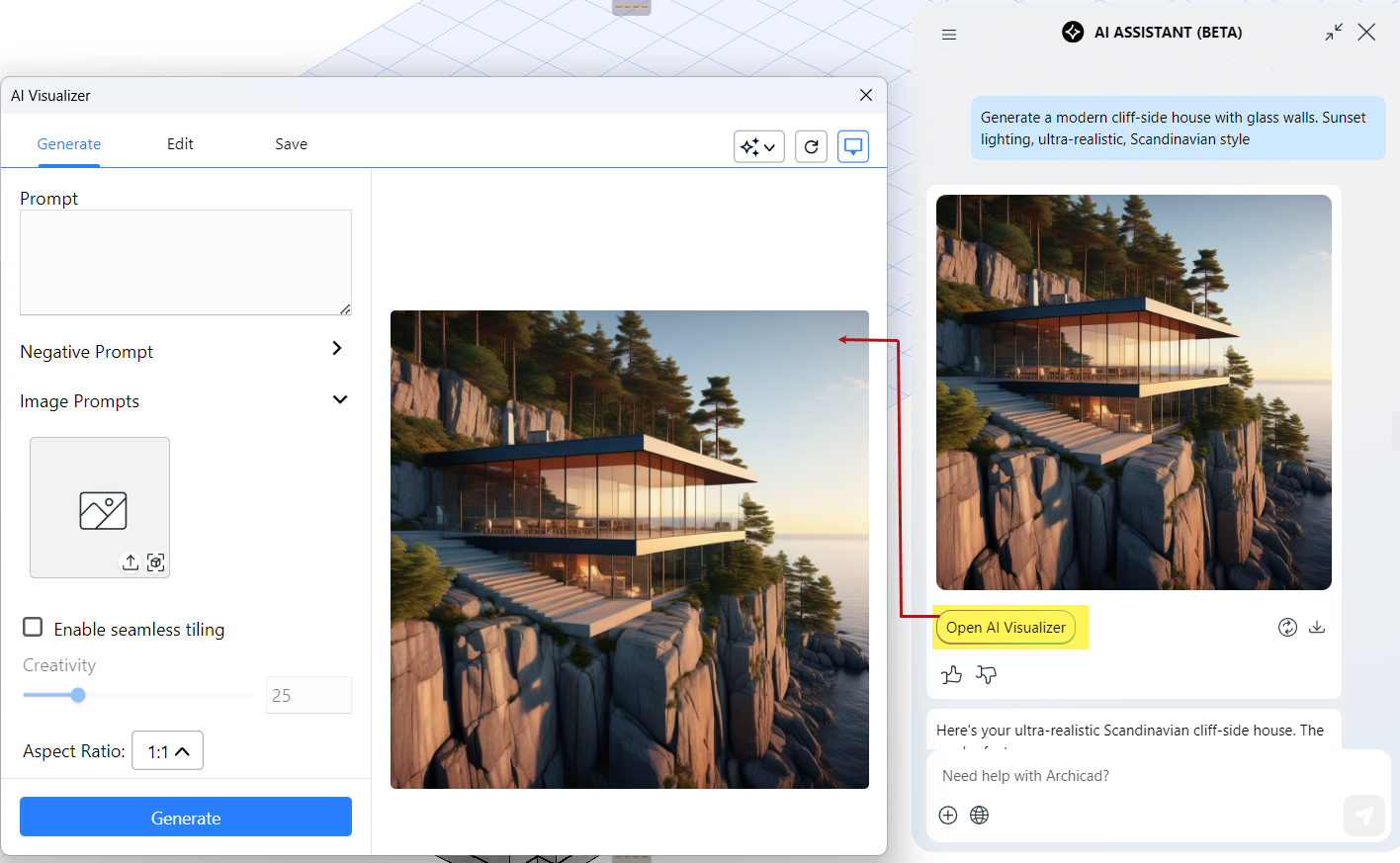
Generate image in AI Assistant
- Type your prompt in AI Assistant as usual, but include a trigger word like "visualize" that will generate an image.
- The Assistant processes your request and creates an image based on your description.
Refine image in AI Visualizer
-
From AI Assistant, click Open AI Visualizer.
-
Click Refresh to add the 3D model as an input reference.
-
Use available tools to edit and adjust your image.
-
Once you’re satisfied, save the final image on your computer.
Trigger words to start a visualization
To start generating images in AI Assistant, use one of the following trigger words in your prompt: create, creation, compose, depict, design, draw, fabricate, generate, illustrate, illustration, image, imagine, picture, present, render, rendering, sketch, visualize, visualization.
Example prompt: “Generate a modern cliff-side house with glass walls. Sunset lighting, ultra-realistic, Scandinavian style.”