Spaces
Use Spaces in AI Assistant to create a personalized knowledge base from your own documents.
Think of a Space as a dedicated container for a specific project, topic, or a collection of documents. With Spaces, you can upload your files or paste the link of a relevant website (provide the exact URL). Then interact with the AI Assistant to gain insights, get answers, and summarize information based on your Space content.
How to Use Spaces
- Open the sidebar menu from AI Assistant
- Click Create a new space
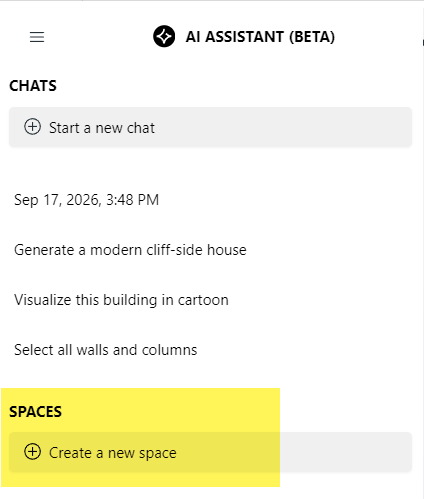
- Upload your documents to the Space
- Start a chat within the Space
- AI Assistant will answer your questions using content from the uploaded documents
- Or enable Web search, then paste a specific URL into the prompt and ask AI Assistant to check your model in that context
Ideas for using Spaces
- Upload the Building Code and check your model for missing or wrong information
- Upload the fire rating regulations, then ask AI Assistant to check the doors in your project to see if they are compliant
- Upload a product installation guide, then ask AI Assistant to convert the requirements and relevant details into standardized Keynote entries, grouped into folders
- In your Space chat: enable Web search. Paste the URL of the relevant part of the International Residential Code into the prompt, then ask AI Assistant to check your zones for compliance
Key Features and Limitations
Keep in mind when using this first release of the Spaces feature:
- Cross-device access is available: Your Spaces are connected to your user account, allowing you to access them from any project or device where you use the AI Assistant
- Number of Spaces: You can create up to 10 unique Spaces
- File uploads: Each Space can hold up to 10 files
- File type: The only supported file type is PDF
- File size: The maximum size for each PDF file is 40 MB