Troubleshooting Library Issues
From the following list, click on the specific library-related issue for more information:
Find and Select Missing Library Parts
Consolidate Multiple Archicad Libraries
Remove Unused Linked Libraries
Missing Library Parts
The Library Manager indicates any Missing Library Parts.
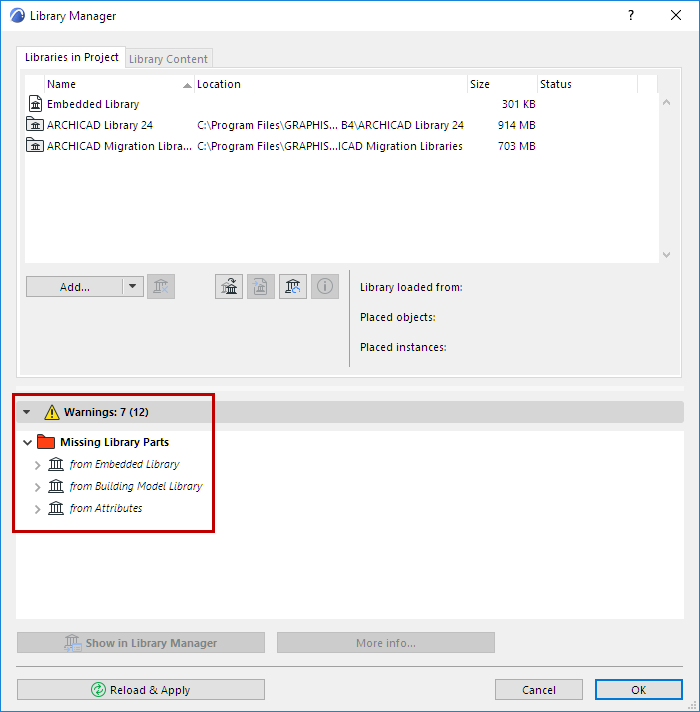
Missing library parts cannot be displayed in the project. (The place of missing library parts is indicated by fuzzy dots.)
Missing library parts are listed in the Warnings Panel of the Library Manager, together with:
- the name of the source library if any, with its last known location, from which the missing objects originate.
- number of missing object, plus the number of placed instances of each missing object. For each missing object, the number of its placed instances is shown in parentheses.
Items in the Missing Library Parts folder of the Library Manager are missing from the project
- either because they were embedded objects, and have been deleted (you cannot retrieve them, since they no longer exist)
- or because they were located in libraries that have been deleted from the project or moved to a different location.
To retrieve these objects, use the Add command in Library Manager to add the missing libraries, then click Reload & Apply.
Objects listed under “Missing from unknown library” are missing objects about which no other information is available - their source library (or libraries) are not known.
Objects Temporarily Missing
In a Teamwork project, you may encounter a category in the Library Manager entitled “Temporarily Missing.” This may occur when a user makes changes in a BIMcloud Library that result in placed objects being updated in some way. If those objects are reserved by any user, then all users joined in to the project will encounter the “Temporarily Missing” category.
This will be resolved as soon as the user(s) who have reserved the objects do a Send & Receive; then the objects will no longer be missing.
Unsupported Objects
These files reference unsupported image formats.
Find and Select Missing Library Parts
To find and select missing library parts in the active window, use the Find & Select function.
See also Find and Select Elements.
- In the first “Criteria” row in the Find and Select dialog box, choose a GDL object type element.
- In the next row, for the next criterion, choose “Library Part Missing.”
- As the value, select “True”.Note: You can also choose “False” as the value; this will select all instances of the defined GDL Object types, except for the ones whose library object is missing.
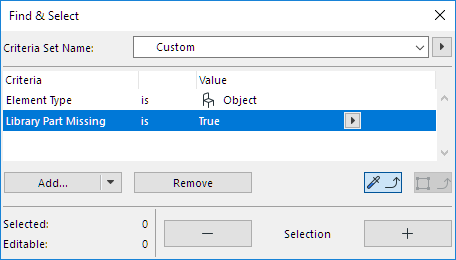
- Click the Plus button to execute the Find & Select function.
Missing Libraries
If you have modified the name of a library folder, or changed its location in the file hierarchy, then the next time you open the project, the library folder listed in the Library Manager dialog box will be shown as Missing.
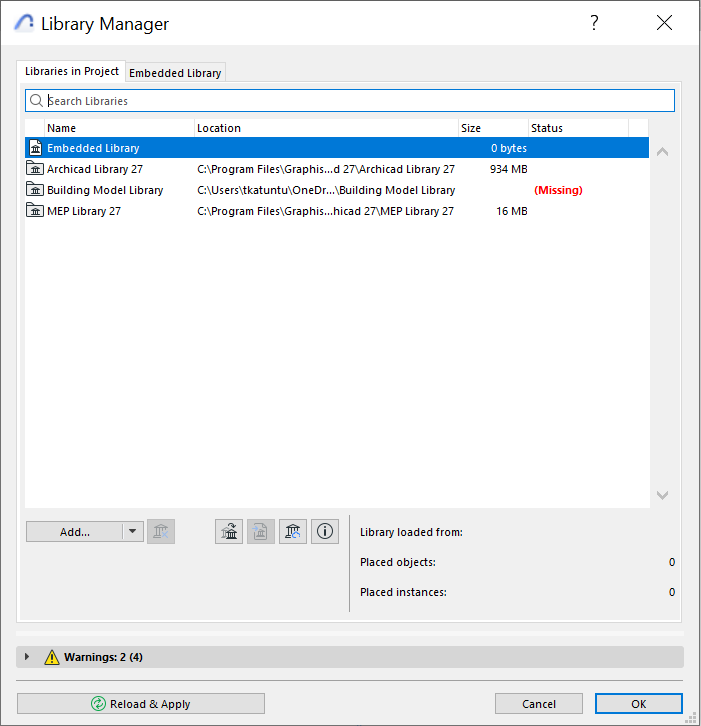
Placed objects from unavailable libraries are listed in the “Missing Library Parts” folder of Library Manager. In the project model, they are represented by fuzzy dots.
The solution is to click Add Linked Library from the Library Manager’s Add button, and browse for the library file under its new name or location.
Duplicated Library Parts
Any Duplicated Library Parts are listed in the Warnings Panel of the Library Manager. Each such library part is followed by the name and path of the project libraries that contain it.
Click More Info at the bottom of Library Manager for detailed information on the duplicates:
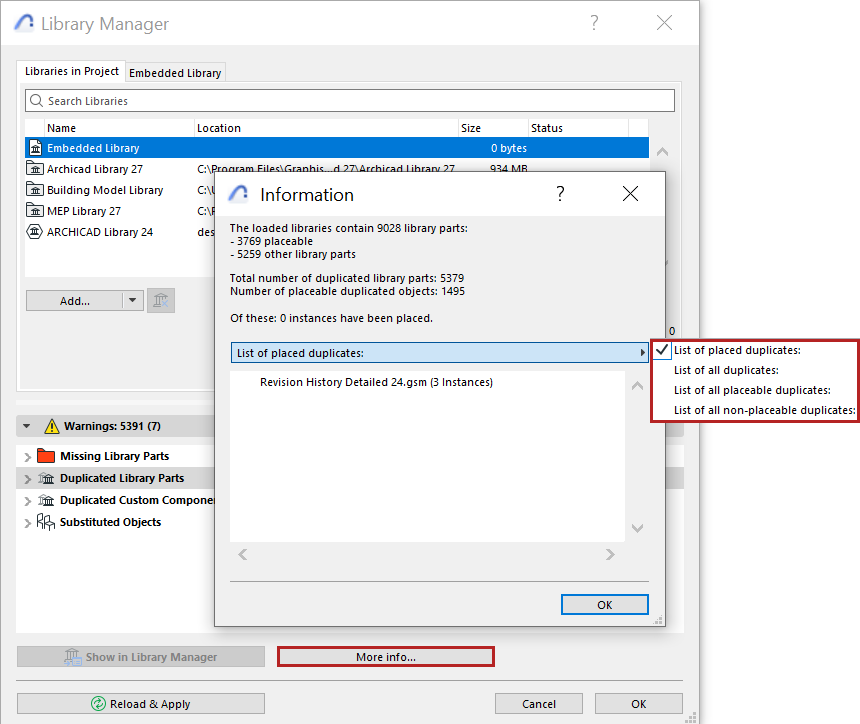
In the Information box, click the black arrow to choose the list format you need:
Avoid Duplicate Library Parts
The problem with having a lot of duplicate objects in your projects is twofold: Every time you load your libraries, you will be loading many superfluous objects and/or libraries, causing unnecessary slowdowns; and the presence of duplicates can lead to further ambiguities if you should modify a duplicate library object or save it under a new name.
See Substituted Objects.
There are several possible strategies to resolve the issue of duplicates:
- If the project uses multiple monolith libraries (Archicad 28 and earlier), it is best to consolidate them.
- If all the placed objects from one of the libraries are duplicates (i.e. these objects also exist in the other library), you can remove the first library altogether.
- If the duplicate placed objects are project-specific, you should embed them into the project. This will also eliminate the library from the project.
Substituted Objects
An object in this category has been placed in the project, but several possible substitutes for this object (that is, objects with the same GUID as the placed object, though they may be named differently) exist in at least two linked libraries. Archicad randomly uses one or the other source for the object’s placed instances.
To avoid this situation, you should manually replace the instances of the “substituted object” with a single one of its possible duplicates from the loaded libraries.
(To do this, you can use Find & Select to locate the placed instances of the substituted object. Then choose a specific library object from the loaded libraries to replace it.)
Obsolete Objects
Objects are “obsolete” in two cases:
- it has been discontinued entirely (e.g. a computer or TV object that is no longer current)
- the object has a counterpart in the migration library, but due to changed parameters or functions (e.g. a window whose sash has been altered), the old object will not be replaced automatically
If you use the Migrate Libraries or Consolidate Libraries functions, the Migration Libraries will be loaded automatically, together with the necessary obsolete objects, and you won’t have any missing objects.
Consolidate Multiple Archicad Libraries
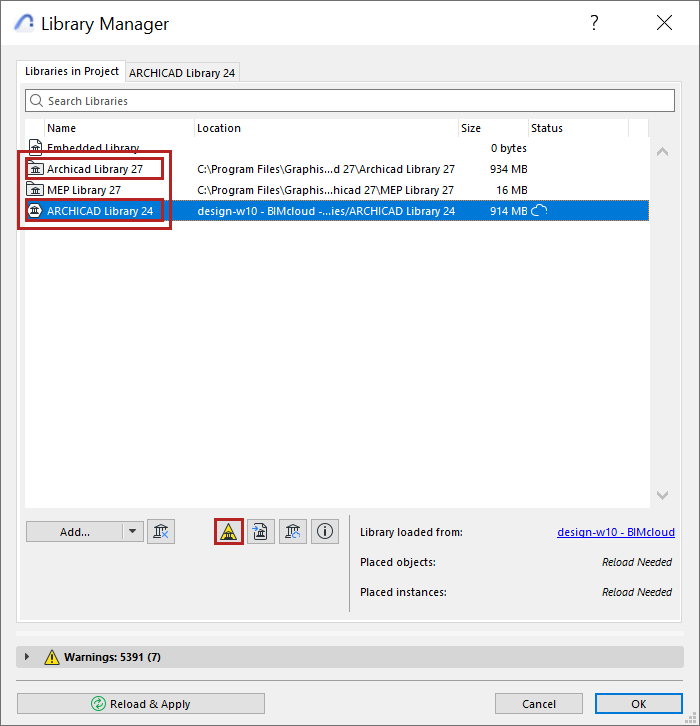
This function is only relevant for projects using Monolith Libraries (rather than the newer “Global library” libpack technology). Consolidate Libraries is identical to the Migrate Libraries function.
Any time you add an additional monolith Archicad library to a project that already has one, the yellow Consolidate button appears in Library Manager. Click to start the process.
See Migrating Libraries to Archicad 29.
Remove Unused Linked Libraries
Library Manager tells you whether you have actually placed any objects from your linked libraries. If not, you don’t need that library and you can remove it from the project. In this example, there are no objects placed from the selected Archicad library; you can remove it.
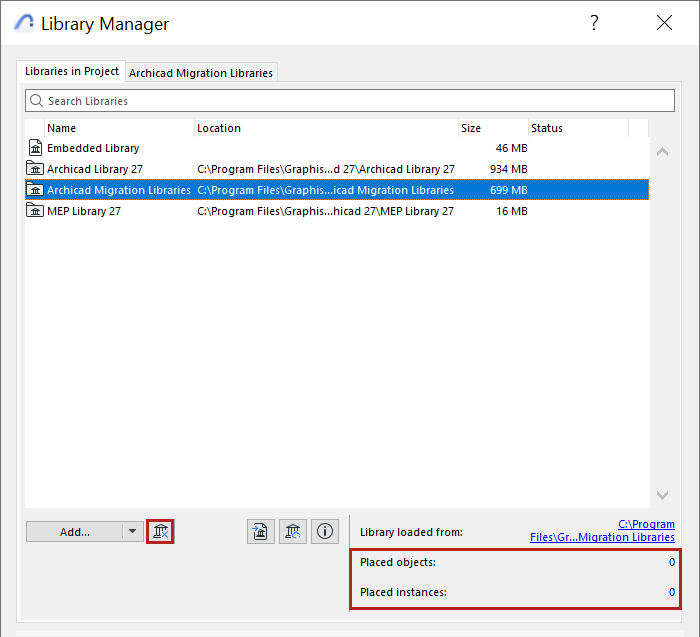
To remove a library folder, select it from Library Manager and click the “Remove” icon with the blue X.
Library Path Too Long
The Windows operating system has a limit of 260 on the number of characters that the library path name can contain. Consequently, you may encounter a warning that the program is unable to save a local copy of the BIMcloud library, because the library path is too long.
To resolve this problem, try one of these solutions:
- Simplify the library’s file structure.
Go to File > Libraries and Objects > Manage BIMcloud Libraries.
Download the BIMcloud library to a folder on your hard drive.
In this folder, do one of the following:
- Create a container file (.lcf) out of the library folder, using
File > Libraries and Objects > Create Container.
See also Library Container File.
- Alternatively, create a different, simplified folder structure
for the library (e.g. move the library folder to a higher position in the folder
hierarchy so that the file path becomes shorter).
Go to File > Libraries and Objects > Manage BIMcloud Libraries and use Update to overwrite the server library with the .lcf file, or the restructured folder.
- Create a container file (.lcf) out of the library folder, using
File > Libraries and Objects > Create Container.
- Move the Local Data folder.
Your local copies of BIMcloud libraries are stored in your Local Data Folder on your hard drive.
If this location results in a file path that is too long, move the Local Data folder:
See Move Local Teamwork Data to a Different Folder.
The new location should be at a higher level of the folder hierarchy, thus making the path shorter.