Edit and manage Building Materials
Open the Building Materials dialog:
- Options > Element Attributes > Building Materials
- Attributes toolbar (Windows > Toolbars > Attributes)
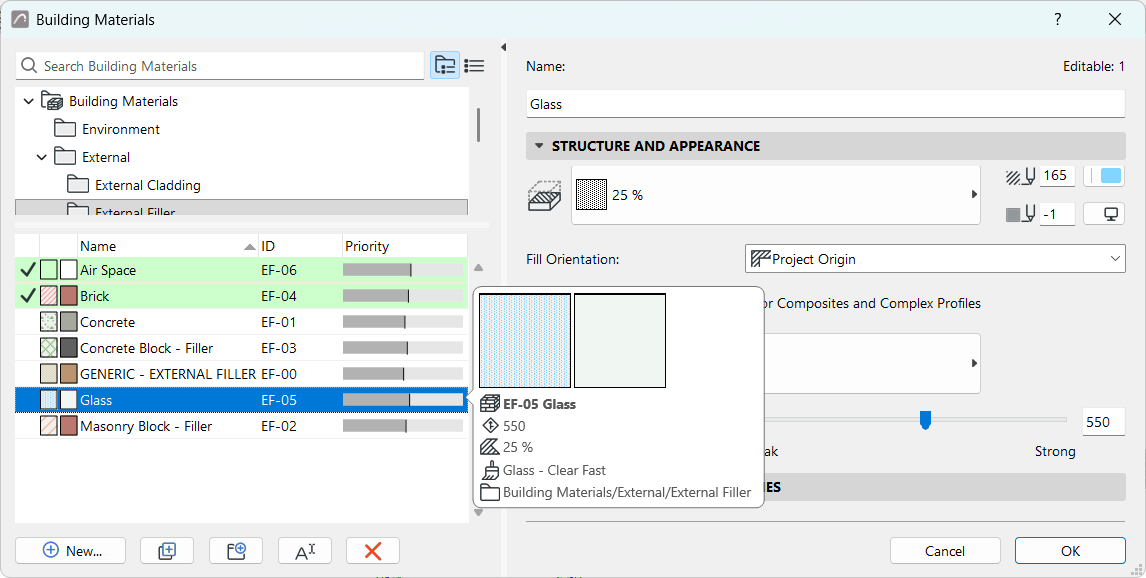
- The left panel lists the project’s Building Materials, by Name, ID, and Intersection Priority.
- Green highlights indicate the Building Materials of currently selected elements.
For general information: see Using the attribute dialogs.
Edit Building Material
Cut Fill
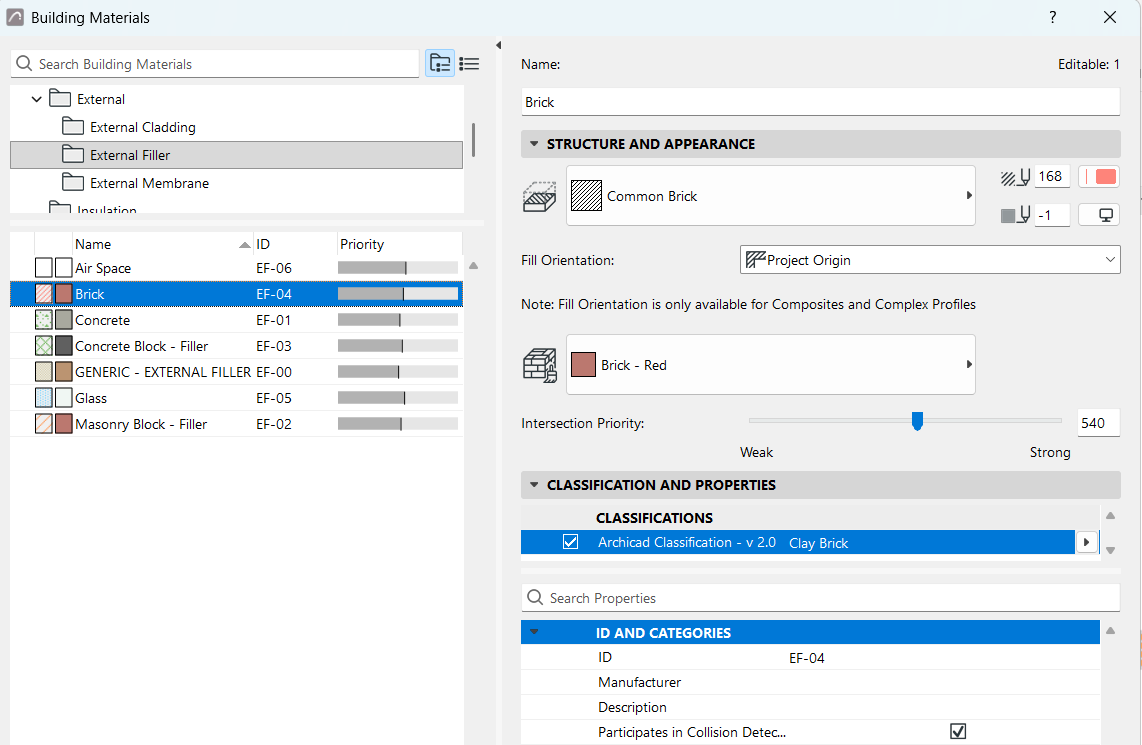
Choose a cut fill for this Building Material. This pop-up lists only fills defined as cut fills: see Fill Categories
Cut Fill Foreground Pen/Fill Background Pen: Choose the foreground and background pen for this Building Material.
See also Line Elimination Between Model Elements.
Fill Orientation
Affects the fill pattern of Building Materials applied to composite elements and Complex Profiles only. Choose a fill orientation option:
- Project Origin: The fill pattern originates at Project Origin.
- Element Origin: The fill pattern is aligned with the element’s direction.
- Fit to Skin: (Available only for symbol fills.) The pattern fits within the limits of the Skin Thickness.
Surface
Choose a surface for displaying this Building Material in 3D.
Note: At the element level, you can override the surface in its
Settings dialog (Model Panel) or Info Box.
See also: