Attribute Management Commands
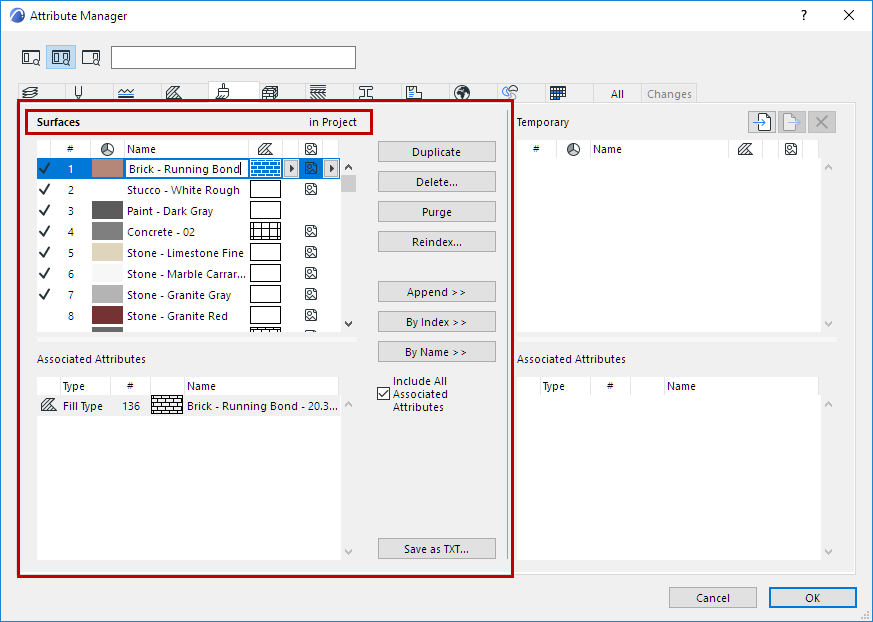
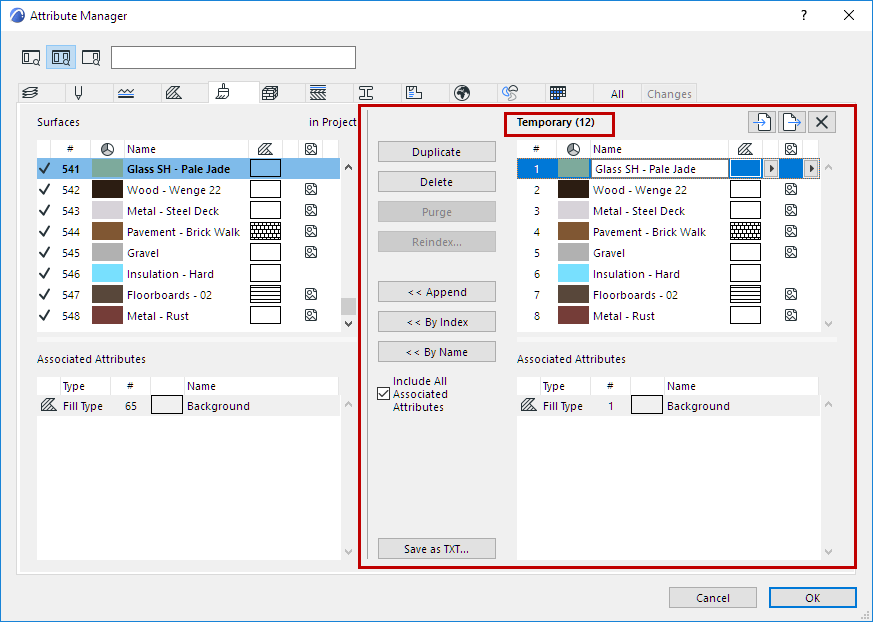
Use the command buttons in the middle of the dialog box to manage attributes from the lists on both sides of Attribute Manager.
Attribute Manager commands apply to either the Project Attribute list (on the left) or the Temporary List (on the right) depending on which list is active.
Any changes you make in Attribute Manager which affect the current project’s attribute set are listed on the Changes tab and can be reverted, until you close Attribute Manager.
See Revert Changes in Attribute Manager.
Append/Overwrite Attributes Between Lists
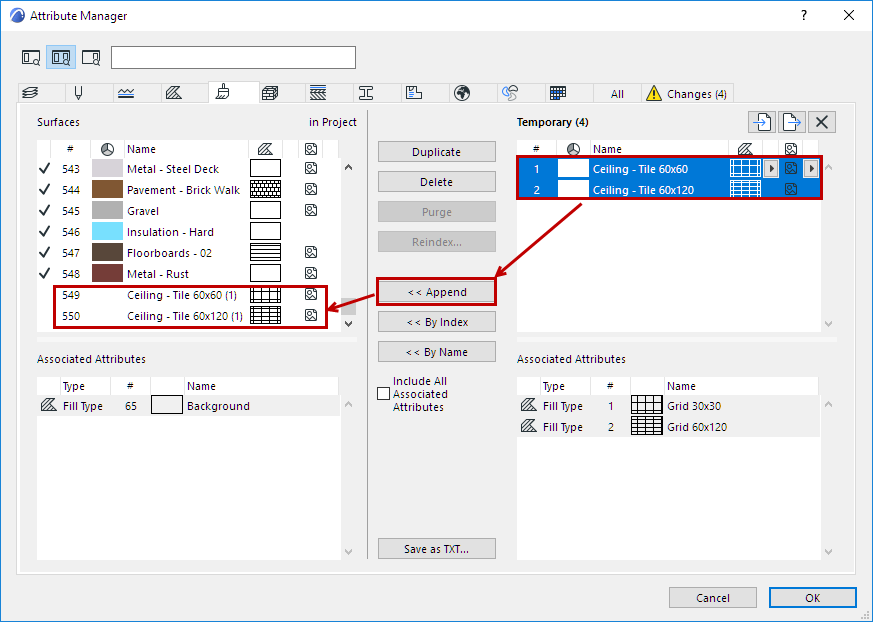
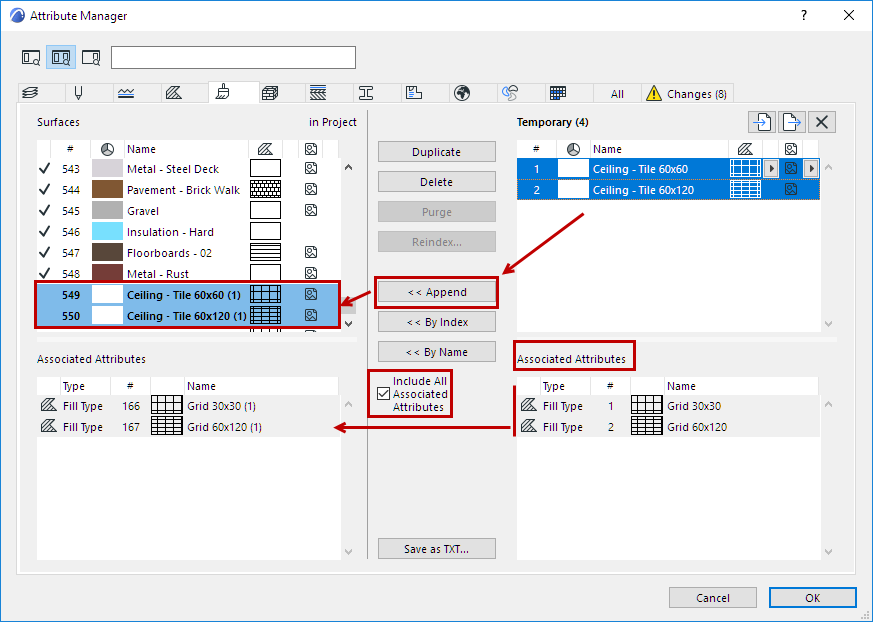
Use the following three commands to add Attributes from the Project List to the Temporary List and vice versa.
Append
Adds the attribute from one list to the bottom of the other list, with a new index number. If an attribute of the same name already exists, a (1) will be appended to its name.
By Index
Overwrites the attribute in the other list that has the same index number. If the index doesn’t exist, a new item will be created with the same index number.
By Name
Overwrites the attribute in the other list that has the same name. If the name doesn’t exist, the attribute will be appended.
Import Attributes to Temporary List
From the Temporary List side of Attribute Manager:
- Click the Import button.
- Browse for a file containing the attributes you need (e.g. XML, .aat, or projectfile).
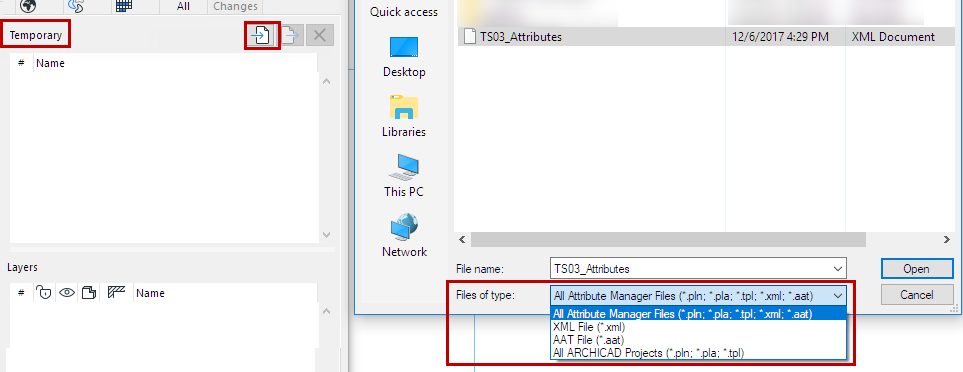
- Click Open.
The attributes of the imported file now appear, by type, on the right side (Temporary list) of the corresponding pages of Attribute Manager.
Note on Import of Building Materials
When you import a file via Attribute Manager:
The incoming Building Material attributes may include Classifications and Properties that already have defined values.
But these values cannot be added to the host project unless the referenced Classifications and Properties already exist in the host project.
Therefore, before importing such Building Materials, review their incoming Classifications and Properties, and ensure that they already exist in your project (use Classification Manager and Property Manager).
If they do not exist, you can create the missing Classifications and Properties, and then import the Building Materials. All the referenced values will come into the project.
Otherwise, the assigned values are lost.
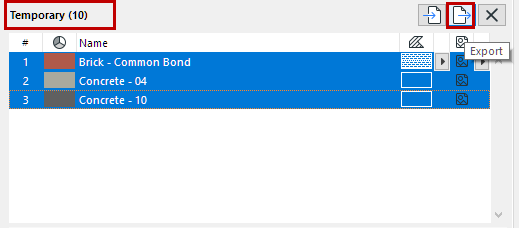
Export Attributes to XML File
From the Temporary List side of Attribute Manager:
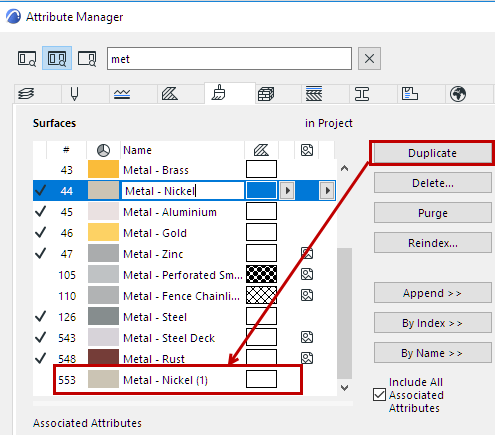
Duplicate
The Duplicate command adds the selected attribute - with a unique Index number - to the bottom of the current attribute list, where you can edit it further.
Delete/Delete and Replace
For items in the Temporary list (right side): Deletes attribute(s) from the Temporary list.
For Project attributes (left side): Deletes attribute(s) from the project.
The Delete... button opens the Delete and Replace dialog for the following project attributes:
Here, you can choose a replacement attribute in one step.
See Delete attributes.
Note:
Purge (Project Attributes only)
Regardless of selection, this command removes all attributes in the list that are not currently used in your project - that is, all attributes that are listed without a checkmark.
The Purge command is grey
Reindex
Elements refer to attributes by their index number. To edit it, click Reindex.
Save Attribute List
Click Save as TXT to save the currently open page of attributes as a text file.
See a description of this process at Attribute Migration article.