Explore Model (3D Navigation)
In Perspective views only, you can explore the model either by choosing the View > Explore Model or access the same command from a toolbar, or from the bottom scrollbar of the 3D window.

In Explore mode, use the mouse and the arrow keys of the keyboard for navigation (as when playing a video game on a PC.) When in this mode, you cannot edit the model or use any of the commands. The “Fly” option and speed slider also appear at the bottom of the screen as long as you are in Explore mode.

To exit Explore mode, click with the left mouse button or use the Esc key.
When choosing the Explore Model command, an informational dialog box opens to give you a visual prompt on what you can expect from your various actions with the mouse and the keyboard.
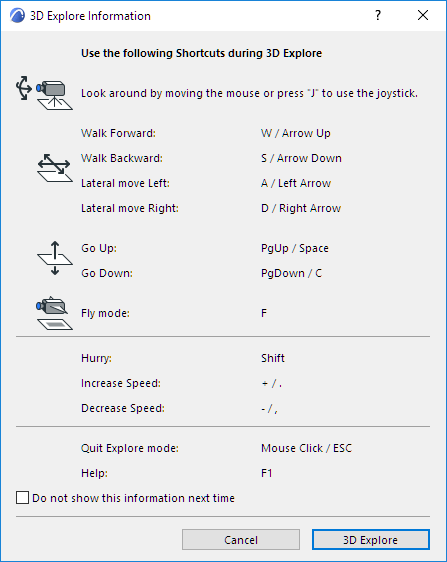
“Rotate” camera in Explore mode
Moving the mouse around will rotate the camera in the directions indicated by the arrows next to the camera on the picture above.
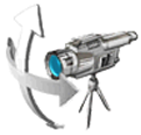
“Walk” forward and backward in Explore mode
Pressing the arrow keys, or the W-A-S-D keys, will walk you forward/backward and laterally in the directions indicated by the arrows in the picture above. Note that the Up arrow brings the model closer to you while the Down arrow moves it further away.
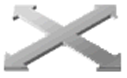
“Fly” around the model
In Explore mode, click “F” for Fly mode. Again, use the arrow keys or the W-A-S-D keys to move around, but this time the Fly mode combines the lifting effect with the rotating and lateral movements to simulate a walking movement on a horizontal plane or in space.
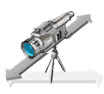
“Lift” the model up and down
Use the PageUp (shortcut: spacebar) and PageDown (shortcut: C) keys to simulate a lifting effect.
Speed Up/Slow Down in Explore Mode
Click the Plus and Minus keys on your numeric keypad to change the speed in which you explore the model. For a temporary speed increase, press Shift, then release it to return to your basic speed.