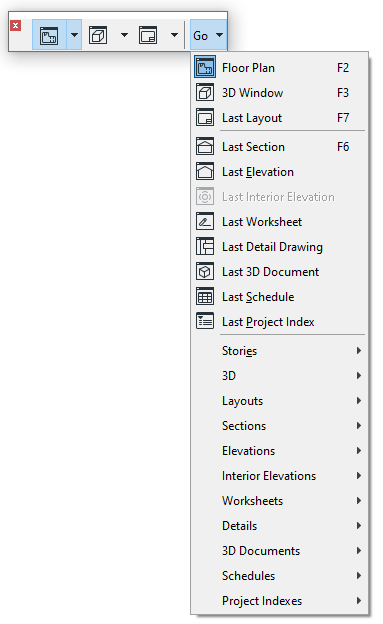
Find and open the project view or window you need.
Navigator
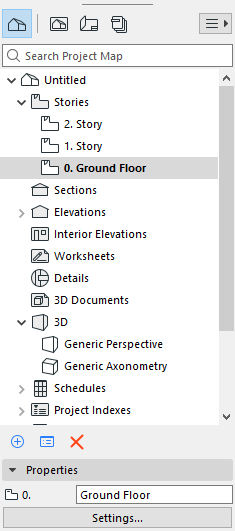
The Navigator palette contains all of your project’s viewpoints, views,
Layouts and Publisher sets, listed in four maps.
Find and double-click any item to open it
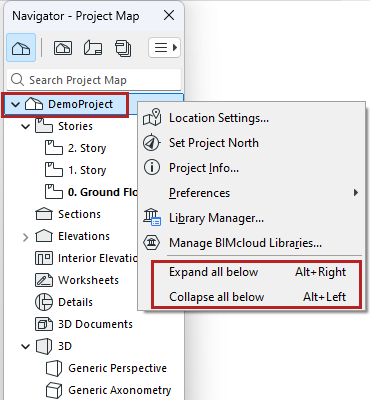
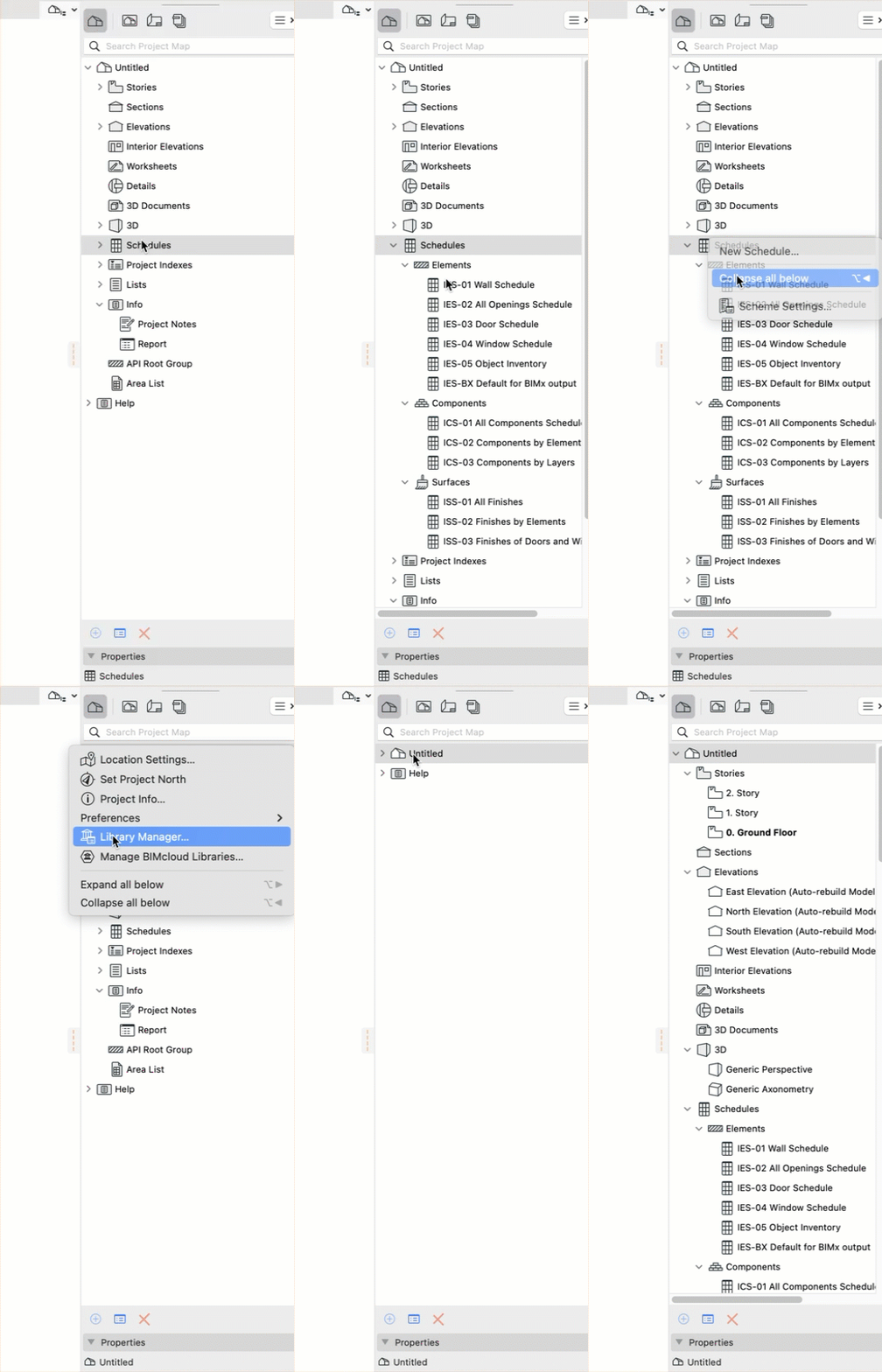
As needed: Expand or collapse all sub-items in a selected folder,
using context menu command
Use the search field to locate items by name
Note: When you open a new view or new layout, it can either replace the opened
view/layout, or open in a separate new tab. Change this preference in Options
> Work Environment > More Options.
Exception: You can have only one Floor Plan and one 3D window
open at a time.
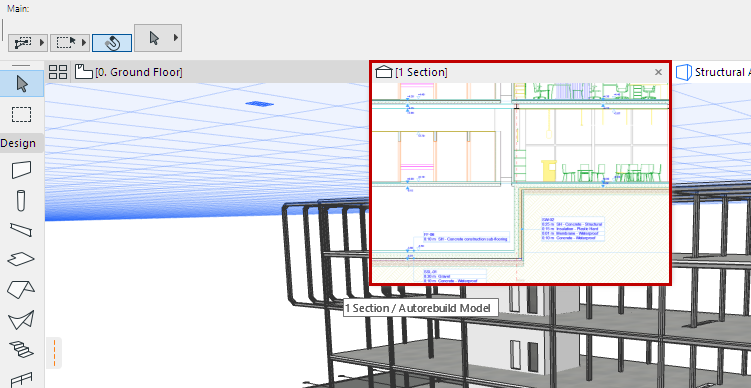
A pared-down version of the Navigator palette, available in pop-up form
at the right edge of the Tab bar. You can use this instead of the Navigator palette to save
screen space.