Define Element Criteria
In several functions, you specify a group of elements by criteria before carrying out the function:
- Find & Select
- Graphic Override Rules
- Collision Detection
- Reserve Elements by Criteria (Teamwork)
- Interactive Schedule Schemes
You can set up these criteria either manually, or by using predefined Criteria Sets. (see: Predefined Criteria Sets )
This section describes manual criteria definition.
Define First Element Type
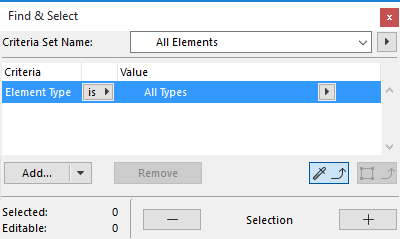
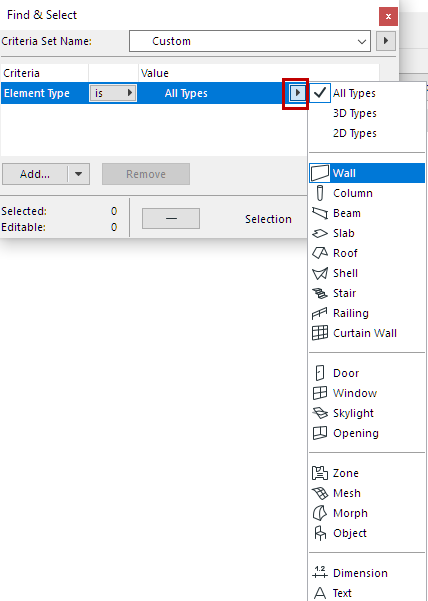
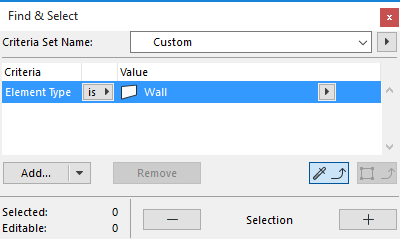
Define Additional Element Type
To add one or more additional Element Types:
- Click the Add pop-up
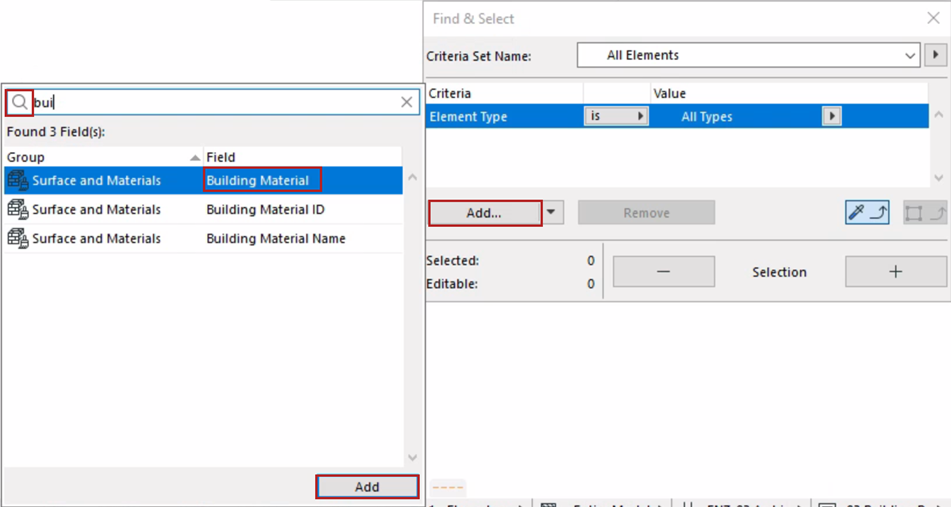
- Select “Element Type” from the list. (Use the search field at the top to help locate an item.
- Double-click, or click the list’s Add button to add it to your Criteria List.
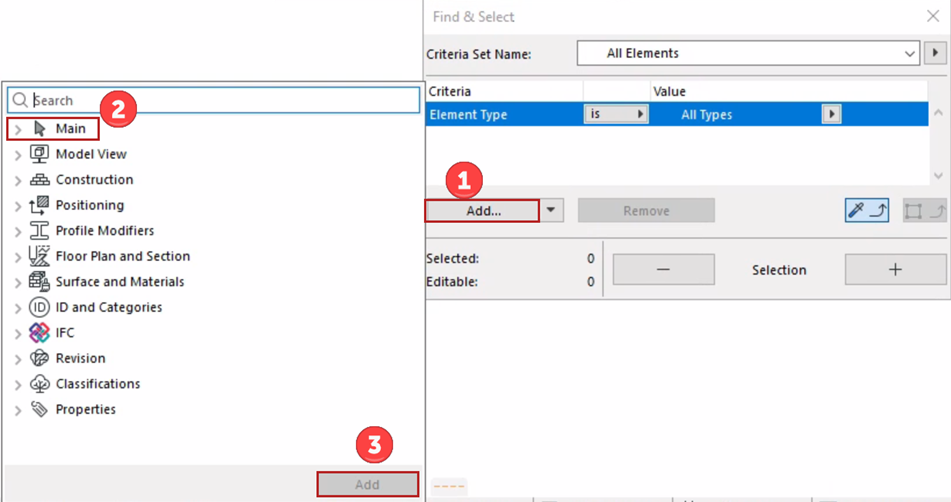
- In the Value column, click the pop-up and again choose the Element Type from the list (e.g. Slab).
- Use the and/or control to further define the Element Type criteria.
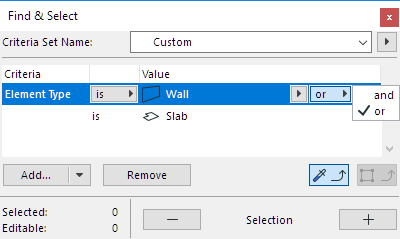
Define Additional Criteria: Parameters & Properties
To narrow the scope, add more criteria.
- Click the Add button to bring up a list of Parameters & Properties.
- Choose a criterion (use the search field at the top to find it more quickly), then click Add (or press Enter) to add it to the criteria list.
- For each added criterion, define its Value from the pop-ups.
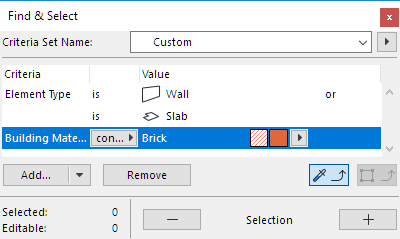
Available criteria depend on the Element Type(s) defined in the row(s) above.
For example, you can narrow the criteria based on the element’s Structural Function Classification (e.g. Load-Bearing or Non-Load-Bearing.)
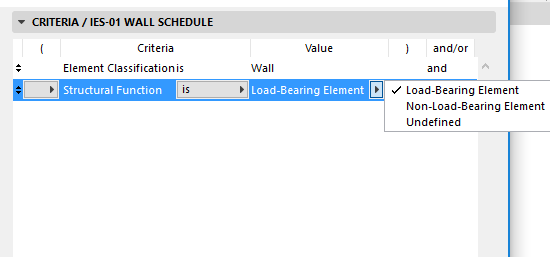
Use IFC Properties or Library Part Parameters as Criteria
From the Add button’s pop-up, access additional parameter/property types: