Edit Dimensions
Topics in this section:
Break and Offset Dimension Line
Drag/Rotate/Mirror Dimension Chain
See also:
Select Dimension
Select Dimension Chain
Click at any “free spot” on the dimension line with the Checkmark with Mercedes cursor.
Select Dimension Segment
Click at its midpoint with the Checkmark with Arrow cursor.
Select Dimension Text
- Use the Quick Selection cursor.
- Click on the lower left corner of the text with the Checkmark with
Arrow cursor.
See Dimension Text Settings. See also Edit Text Box.
Insert New Dimension Point
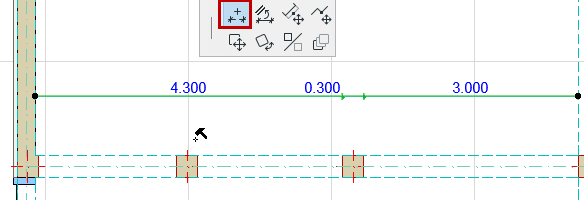
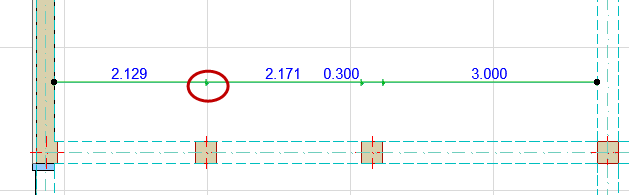
Edit Dimension Point
Click the point. Then do any of the following:
Delete Dimension Point
Select the Dimension point, then delete it.
Alternatively:
Move Dimension Point
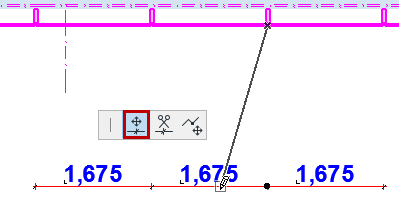
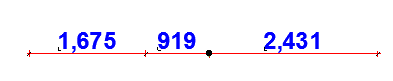
Delete Dimension Segment
Do one of the following:
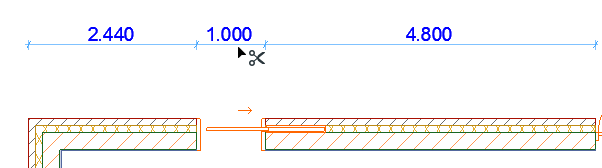

Move Dimension Line Segment
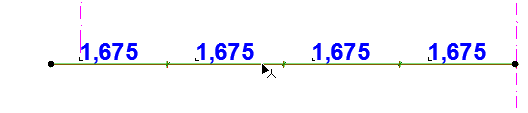
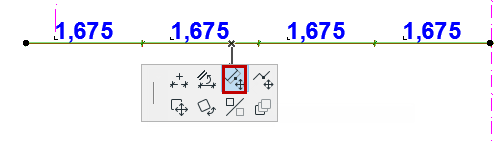
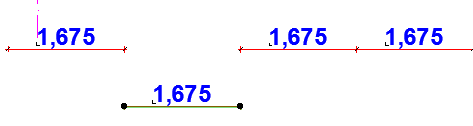
Break and Offset Dimension Line
This command is available on an internal point or segment of a linear dimension line.
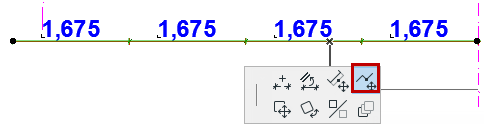
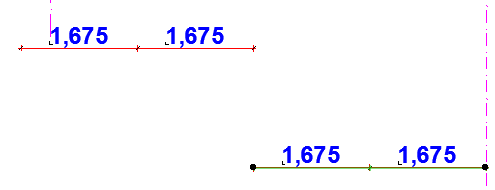

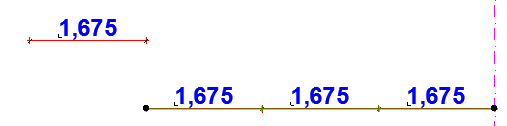
Split Dimension Line
This command is available on an internal point of a linear dimension line.

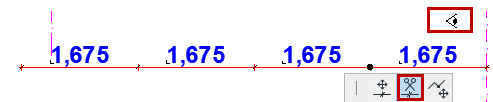

Merge Dimension Chains
To merge two separate dimension chains (whether straight or curved), do one of the following:
- Select one of the chains (click at a “free spot” on the dimension line), then Ctrl/Cmd-click on the other dimension chain.
- Select one of the chains (click at a “free spot” on the dimension
line), bring up the Insert/Merge Dimension Point command from the Pet Palette, then
click on the other dimension chain to merge it.


Drag/Rotate/Mirror Dimension Chain
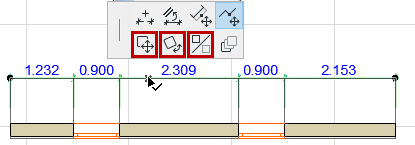
- Select the entire dimension chain (click at a “free spot” on the dimension line).
- Use the Drag, Rotate or Mirror command from the pet palette.
Note:
- You can drag or rotate a dimension chain as a whole. Units or points cannot be dragged, rotated or mirrored away from the parent dimension chain.
- Associative Dimension chains can only be dragged along the direction of their witness lines.
- After a rotation, all the reference points will automatically be redimensioned and projected along the new direction.
Align Dimension Line to an Edge
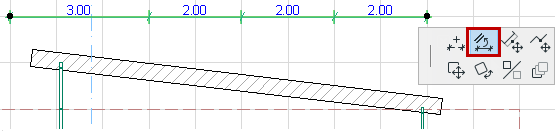
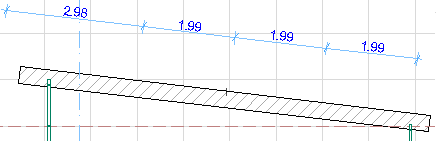
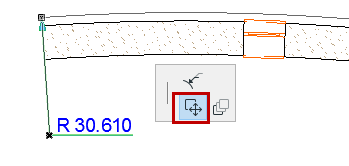
Stretch or Move Radial Dimension
You can adjust a placed radial dimension with the aid of the pet palette:
Use the Stretch Radial Dimension icon to stretch the dimension.
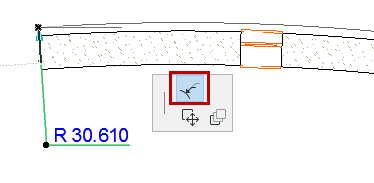
Use the Move Radial Dimension icon to move it.