Run Collision Detection
- Go to the Floor Plan or 3D Window.
- Go to Design > Model Check > Collision Detection.
- In the dialog box, define criteria for the two groups of 3D
elements that you want to check.
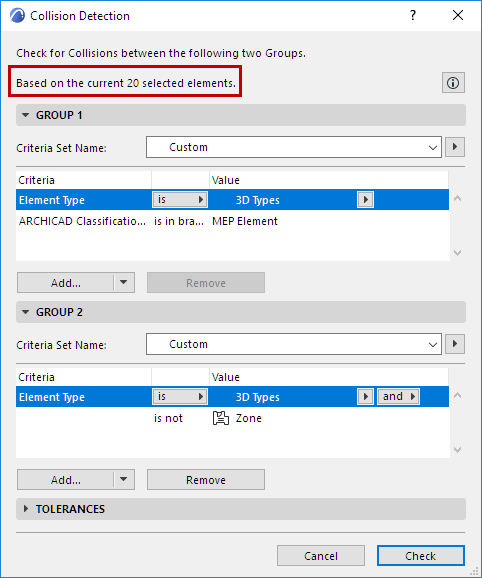
- If any elements are selected, Collision Detection will
check only selected elements! See the top of the dialog for feedback on any
current selection.
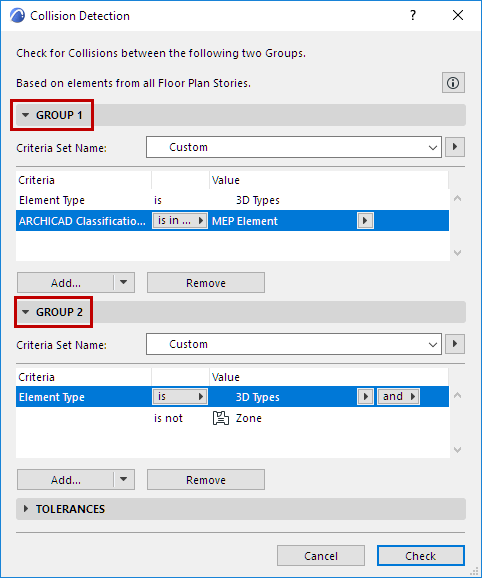
See Define Collision Groups for more information.
- If any elements are selected, Collision Detection will
check only selected elements! See the top of the dialog for feedback on any
current selection.
- Set Surface and/or Volume Tolerance values as needed.
See Set Volume/Surface Tolerances for more information.
- Press Check to run Collision Detection.
- The Model Check Report opens to show results.
Collisions-type problems are listed as such in the Report. Click Info to see the
number of Collisions.
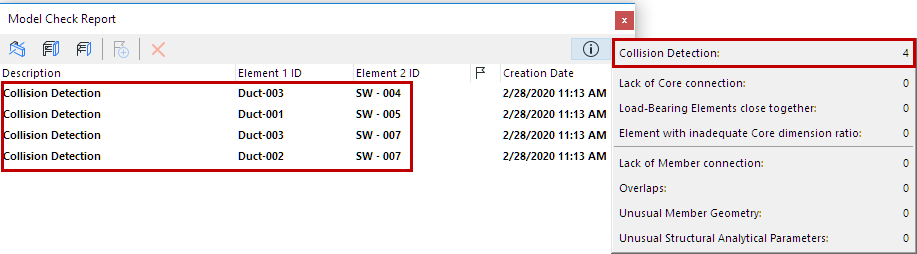
As with other problems listed in the Model Check Report, you can view the related elements in the model and create Issues.
See Model Check Report .
Surface Criteria in Graphic Override Rules and Collision Detection