Use Model Compare to easily compare and visualize changes between two
models. Changes are identified based on “new”, “modified”, and “deleted” 3D elements. 2D
elements are not considered.
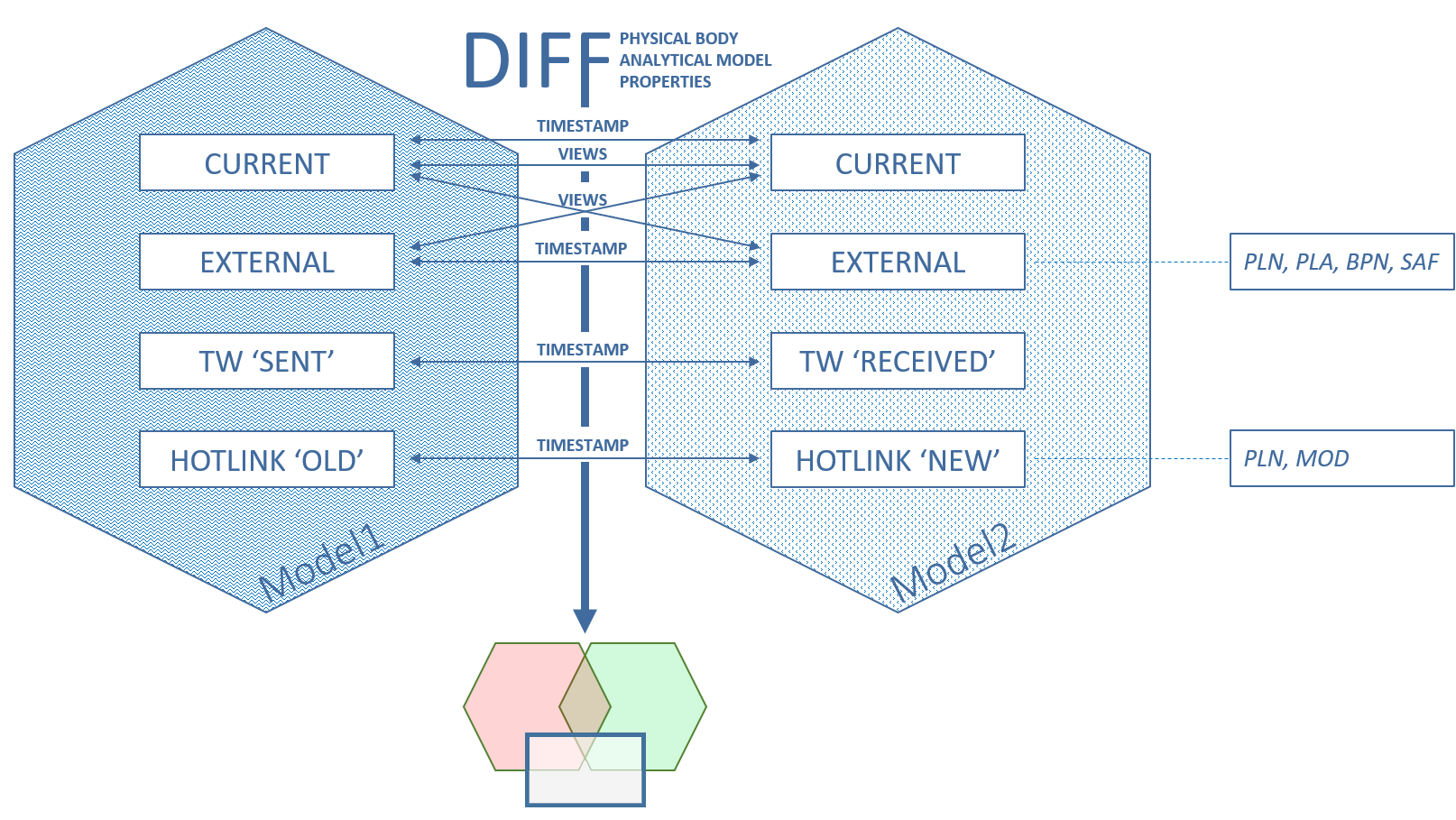
Model Compare compares 3D views from any two models, which can include:
Current physical or structural
analytical model (even two different timestamp versions of the same current
model)
External file (PLN, PLA, or
SAF)
Teamwork model: Compare the two versions before and after Receive
Changes
Current model: Compare the two versions before and after Hotlink updateFigure 1. Model Compare offers numerous options to visualize changes between two groups of 3D
models
In each workflow, the Compare command generates a view of the two compared
models in a separate “Model Compare” window.
Use the Model Compare Palette to filter, list, and zoom to changes, and to
see which parameters have changed.
You can create an Issue out of any of the changes.
Note:
The Model Compare function compares two models based on a fixed
timestamp for each. Therefore, if you later change either model (e.g. modify view setting,
delete an element), the previous Model Compare results cannot be updated. Run the Model
Compare again, based on the updated models.
Model Compares of large and complex projects may take a while, but the
process runs in the background. You can continue to work uninterrupted on the current
model.
The Model Compare tab gives you feedback while the process is underway
and also when it is finished.
You can run multiple Model Compare processes simultaneously.