Model Compare: Review the Changes
After the Compare command is run, the Model Compare window displays the model with colored highlights and other feedback on changes.
The Model Compare palette is docked at the left edge of the window.
Set Visibility of Compared Models
List of Model Changes
By default, the Model Changes list shows all changed elements, grouped by Status (Modified), Model 1 Only, and Model 2 Only.
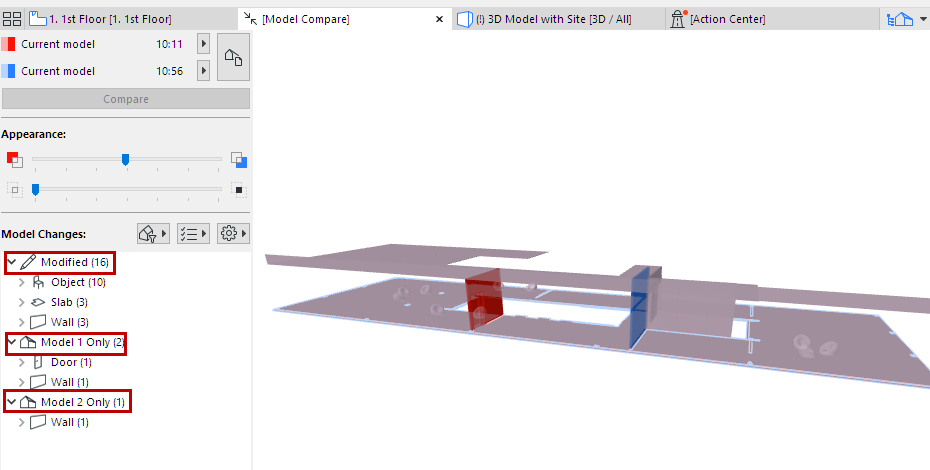
To customize this list, use the filter and settings buttons.
Select Changed Elements
Select any item from the Model Changes list to select the corresponding element in the Model Compare window, and vice versa.
Select Elements By Group
Select a parent item in the list to select all its member elements in the Model Compare window.
Show Changed Element in Model
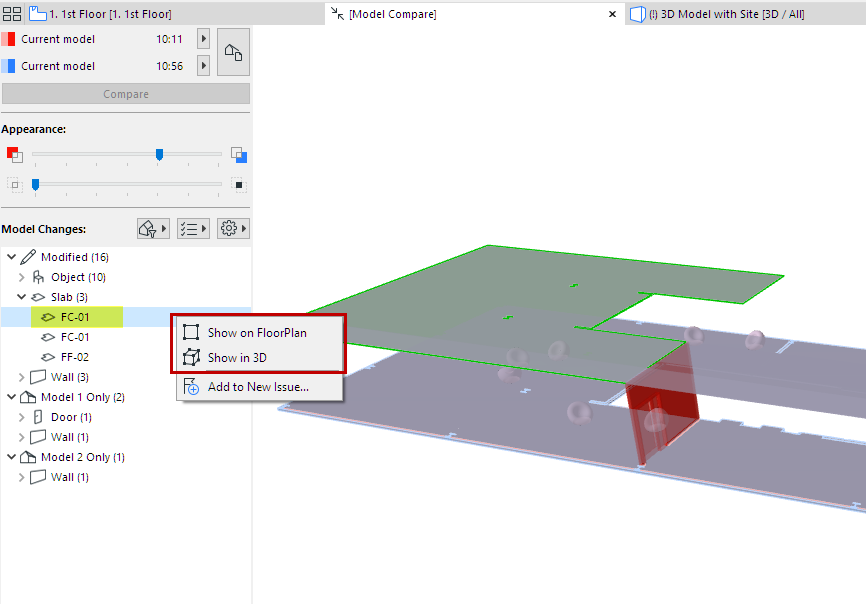
For a selected item in the Model Changes list: Use the context menu commands to Show on Floor Plan or Show in 3D.
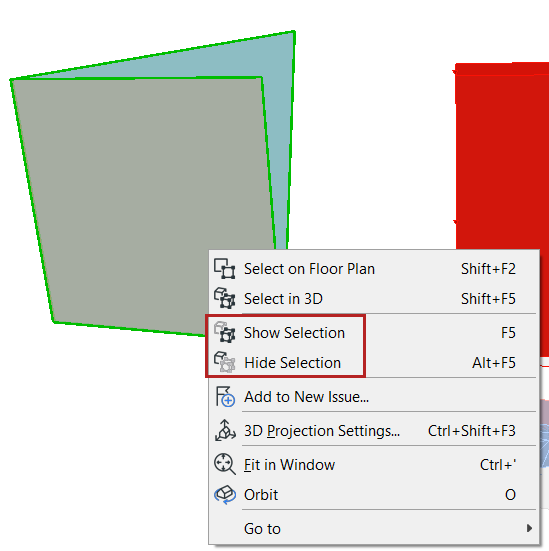
Show or hide selection
For a selected element in the Model Compare window:
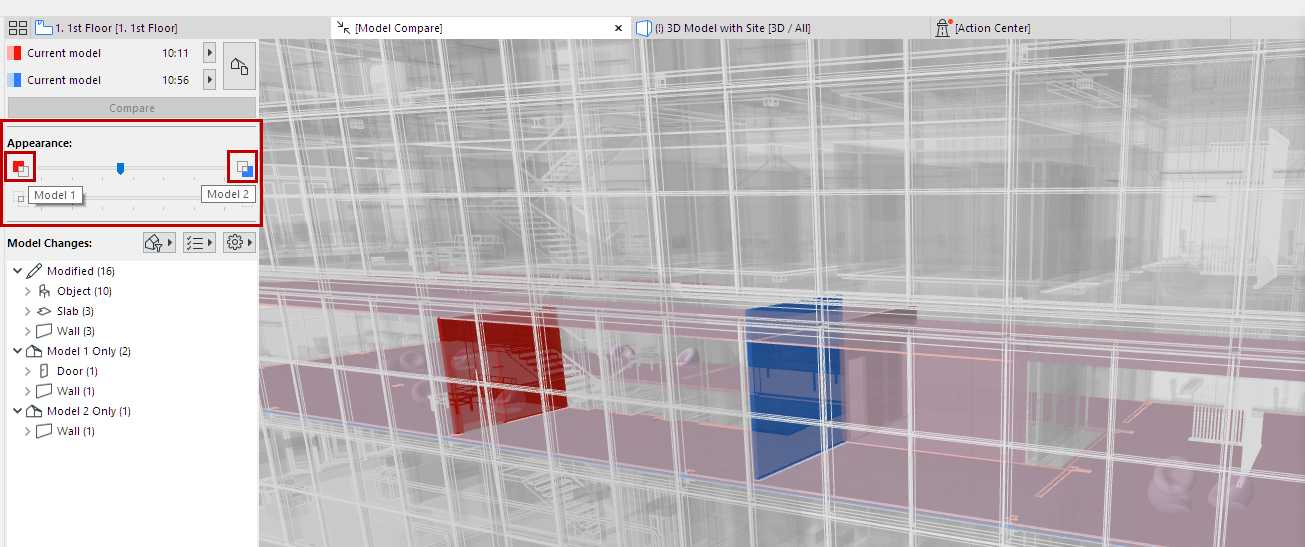
Set Visibility of Compared Models
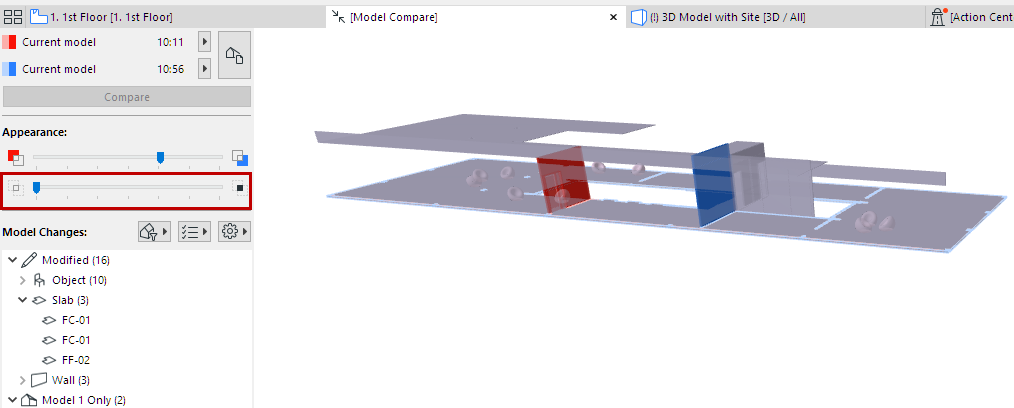
The “Model 1 only” and “Model 2 only” elements are shown in their respective colors.
In this example:
- The red wall is “Model 1 only”, because it was deleted.
- The blue wall is “Model 2 only”, because it is a new element.
- The slabs and chair objects are shown in a blended (purple) color, because they have been modified, while remaining in their original position.
See also
In the Appearance section of the Model Compare palette:
Changes By Parameter Set
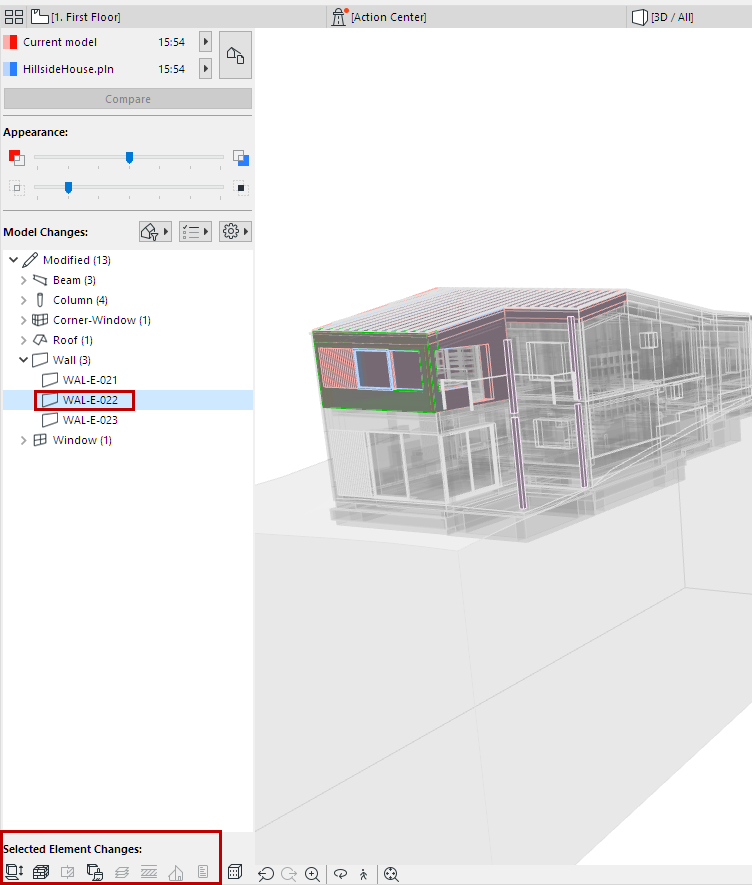
For a selected item in the Model Changes list:
The “Selected Element Changes” icons indicate which parameters have changed. (These parameter sets are the same as in the “Checklist” used to filter the change list in the Model Compare window.)
Detailed Changes in Structural Model
If the Model Compare involves a Structural Analytical view, additional change details are available.
See Compare Structural Analytical Models.