Place Surface Load
Surface Loads can be placed over the whole 2D Member surface, or any part of it.
- Activate the Structural Surface Load tool
- In Tool Settings or Info Box: Select a Load Case for your new Load element (see Load Tool Settings)
- Choose a geometry method:
- Entire Member: A single click places a Surface Load over the entire 2D Member. This Surface Load is associative to the Member edges.
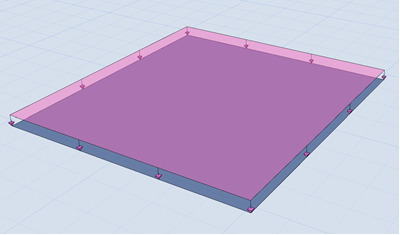
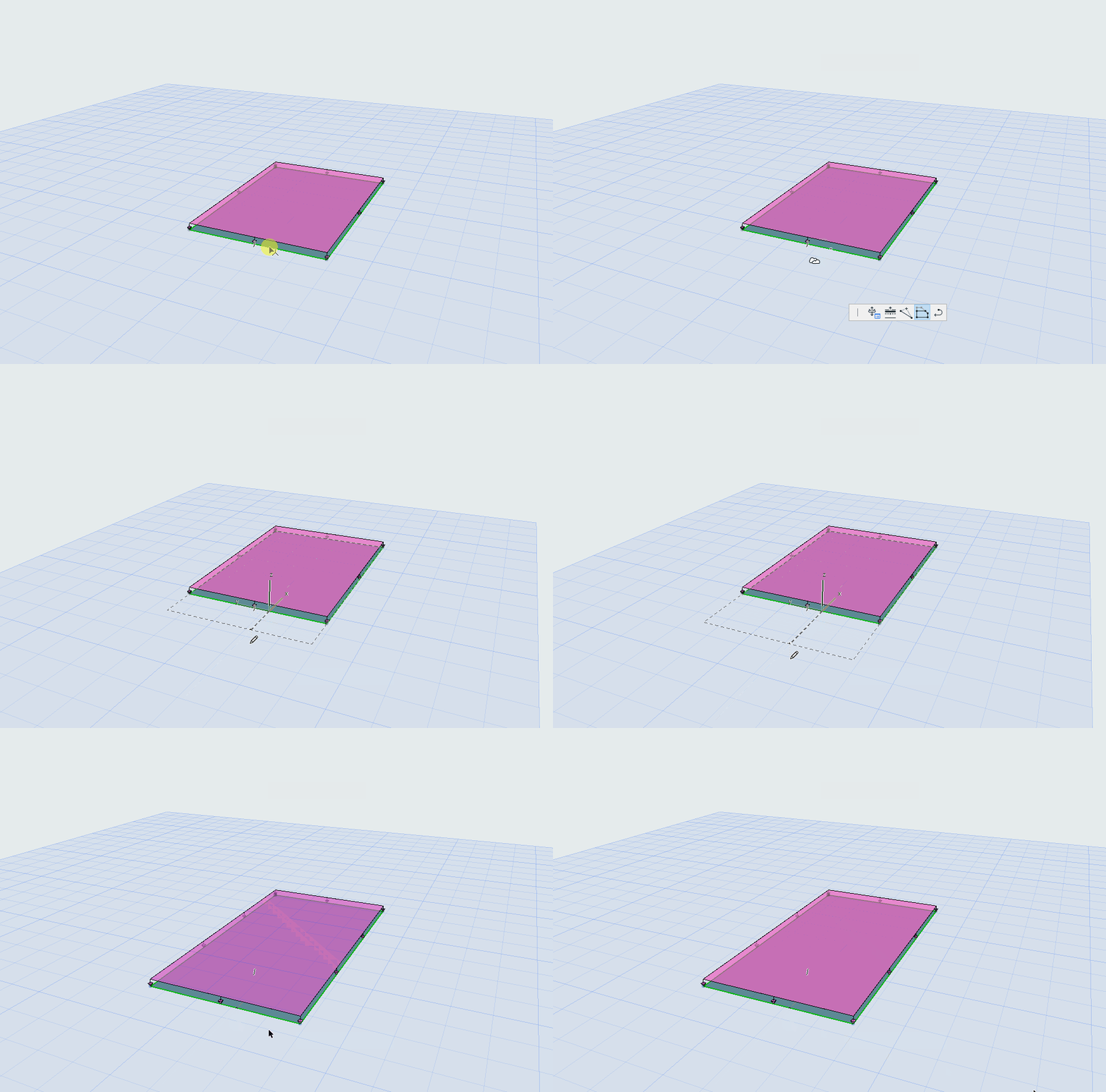
Associative Surface Load (“Entire Member” geometry method)
- Rectangle: Create a rectangle Load by defining two corners with two clicks, over any part of the 2D Member. (For example, to represent the load of MEP machinery.) This Surface Load is not associative to Member edges. It moves with the Member during a drag, but will not follow any changes in the edge geometry.
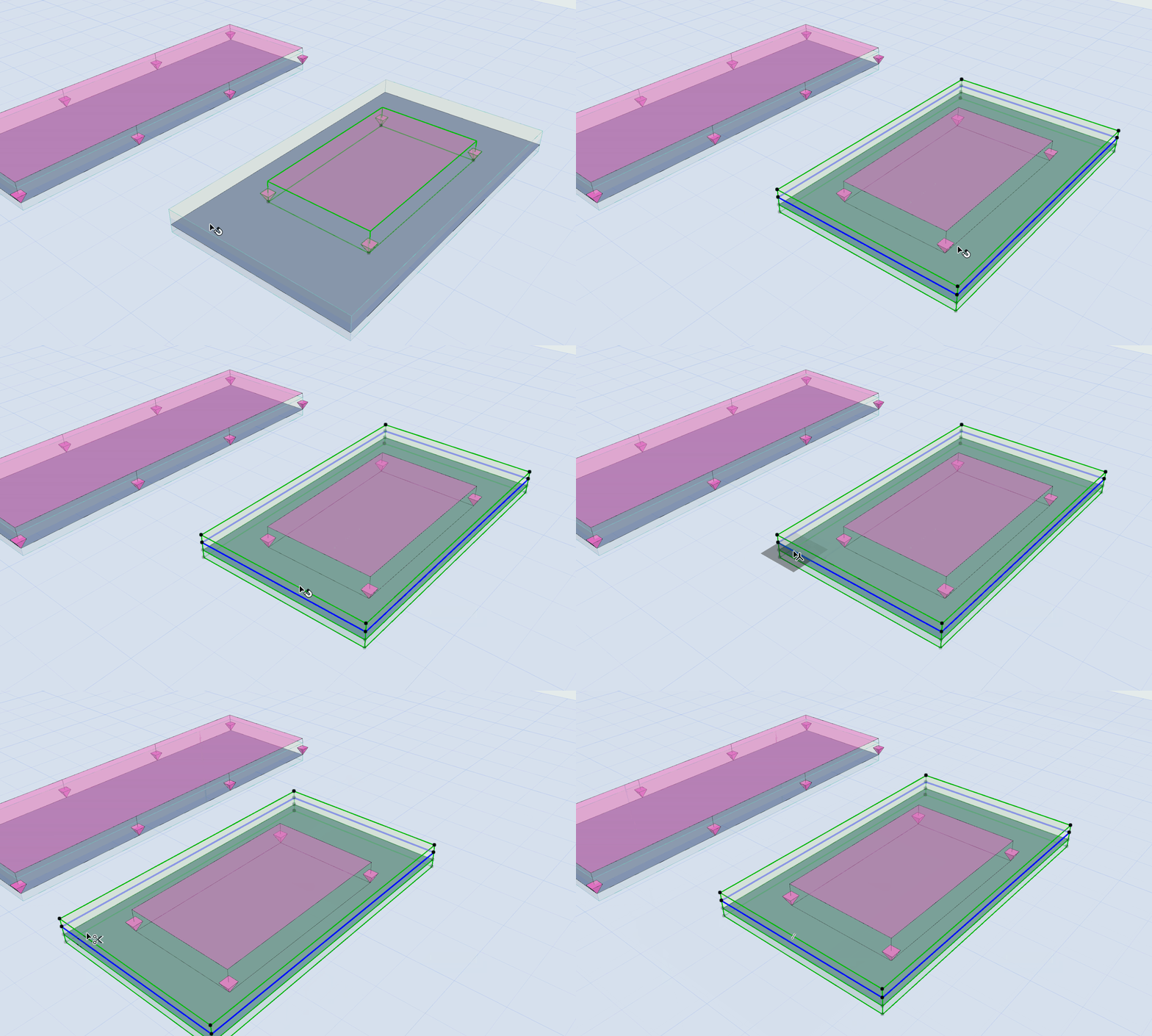
Rectangle Surface Load: Non-associative
You can also generate live loads automatically on zones.