Offset 1D to 2D
Offset always occurs in one direction (one to the other): The adjusting Members will be offset to their targets; the targeted Members will remain unchanged.
|
|
OFFSET 1D MEMBER |
|
Offset 1D to 2D  |
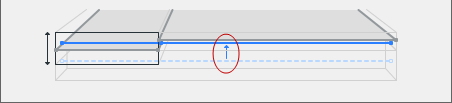 |
This adjuster offsets the 1D Member to the nearest edge of the target 2D Member (not the nearest point) - provided that the target edge is still within the “Max. offset” range
1D to 2D Offset Options
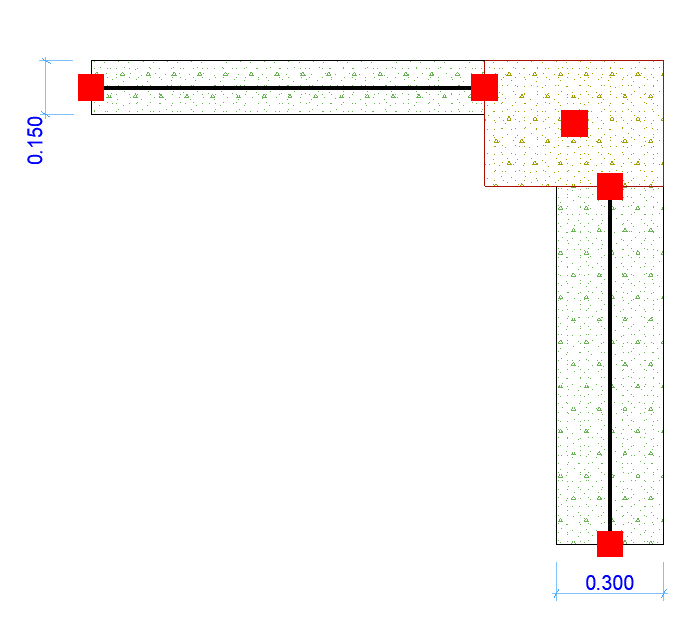
Let’s use an example of 2 walls connected to a column. Each wall has a different core thickness and is placed with external face aligned with the column.
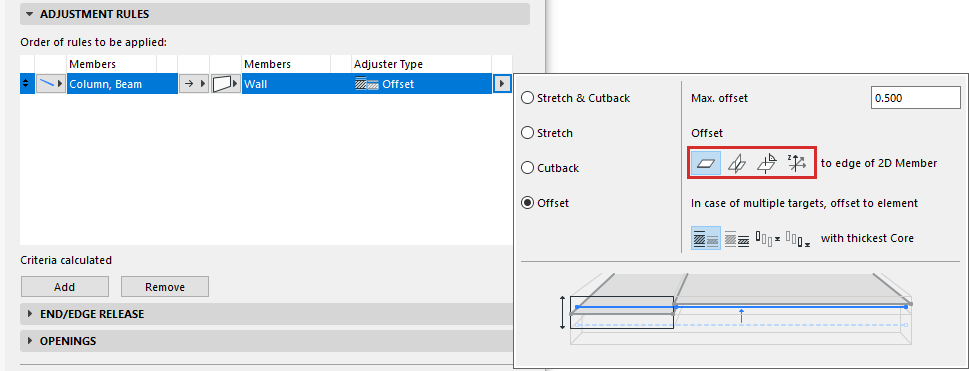
Click the arrow of the Offset Adjuster Type to choose options for 1D Offset to 2D.
Set the maximum allowed offset distance.
Choose one of the four offset logic options.
Each option is illustrated in the table below.
|
Offset 1D to 2D |
To Edge of 2D Member 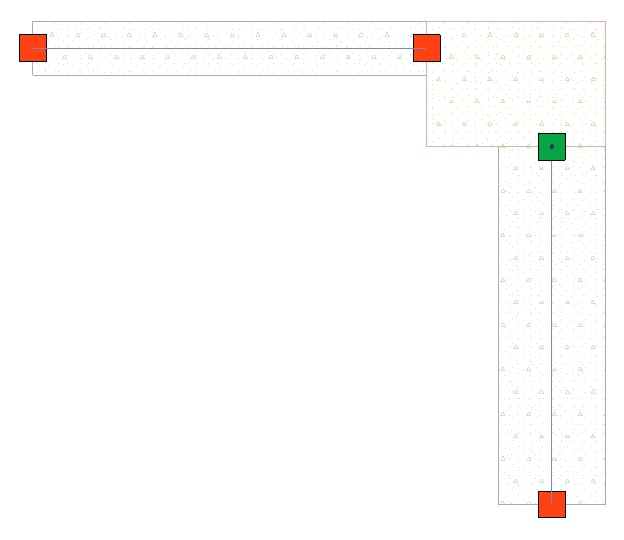 |
|
Offset 1D to 2D |
To Edge of 2D Member 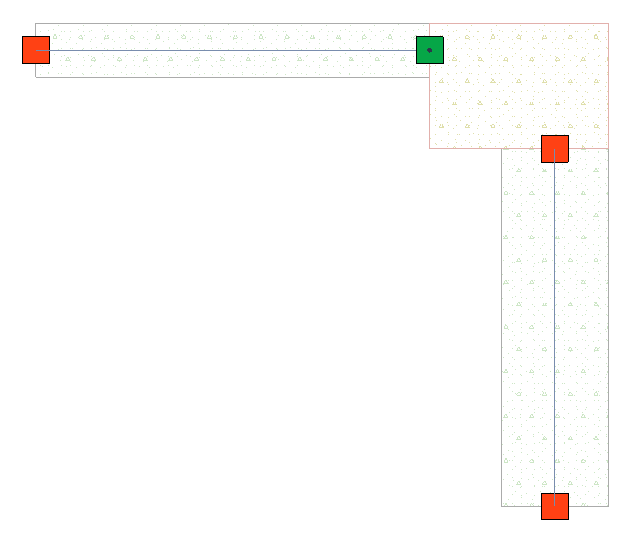 |
|
Offset 1D to 2D |
To Intersection of 2D Members 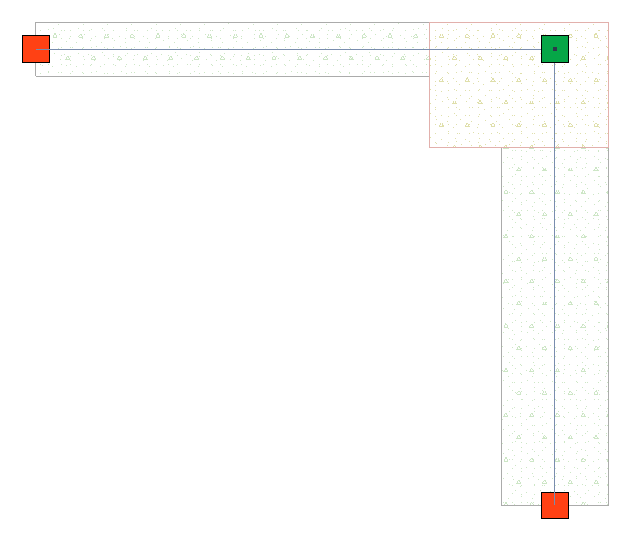 |
|
Offset 1D to 2D |
Perpendicular to 2D Member 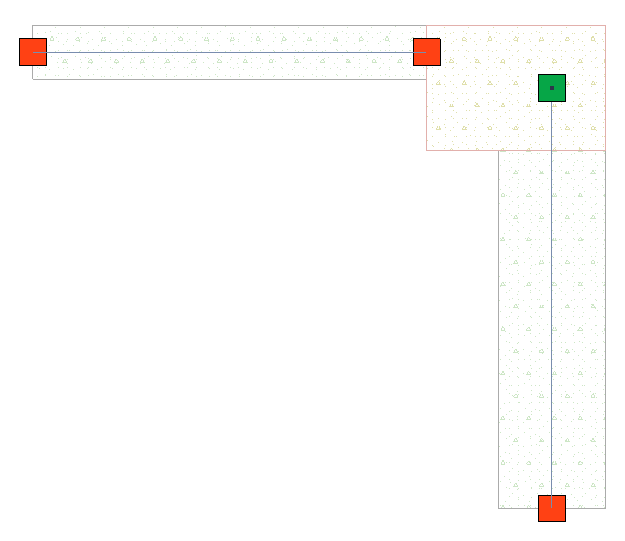 |
|
Offset 1D to 2D |
Perpendicular to 2D Member 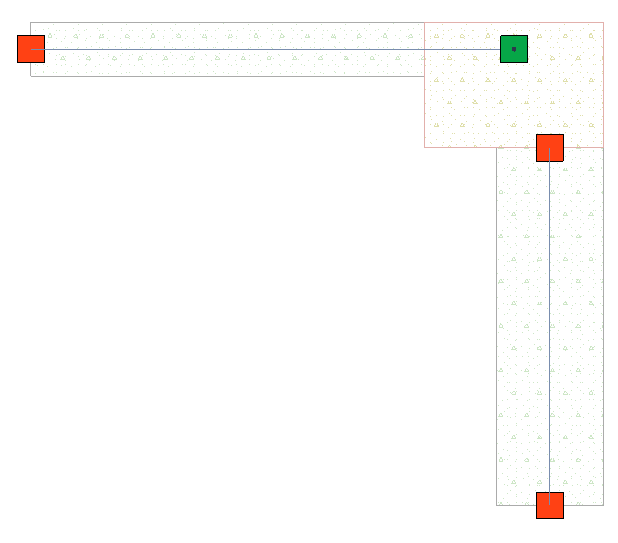 |
Global Z direction only
Check this if the 1D Member should only be offset in the global Z direction. Offsets in other directions will not be applied.