Combine the mood board generated with your design
-
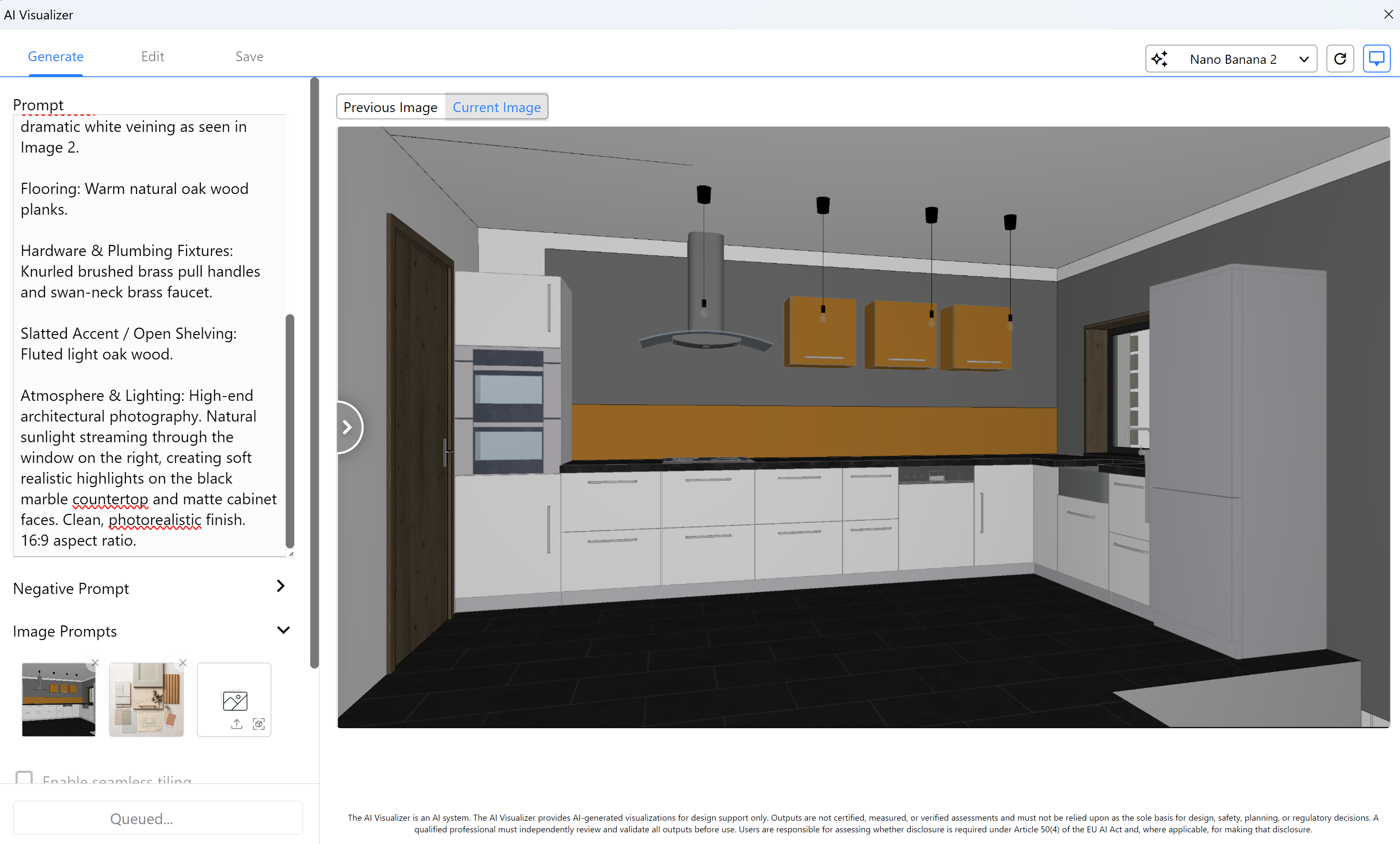
Take a screenshot from your 3D model
-
Type your prompt. In this example:
“Structural Anchor (Image 1): Maintain the exact perspective, camera height, cabinet layout, window location, island shape, and structural geometry from Image 1. Do not move, add, or alter any architectural features or furniture positions.
Material Transfer (Image 2): Render the kitchen by applying the exact material palette from Image 2:
- Lower and Full-Height Cabinets: Smooth matte olive green finish matching Image 2.
- Kitchen Island Countertop & Backsplash: Black marble with dramatic white veining as seen in Image 2.
- Flooring: Warm natural oak wood planks.
- Hardware & Plumbing Fixtures: Knurled brushed brass pull handles and swan-neck brass faucet.
- Slatted Accent / Open Shelving: Fluted light oak wood.
Atmosphere & Lighting: High-end architectural photography. Natural sunlight streaming through the window on the left, creating soft realistic highlights on the black marble countertop and matte cabinet faces. Clean, photorealistic finish.”
-
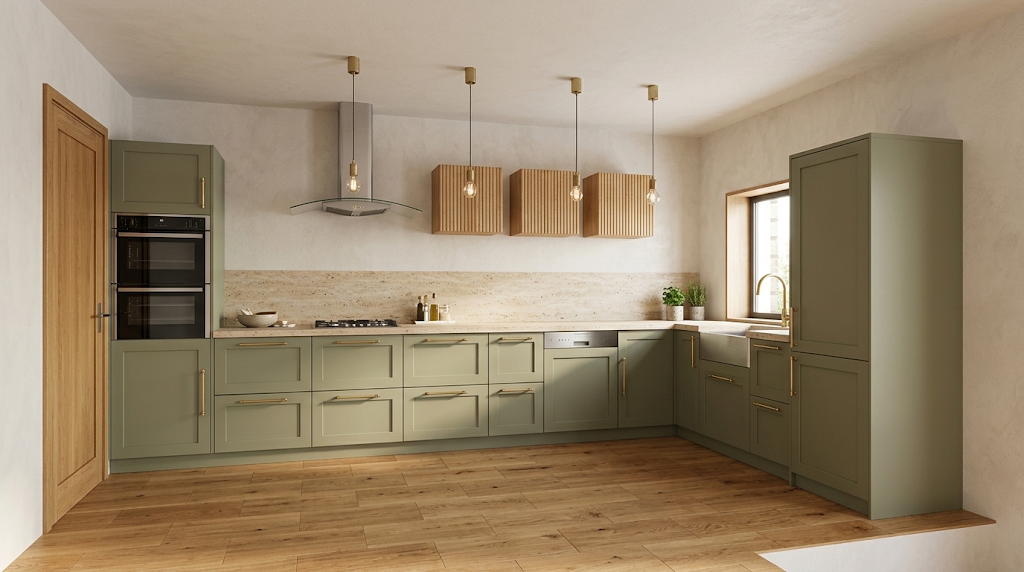
Generated Kitchen design along with the applied mood board: