AI Visualizer
AI Visualizer helps you turn sketches, models, and ideas into rich visual output directly from Archicad. You can generate images, textures, isolated objects, and high‑resolution visuals with simple prompts, so you can explore design directions and communicate concepts earlier in the process.
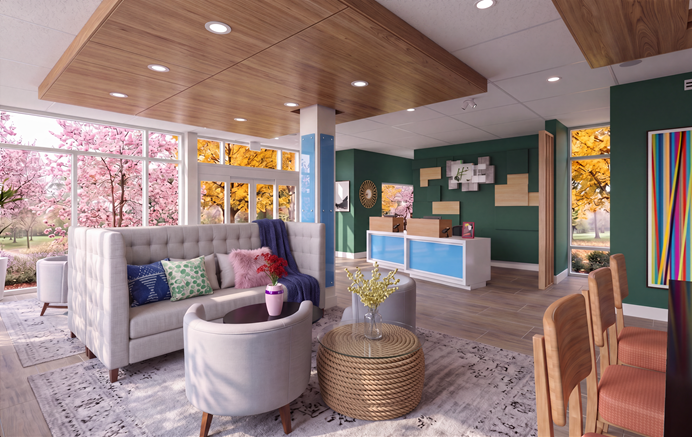
Artificial intelligence can be a valuable tool when you want to quickly explore a variety of styles, colors, shapes, backgrounds, and obtain general inspiration during the design process. You can base the generated images on an existing drawing, trying out new looks more quickly than you could by changing the model's textures, lighting, and rendering settings. Alternatively, you can provide only a text prompt to generate a unique image that's not based on any existing drawing, allowing you to explore concepts quickly. With the AI Visualizer, you can generate multiple images in minutes.
Once you have obtained an image, you could consider using it not just for design inspiration or client presentations, but also as the basis of a texture, image prop, plant image, image background, or to populate designs with people or items to add realistic touches. You can also inpaint an image to add details, modify, or remove details.
To generate AI images:
Use Window > Palettes > AI Visualizer to open the palette.
The web palette can remain open while you work, which allows you to change the images used as the source for image generation.- From the dropdown at top right: Select an AI model to generate and edit the image. Nano
Banana models support text-to-image modeling, image editing using text, image prompts and/or
masks, and upscaling to 4K resolution.
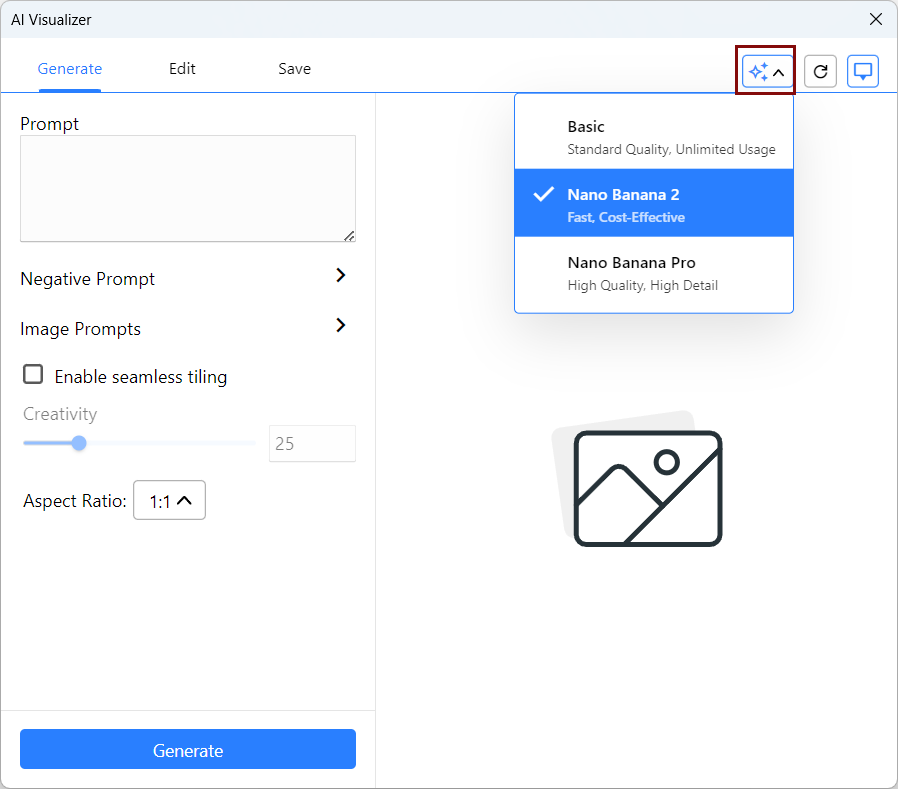
- On the Generate and Edit tabs, complete a series of image generation and editing operations.
- On the Save tab, output the image in the needed format.
