Sunlight Settings
Sunlight Settings is accessible from:
- Context menu of a 3D view listed in the Navigator
- Camera Tool Settings: Click the Sunlight... button
- View > 3D View Options > 3D Projection Settings: Click the Sunlight... button
Sunlight Settings are relevant for:
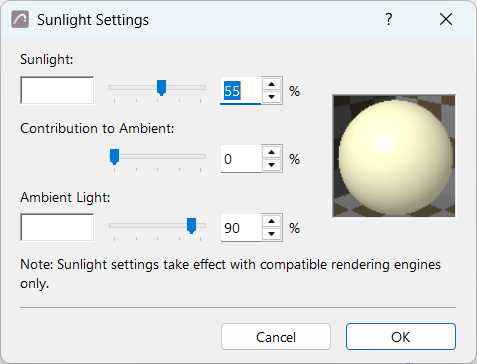
Set light parameters
Set parameters for each component of the light: Sunlight (directional) and Ambient Light.
- Sunlight is the directional light falling on the project.
- Sunlight color: Click the color sample box to choose a Sunlight color.
-
Sunlight color intensity: Choose between 0 and 100%. This intensity value multiplies the brightness component of the sunlight color.
- Contribution to ambient: Choose a percentage for how much of the Sunlight should be represented in non-directional, ambient light.
- Ambient light is indirect light that brightens the parts of the model that are in direct shadow.
Sunlight Settings for Physically Based Rendering
The Physically Based Renderer for 3D views is available as an experimental feature.
Physically based renderer in 3D Window - Experimental featureSunlight Settings are available, but some controls work a bit differently.
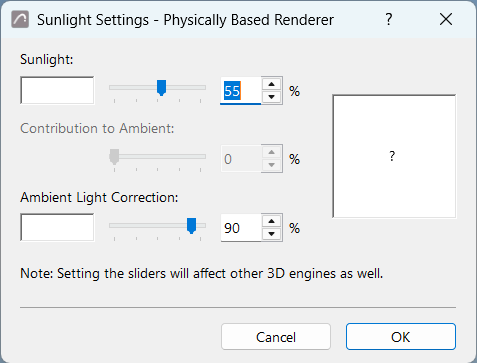
| Control / behavior | Physically Based Renderer | Notes |
|---|---|---|
| Sunlight | Not available |
Sunlight color is derived from the Sun position set in 3D Projection Settings and from the Project Location. |
| Sunlight color intensity (slider) |
Mitigates Sun illuminance as if the sky were “cloudy” (0% looks “rainy”) |
-- |
| Contribution to ambient | Not available | -- |
| Ambient light correction (slider) |
Corrects the color of shadowed areas, which would otherwise have a bluish tint due to the physical sky. |
100% means that the diffuse illuminance is white (instead of blue, which is at 0%). Useful for indoor scenes. |
| Ambient light color | Not available | -- |
| External scenes - Light threshold examples | |||
|---|---|---|---|
|
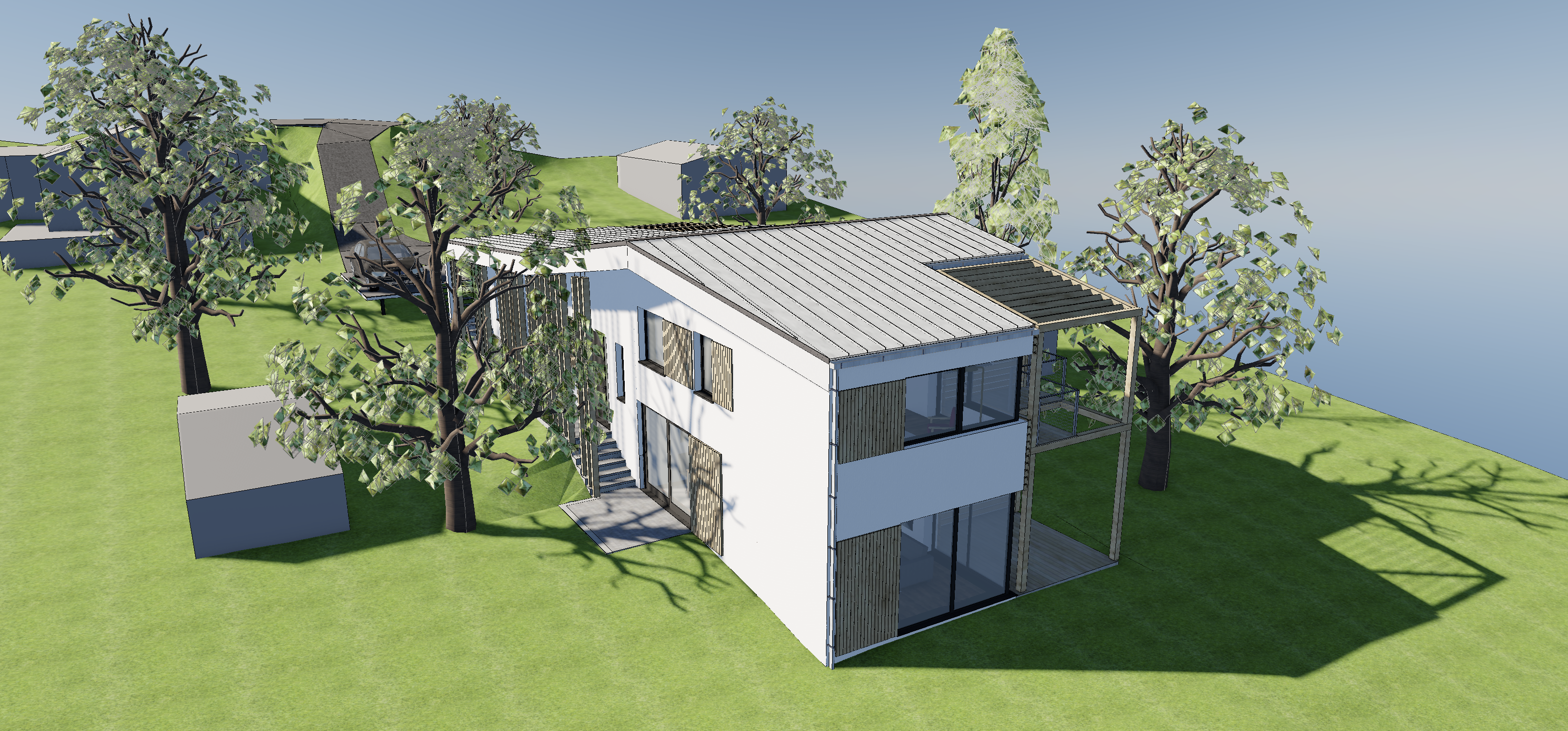
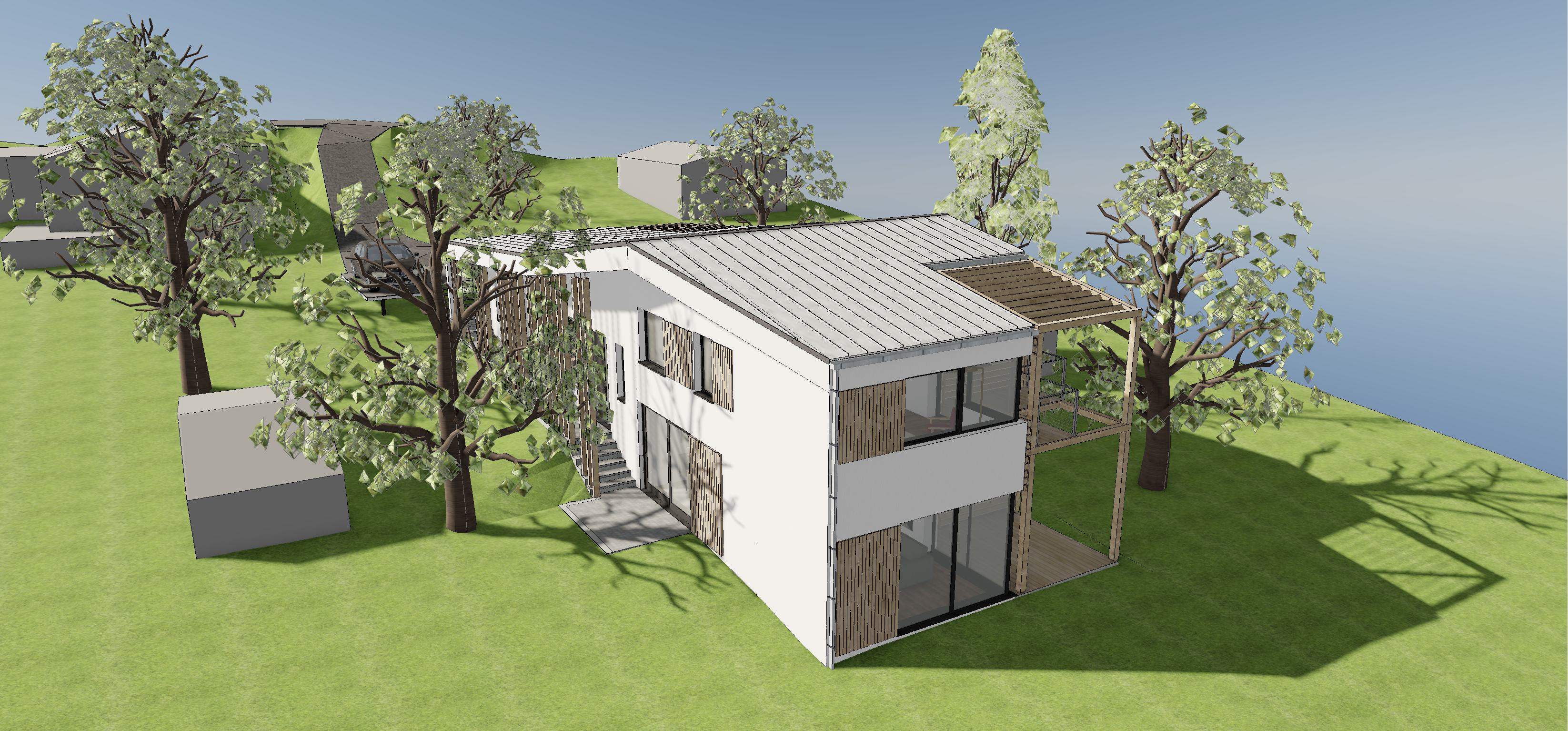
Sunlight=100% Ambient=0% Blue shadows |
Sunlight=100% Ambient=100% “Mediterranean sunshine” |
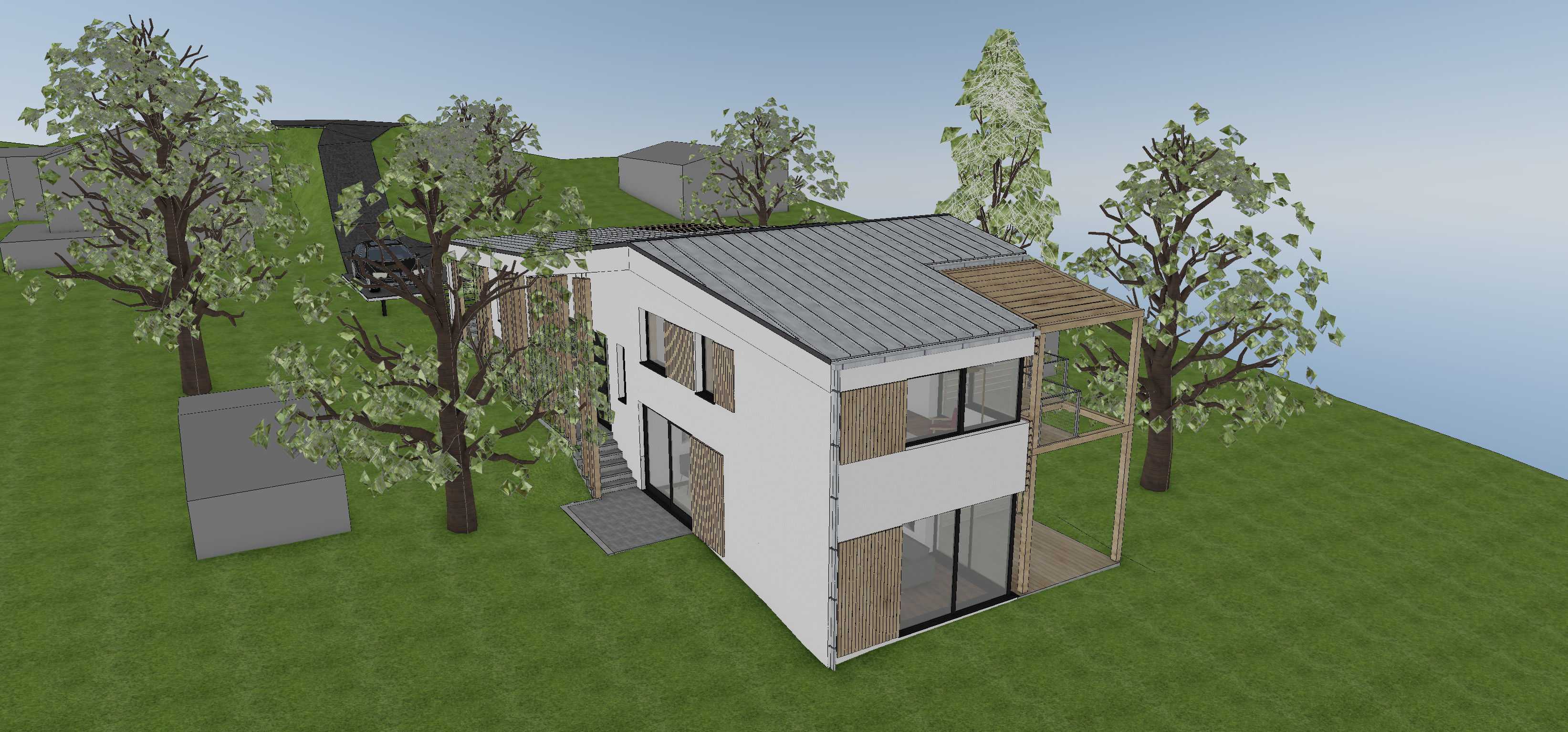
Sunlight=0% Ambient=100% No shadows, “Cloudy day” |
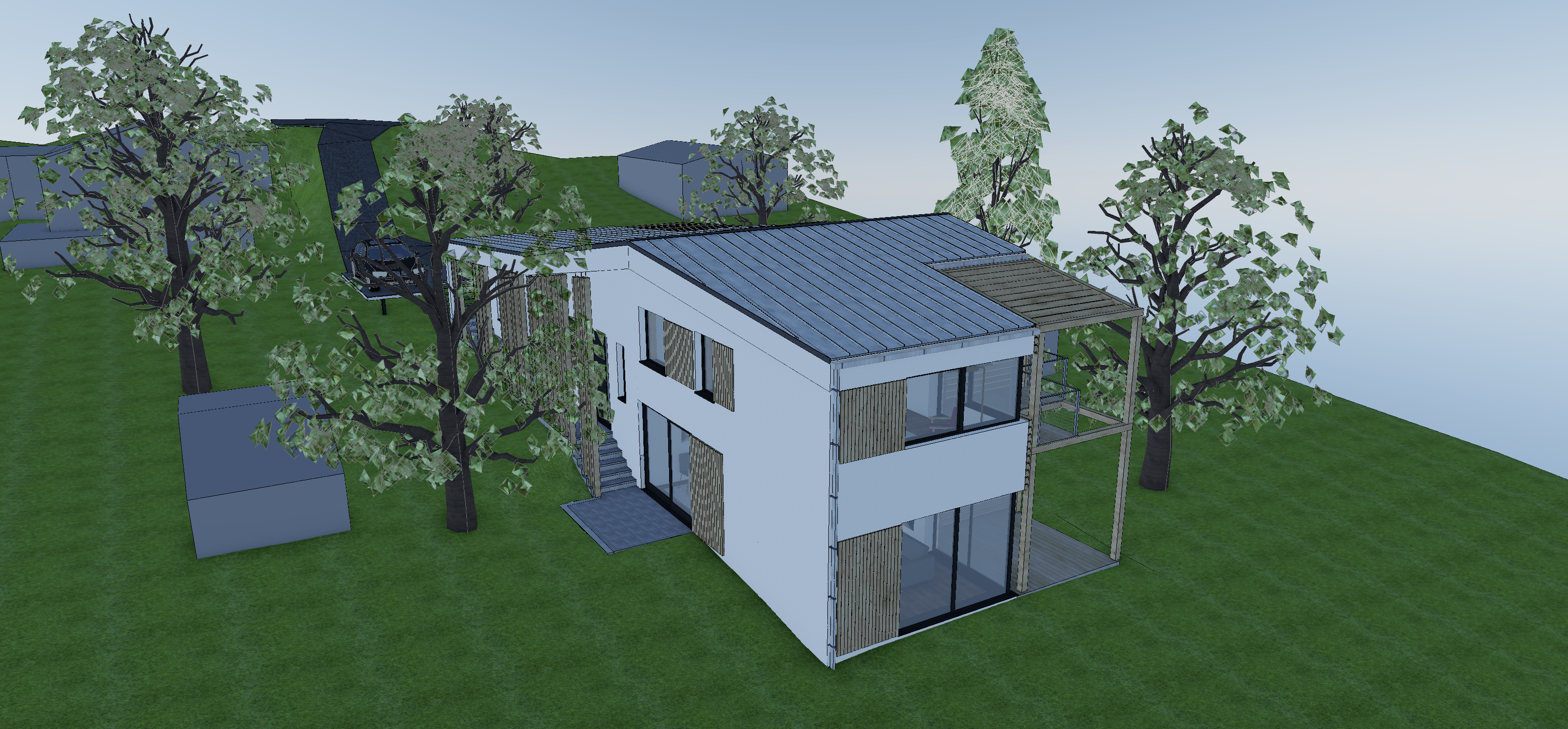
Sunlight=0% Ambient=0% No shadows, “Rainy day” |
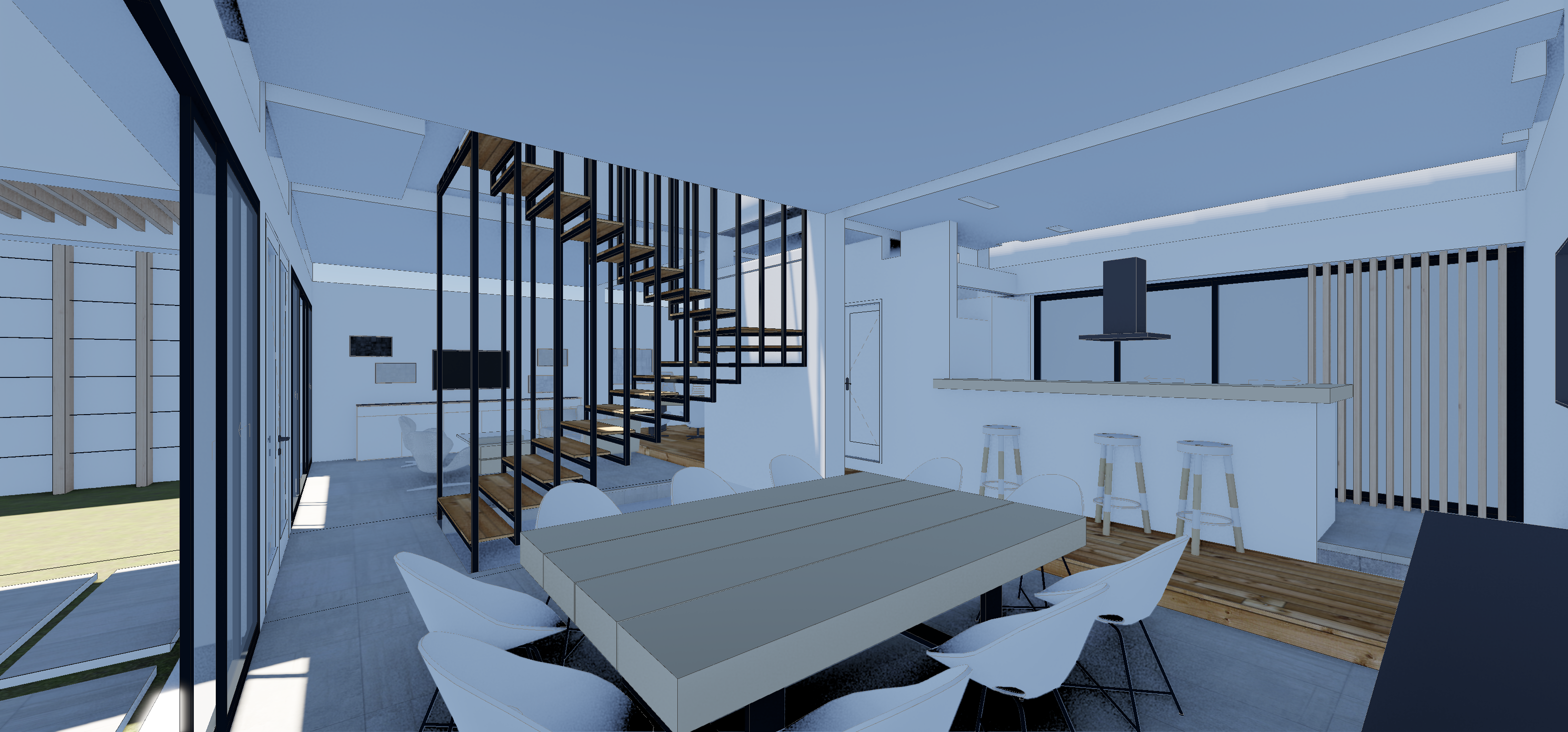
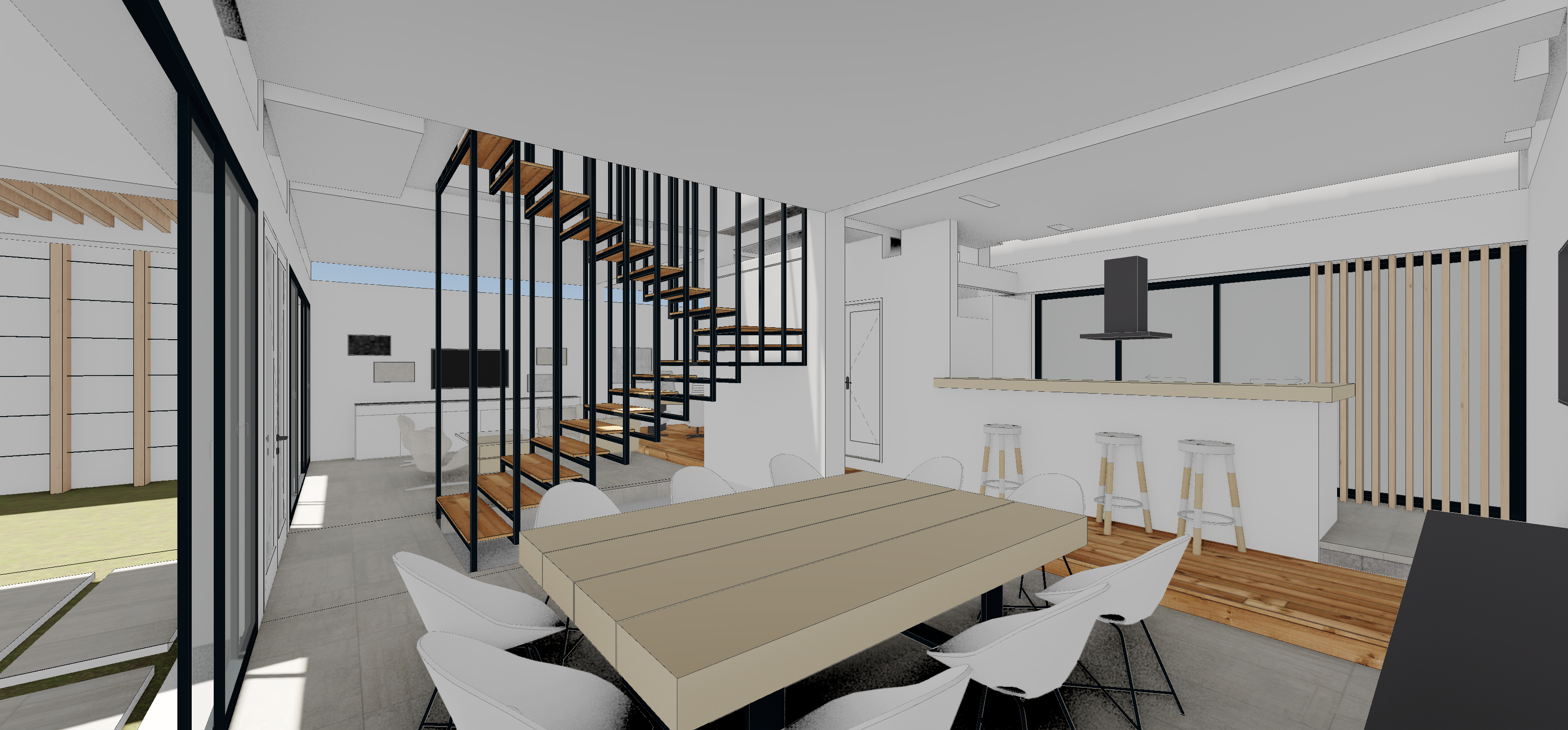
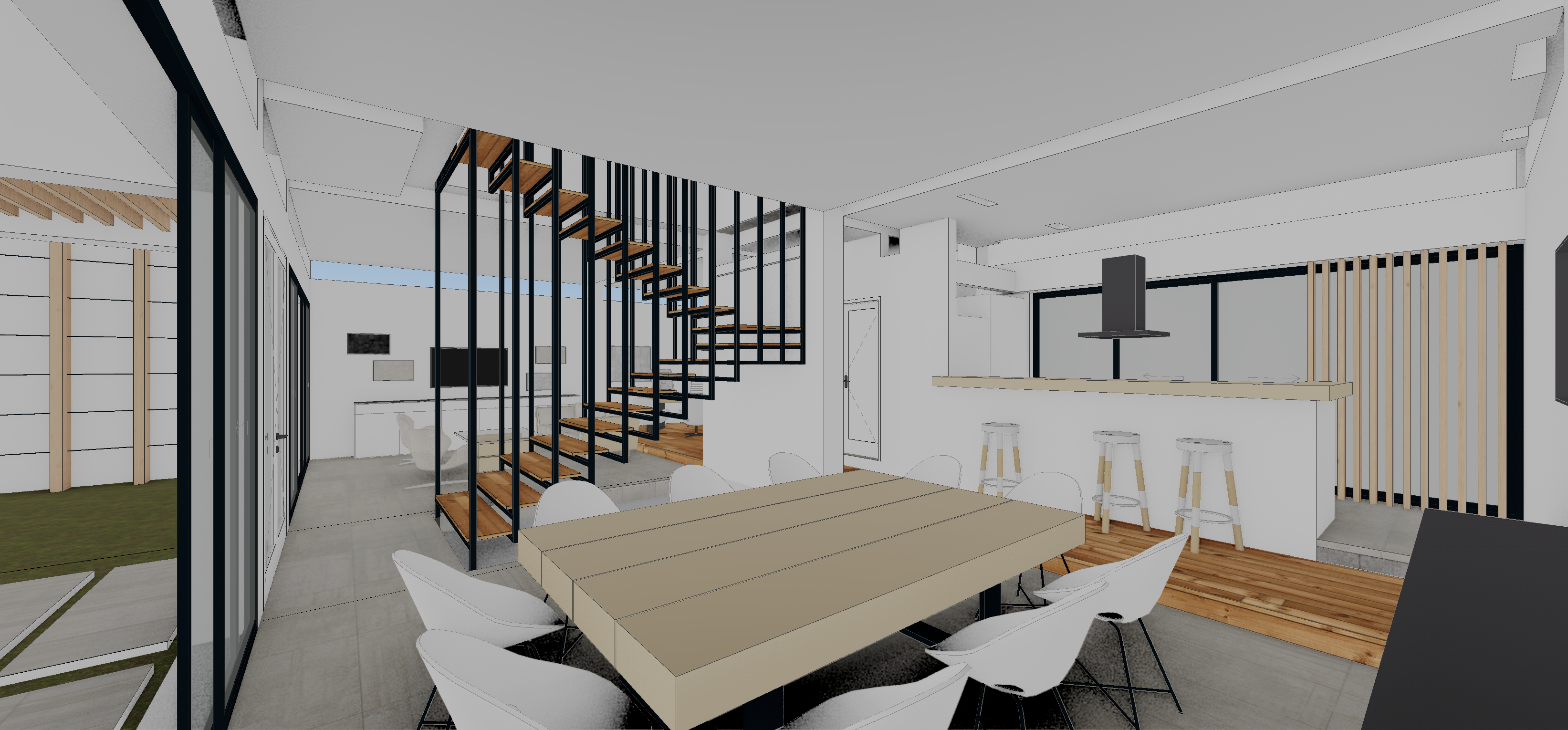
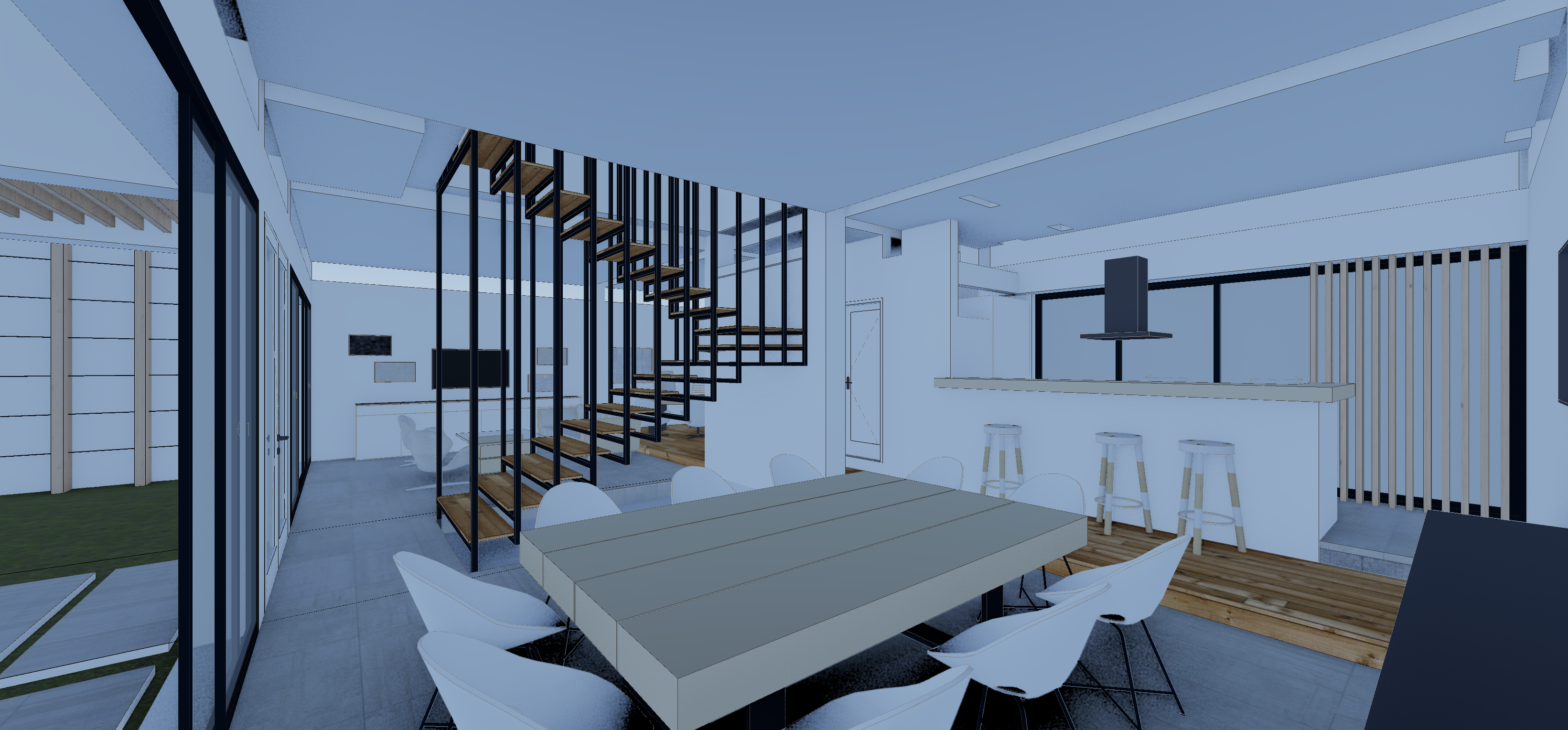
| Internal scenes - Light threshold examples | Internal scenes - Light threshold examples | Internal scenes - Light threshold examples | Internal scenes - Light threshold examples |
| Blue shadows | Correct shadows, no tint | No shadows | No shadows, blue tint |