Manage Case Exceptions
The Case Exception Manager defines words, abbreviations, and character sequences that keep their own capitalization, independent of the case standard selected in Change case to.
Open the manager from ProKit > Annotate > Manage Case Standards, or from the Annotation Replacement dialog by checking With exceptions and clicking Edit Rules.
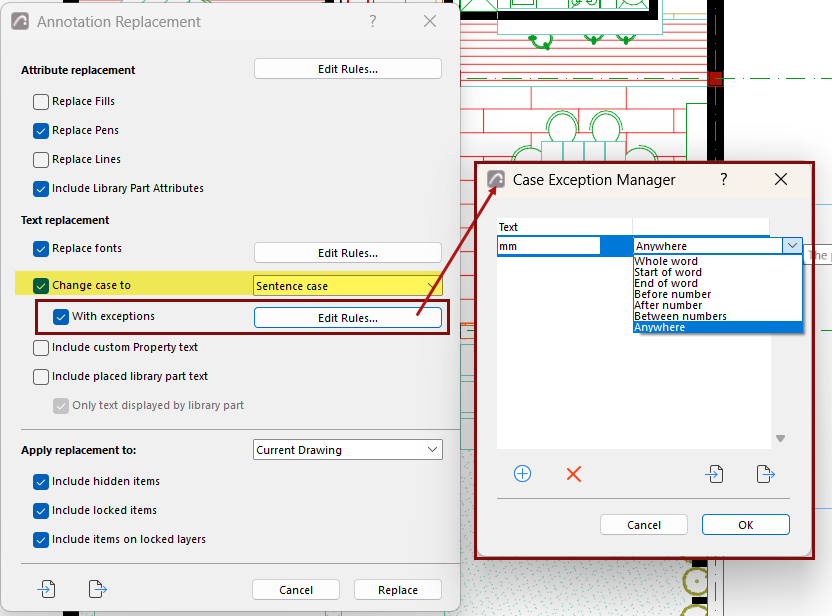
Define an exception
Click the plus button to add a row, then complete both columns:
- Text: The exact text string that needs an exception
- Context: Specify more precisely the context in which this string should be
considered an exception. Choose one:
- Whole word: String forms an entire word
- Start of word: String appears at the beginning of a word
- End of word: String appears at the end of a word
- Before number: String immediately precedes a number
- After number: String immediately follows a number
- Between numbers: String appears between two numbers
- Anywhere: String is matched wherever it occurs
Examples
- The unit abbreviation
mmmust stay lower case, but a broader match would corrupt any word containing a double m. Since the unit follows a number, set the context to After number. - A proper noun or country code such as
NZkeeps its case as a complete word, so set the context to Whole word - A dimension separator such as
xin "100x200" occurs between numbers, so set the context to Between numbers
Manage exception list
The exception list is stored with the project, and can be exported for use in other projects.
- Click the plus button to insert a new exception
- Select one or more exceptions and click the delete icon to remove them
- Use the import icon to load exceptions from a file
- Use the export icon to save the current list to a file
Case exception files use the .keycase extension.
Imported rules are appended to the current rule list.
Click OK to keep your changes, or Cancel to discard them.