Font Replacement Manager
Define rules to replace fonts used in the project. This is the usual way to resolve the many near-duplicate fonts that accumulate in files received from outside the office.
- ProKit > Annotate > Manage Font Replacements
- from the Annotation Replacement dialog: click Edit Rules next to Replace fonts
Define font rules
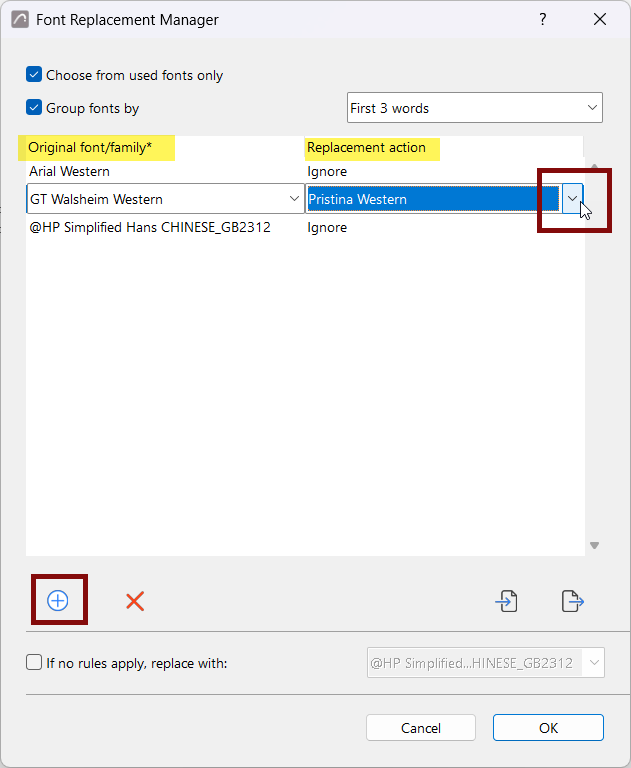
Click the plus button to add a rule, then complete both columns:
- Original font/family: Specify the font or family to find
- Replacement action: Either Ignore, which leaves the font unchanged, or a specific replacement font selected from the list
Filter listed fonts
Choose from used fonts only: Limits the Original font/family chooser to the fonts actually used in the project, rather than the full list of fonts loaded on the operating system.
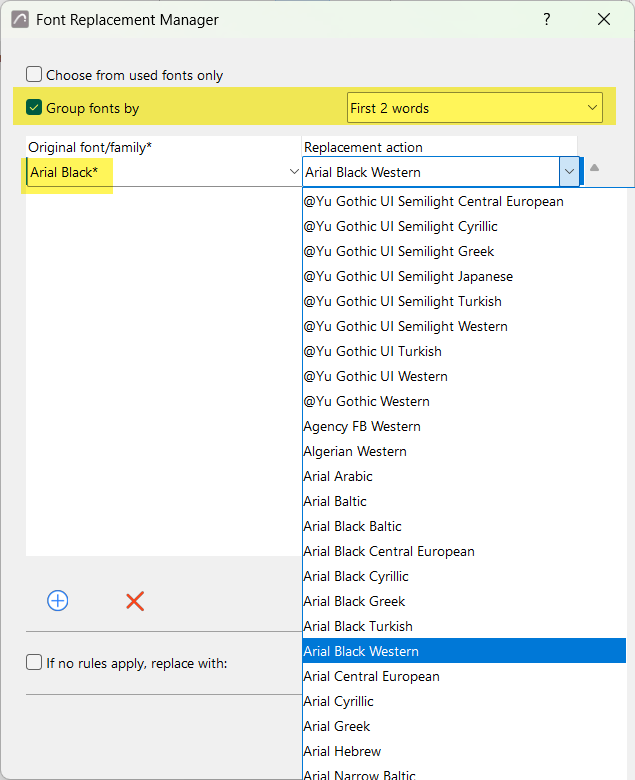
Group fonts by:Choose to list and replace a whole group (family) of fonts based on the font name's first word(s) :
- First word
- First 2 words
- First 3 words
An asterisk in the Original font/family column marks an entry as a group (family) rather than a single font.
In this example, all fonts whose names begin with Arial
Black are replaced by the Arial Black
Western.
Replace all unmapped fonts (optional)
You can also define a general replacement rule for fonts not covered by the rule list. Check If no rules apply, replace with and select a font to define a catch-all. Every font not covered by a specific rule will be replaced by your selected font.
To apply only the specific one-to-one rules, leave this box unchecked.
Manage rules
- Select one or more rules and click the delete icon to remove them
- Use the import icon to load a font replacement rule set saved from another project
- Use the export icon to save the current rule set for reuse in another project.
The import/export files (Font Replacement files) use the
.convertfontextension.
Click OK to keep your changes, or Cancel to discard them.
Manage font rules
The list of font replacement rules is stored with the project, and can be exported for use in other projects.
- Click the plus button to insert a new rule
- Select one or more rules and click the delete icon to remove them
- Use the import icon to load a set of saved font rules
- Use the export icon to save the current list as a file
Font rules files use the .convertfont extension.
Imported rules are appended to the current rule list.
Click OK to keep your changes, or Cancel to discard them.