Invite GSID user to BIMcloud
BIMcloud SaaS with key-based licenses
Use this workflow to invite a new user to BIMcloud, via their Graphisoft ID (GSID). (The user must already have a GSID.)
Open the Users and groups page of BIMcloud Manager
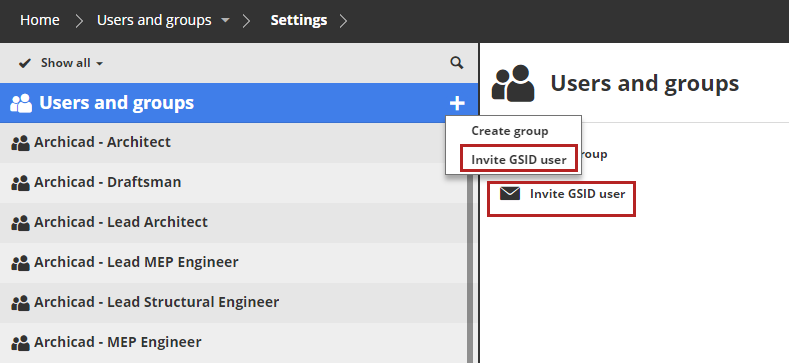
Click Invite GSID user (from the Summary panel or Plus icon (Project Navigator).
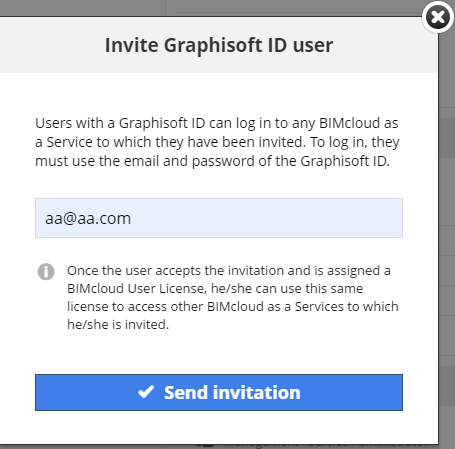
The appearing dialog shows the user’s GSID email.
Note:Each user on the BIMcloud must have a unique GSID email address.
If the entered email is NOT a GSID email address, or is misspelled, click “Connect to GSID” from user's profile, and type a new address
Click Send invitation.
The user receives an email containing a link.
Upon clicking the link: the BIMcloud dialog appears, inviting the user to enter their password, then click Join.
The user sees feedback on the newly joined BIMcloud and their GSID.

Go to BIMcloud opens the BIMcloud’s home screen. The user can also use Archicad to join a Teamwork project on this BIMcloud.
User data synced from GSID
For GSID users invited to BIMcloud, you can get their user data from an external GSID service:
When a user has accepted their invitation, their BIMcloud user profile will be updated from the GSID database: full name, login name, and email address. These data cannot be changed in the BIMcloud Manager.
The GSID password is also managed on the GSID page, and cannot be changed in BIMcloud Manager.
If the GSID user’s password has changed, they can log in to BIMcloud with the new password.