
MEP Designer is a specialized BIM solution for engineers. Built on the Archicad platform, it enables efficient modeling, documentation, and coordination of MEP systems (ductwork, pipework, and cabling) within a collaborative BIM environment.
How does MEP Designer fit into an engineer’s workflow - with or without Archicad? See these sections:
Documentation and viewpoint creation: All features
Essential architectural elements: Create and edit - Displayed with override
View-only architectural elements (from imported Archicad models)
Interactive Schedule for MEP-related data
Teamwork with MEP Designer and Archicad
Working with Archicad projects
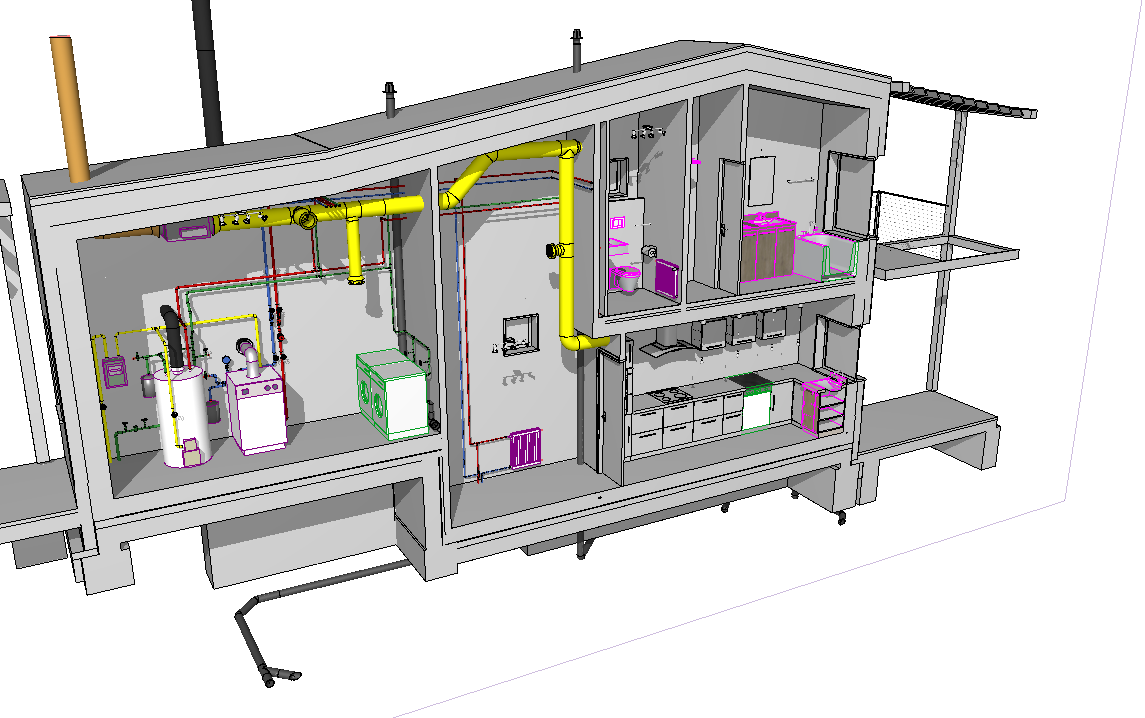
The MEP Designer interface is optimized for MEP engineering work. The MEP toolbox contains a wide range of specialized tools:
•Ductwork
•Pipework
•Cabling
•Parametric MEP equipment and accessory objects
The fully functional Zone, Morph, and Opening tools are also included, to support accurate modeling within the building structure.
Documentation and viewpoint creation: All features
Use the full set of documentation tools (such as dimensions and labels) and viewpoint-creation tools (such as sections, elevations, and details) to complete the MEP model.
Essential architectural elements: Create and edit - Displayed with override
A limited set of essential architectural tools is available. You can create and edit the following structures, but they are intended as a reference for your MEP model and are displayed with an override.
Composite and profile structures are supported, but these are also displayed with an override - the skins are not visible in the model.
The override display is built-in and cannot be changed.
|
Create and edit these elements |
|
Wall |
|
Slab |
|
Column |
|
Beam |
|
Roof |
|
Object |
|
Door |
|
Window |
View-only architectural elements (from imported Archicad models)
If you open an Archicad model in MEP Designer, you will see all the model elements.
However, certain Archicad elements cannot be created or edited in MEP Designer (you can view their settings, but you can’t change them).
Construction elements are displayed with an override. The override display is built-in and cannot be changed.
|
View-only elements (Cannot create or edit) |
|
Shell |
|
Stair |
|
Railing |
|
Curtain Wall |
|
Skylight |
|
Corner Window |
|
Wall End |
|
Mesh |
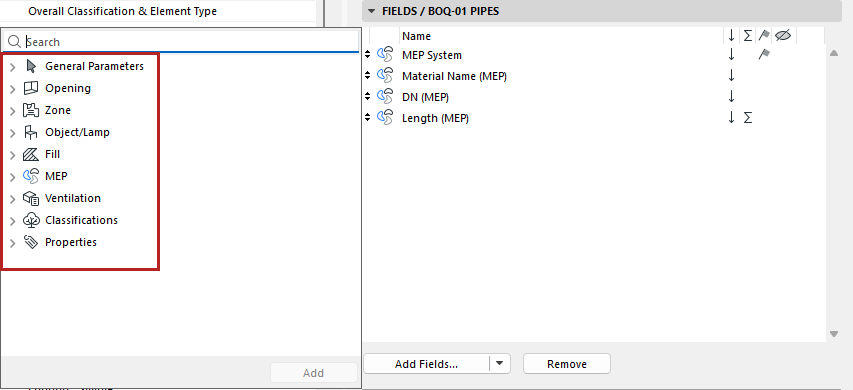
Interactive Schedule for MEP-related data
The Interactive Schedule is available for flexible listing of general and element-specific data (parameters, classifications, properties) for the following elements:
|
Interactive Schedule: |
|
MEP elements |
|
Ventilation |
|
Opening |
|
Zone |
|
Object/Lamp |
|
Fill |
Teamwork with MEP Designer and Archicad
Using the Teamwork function, you can share a MEP Designer project and invite other MEP Designer or Archicad users to collaborate on it.
MEP Designer users can also join a Teamwork project shared from Archicad.
A predefined “MEP Engineer” role is available, with specific permissions for MEP engineers:
•MEP tool elements
•MEP Preferences
Working with Archicad projects
MEP Designer uses the same project file formats (.pln, .pla) as Archicad.
•Open/Merge: You can open or merge an Archicad model or layouts in MEP Designer. Archicad construction elements are shown with an override and editing is limited or unavailable, depending on the tool (see above).
You can also copy and paste elements between Archicad and MEP Designer.
•Hotlinks: In MEP Designer, Archicad models can be referenced as hotlinks, but these hotlinks cannot be modified.