MEP Designer is available for download at:
http://www.graphisoft.com/downloads/
MEP Designer Hardware/Software Requirements
Hardware/Software requirements are modified from time to time. For up to date information on system requirements, please consult the following link:
http://www.graphisoft.com/support/system_requirements
Installation Process
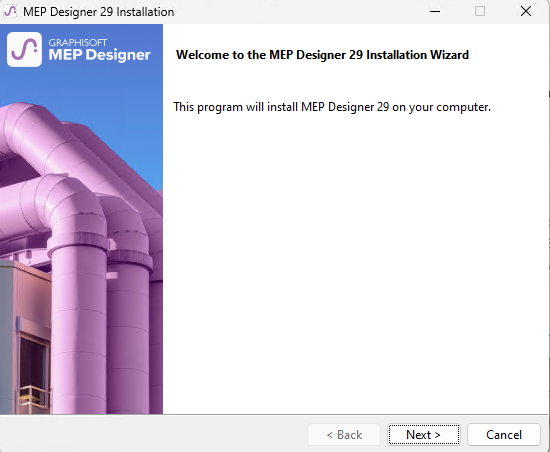
1.Start the installer to open the Welcome Screen.
Click Next to continue.
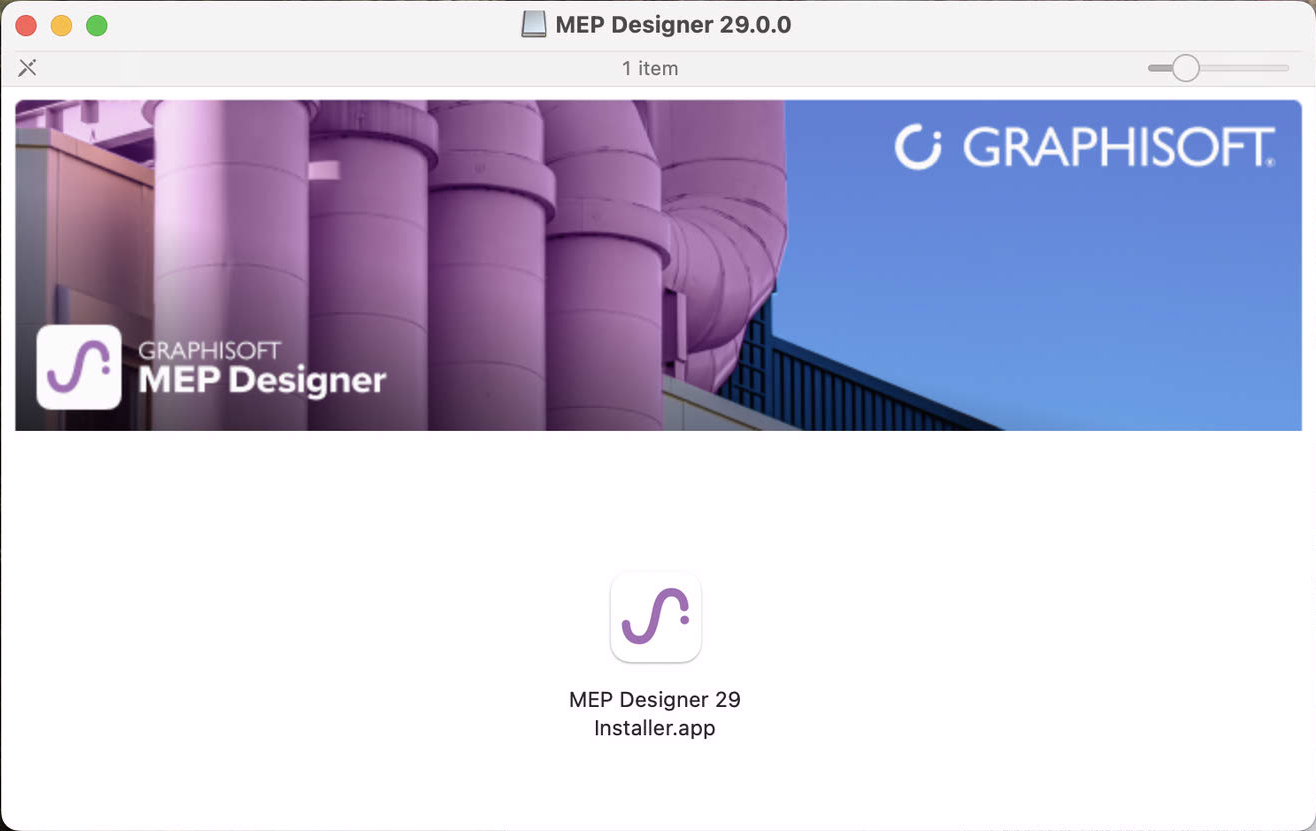
On Mac: Start the Installer and double click the MEP Designer Installer icon to open the Welcome Screen.
2.License Agreement
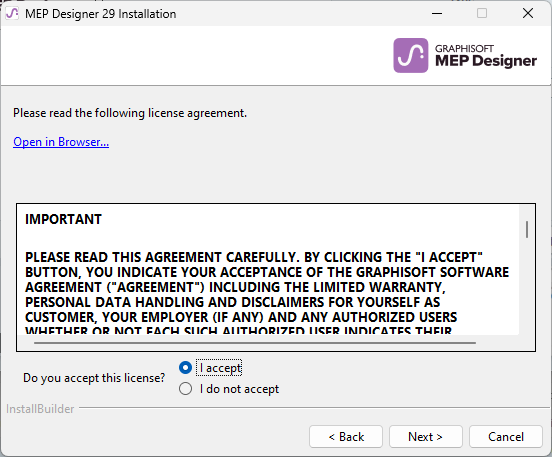
Read the license agreement carefully and accept it. (Click Open in Browser to see the agreement in a new window.)
Click Next.
3. Select Installation Directory
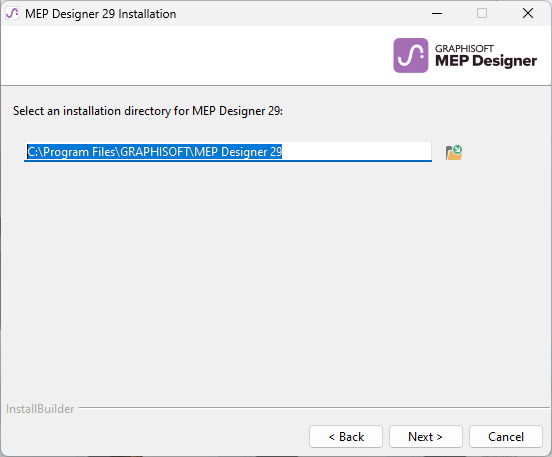
On this page, define the file path of the installation. As a rule, you should choose the path suggested by default, to simplify the installation of any future updates.
–On Mac: Installation must be in the Applications folder or any of its sub-folders.
To confirm the file path, click Next.
4.Choose Setup Type

–Typical (recommended): Installs MEP Designer together with all of its components (e.g. Library).
–Custom: Installs only specific program components.
Click Next.
5.Installation Summary
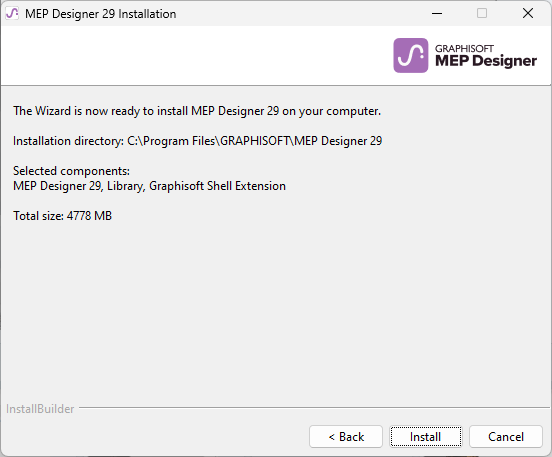
This screen summarizes your chosen configuration.
Click Install to begin installation.
6.Installation Underway
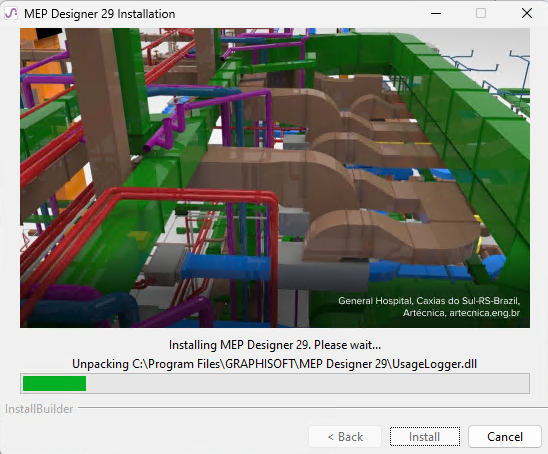
Depending on your hardware configuration, this process may take several minutes. In addition to other components, CodeMeter is installed in the background.
7.For Mac users: if you are installing MEP Designer on a macOS system, you will see a warning: for MEP Designer to run properly, you must enable Full Disk Access in macOS settings. Follow the steps described in the warning dialog.
See MacOS: Enable Full Disk Access
8.Create Shortcut
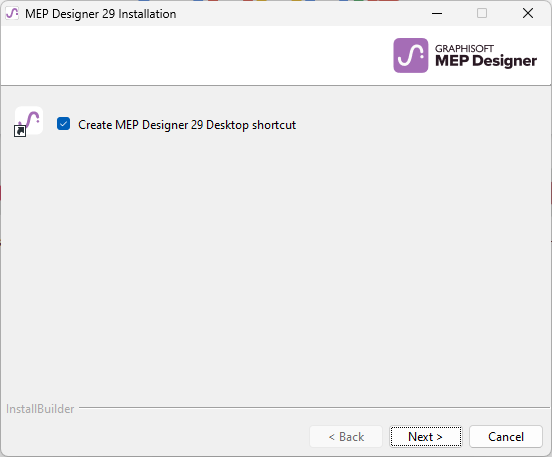
Optionally: Create MEP Designer 29 B1 desktop shortcut (Win only).
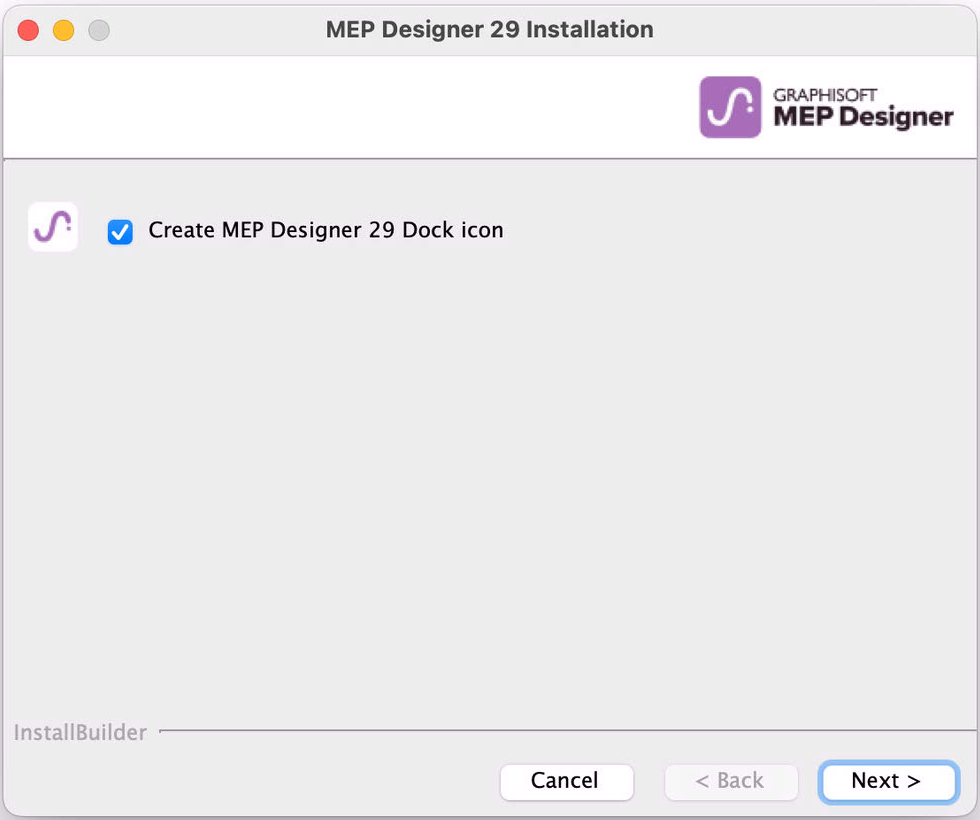
Create MEP Designer 29 B1 Dock Icon (Mac only)
Click Next.
9.Complete Installation
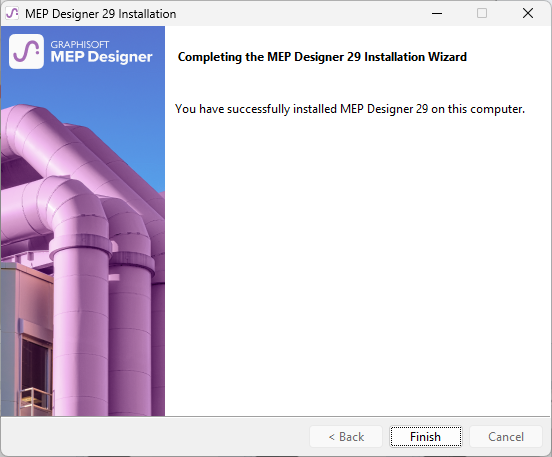
Click Finish. You may be prompted to restart your computer.
Silent Install for MEP Designer and Add-ons
It is possible to use a silent install process to install MEP Designer using a customized, company-preferred configuration.
For details, see Network Installation for BIM Managers.