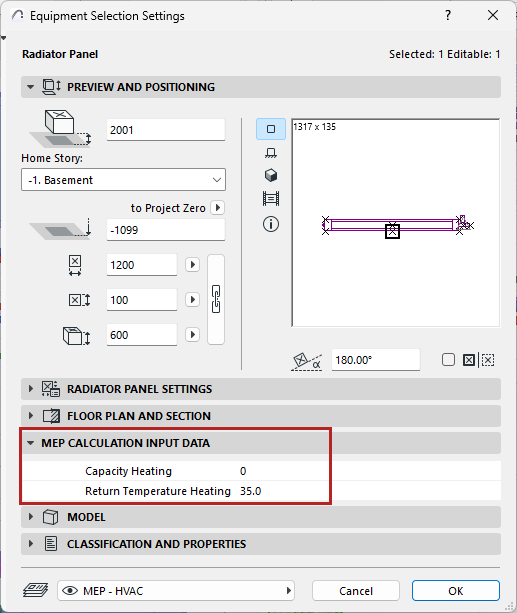
1.Create hydronic system using pipework elements and equipment
2.Enter heating capacity and return values for individual hydronic equipment, in their settings dialogs or the Info Box:

3.In Hydronic System Settings, for a selected segment: Define temperature requirement (e.g. for supply and return):
–Open Hydronic System Settings from the MEP toolbar, or any hydronic segment’s context menu.


4.Add hydronic system to System Browser (see Add MEP System to System Browser)
The System Browser displays relevant data for each element: Capacities, Supply and Return temperatures, mass flow, velocity.
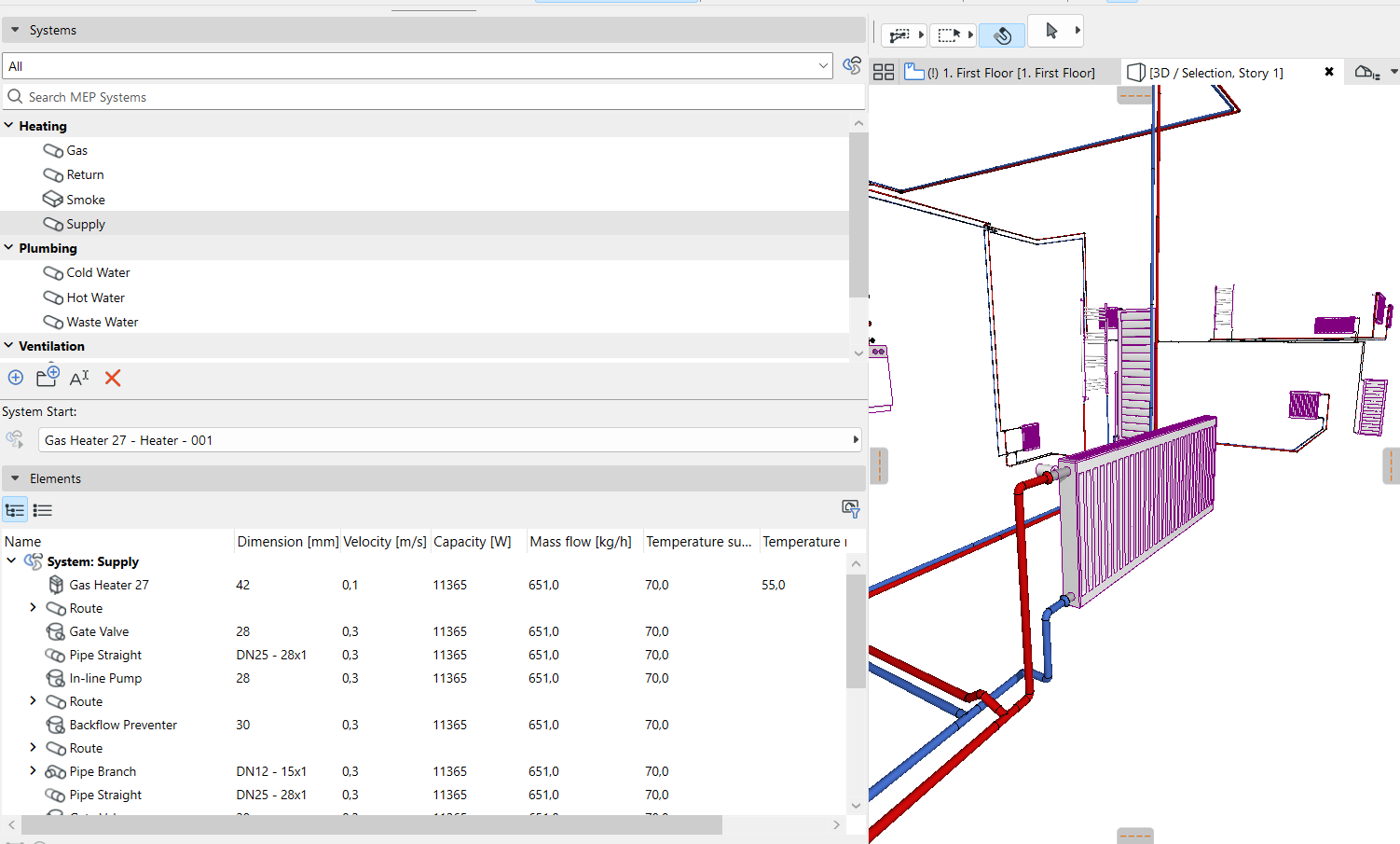
•Capacities are added up to the System start point
•Mass flow and Velocity and Return temperature are calculated for the routes and segments
•These data are based on element dimensions as well as capacity and temperature data entered for hydronic elements
5.Optimize pipe dimensions: Based on the data shown in the System Browser, use the Hydronics Optimizer tool to adjust dimensions as needed.
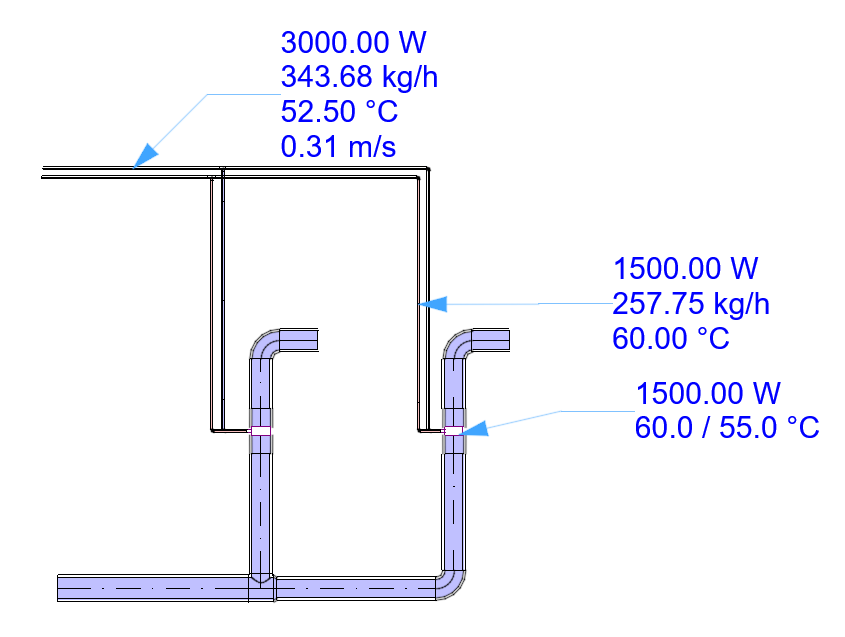
You can display these data for all parts of the system using labels and lists.
Having trouble displaying MEP data?
Sometimes the displayed data (e.g. in labels and schedules) is not refreshed. In this case:
1.Make sure you have added the system to the System Browser to trigger the calculation (see Add MEP System to System Browser)
2.With nothing selected in the plan, use the context menu command: Refresh MEP Properties
Note: The Refresh MEP Properties command is available as of Archicad 29.1.0. In earlier versions, do the following:
–Open up the system browser, and select the system you wish to update
–Use View > Refresh > Rebuild and Regenerate