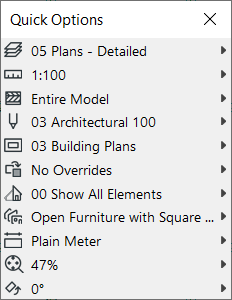
Quick Options Bar
The Quick Options Bar is shown by default at the bottom of the application window.
Its controls show the current settings of the active tab. Use these as a quick way to apply changes among these settings, and to access the dialog box used to set up the relevant options set.
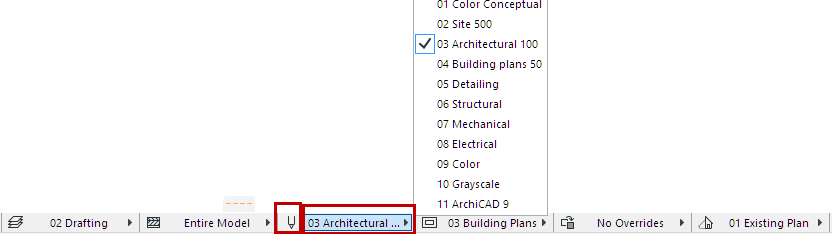
Use Window > Show/Hide Quick Options Bar to display or hide it as needed.
Controls available from the Quick Options Bar:
Zoom
See Zoom.
Orientation
See Set Orientation.
Layer Combination
- Applies a new Layer Combination to the view.
See Layer Combinations.
Scale
- Applies a new scale to the currently active window.
See Scale.
Partial Structure Display
Pen Set
- Applies a new pen set to the model. (Not available in the Layout window.)
See Pen Sets.
Model View Options Combination
Graphic Overrides Combination
- Applies saved set of Graphic Override Rules to the view.
See Graphic Overrides.
Renovation Filter
- Choose a Renovation Filter to assign to the view.
See Renovation.
Option Combination
- Applies a Design Options Combination to the view.
See Design Options.
Dimensions
3D Styles
- Applies a 3D Style to the 3D window.
See 3D Styles.
Quick Options Palette
Use this palette as an alternative to the Quick Options Bar.
To hide/show the Quick Options Palette, use Windows > Palettes > Quick Options Palette.