Define Column/Segment Structure
Select a Column or Column segment.
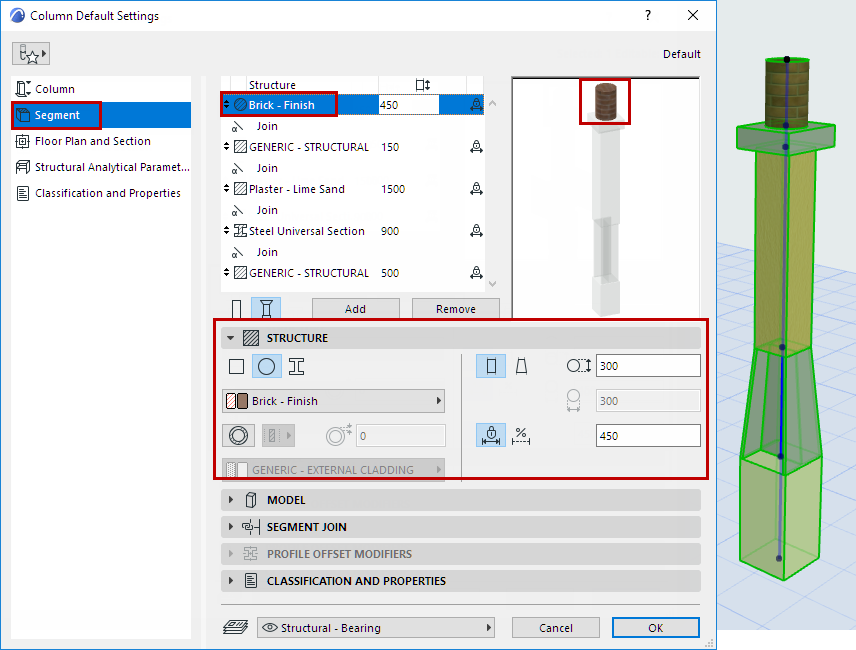
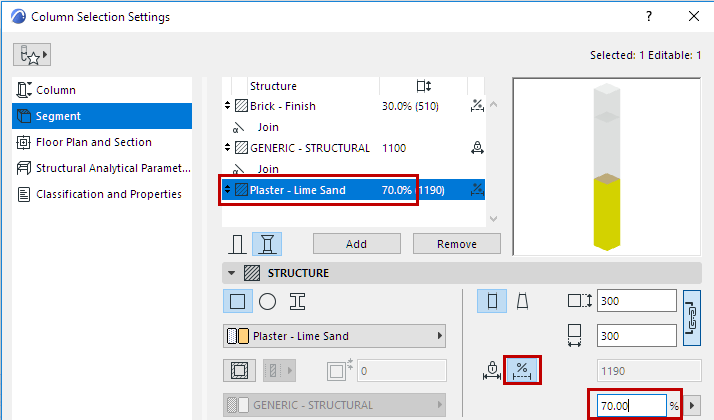
Use the Structure panel of Column Settings (Segment page) to define its structure properties and length (fixed or flexible).
For a selected segment: These Settings are also available in Column Edit mode.
Cross Section
Click an icon to define segment cross-section.
Building Material
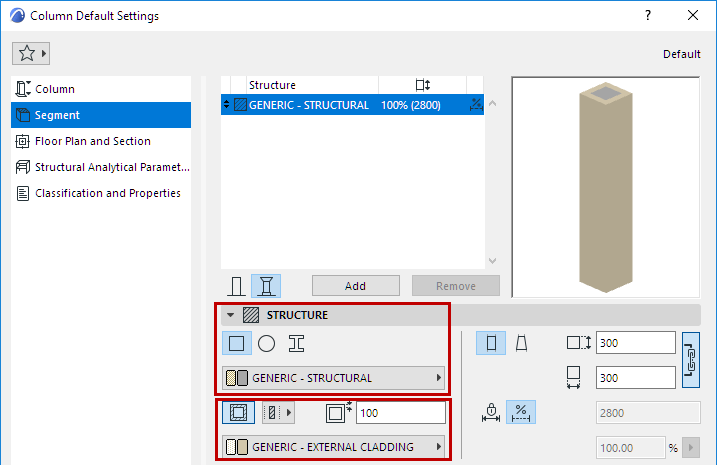
For a Rectangular or Circular Column:
- Use the pop-up to choose its Building Material.
- Add an optional veneer. (See also Core and Veneer .)
For a Complex Profile column:
Segment Length (Fixed or Flexible)
For each selected segment: Define its length as either fixed or flexible, by clicking the corresponding icon in the Structure panel.
- For fixed-length segment: Define length. This length will remain unchanged even if the Column stretches. (You can also enter a selected segment’s length in the Structure list.)
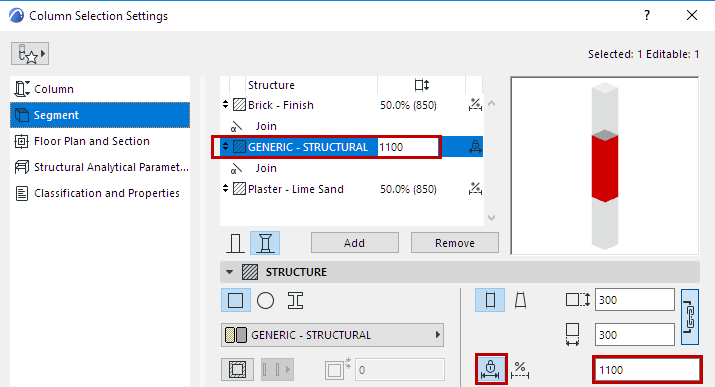
- For a flexible segment: Define its length as a percentage of all the flexible segments. (The flexible segments together add up to 100%.) Segment length will stretch accordingly if the Column stretches.
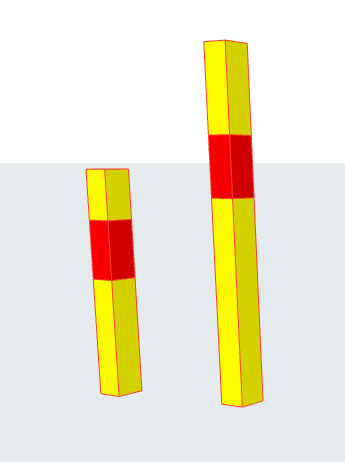
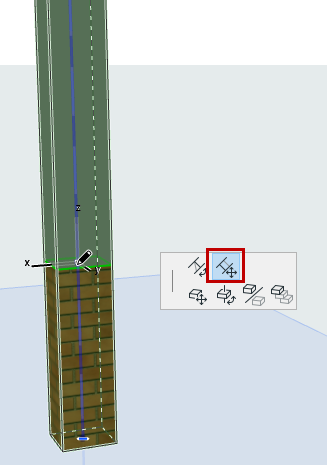
Segment Length - Edit in 3D
- Select the Column in the 3D window.
- Click the Join hotspot (on the Column reference axis).
- From the pet palette, use Move Segment Join to adjust segment length.