Create a New Expression-Defined Property: Step By Step
- Open Property Manager (Options > Property Manager).
- Create a New Property.
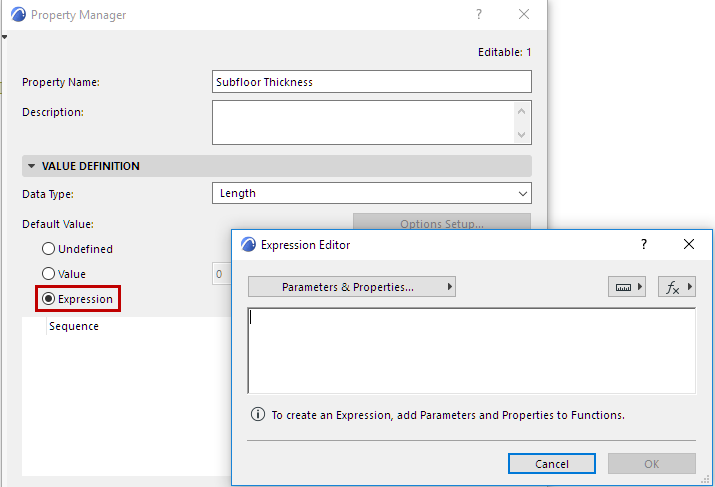
- In the Value Definition panel, activate Expression. The
Expression Editor dialog appears.
- Define the Expression with the help of the pop-up lists: Parameters
& Properties; Units; Functions.
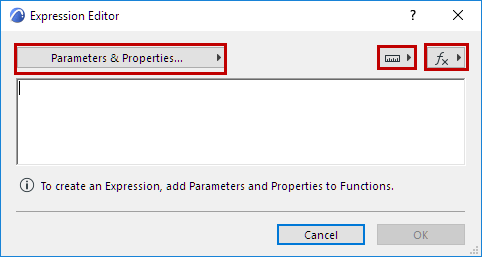
- Double-click any item in these lists to add it to the Expressions
Editor
For example, start with a Function: Use CONCAT to “concatenate” (or join) multiple string-type data items into a single item.
Data types of Parameters and Properties are indicated by their icon:
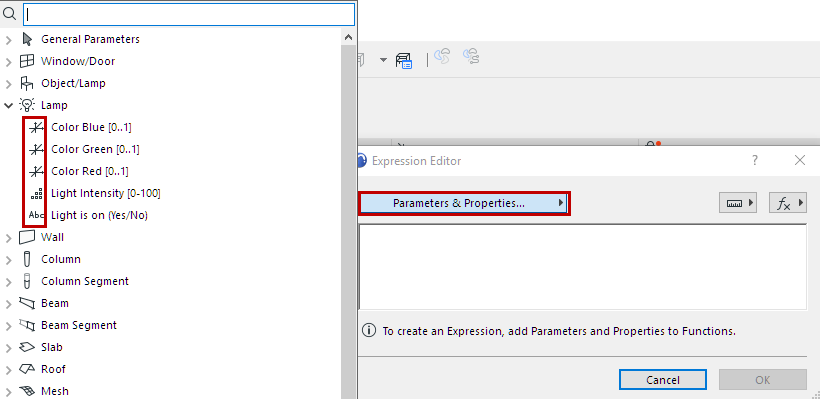
See the Examples below to get the idea: Expression-Defined Properties: Examples.
For information on how each parameter works, see: Element Listing Parameters.
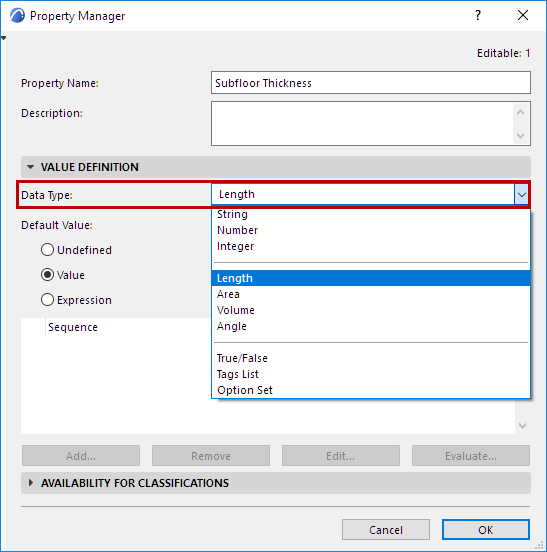
- In the Value Definition panel, choose a Data Type that corresponds to
the property expression. Note the Data Types that have unit values: Length, Area, Volume,
Angle. (The program will help you choose the right ones – see the following section on
Context-Sensitive Help.)
- Don’t forget to set Availability for Classifications when you define a new Property!
- Check the generated Property value as needed.