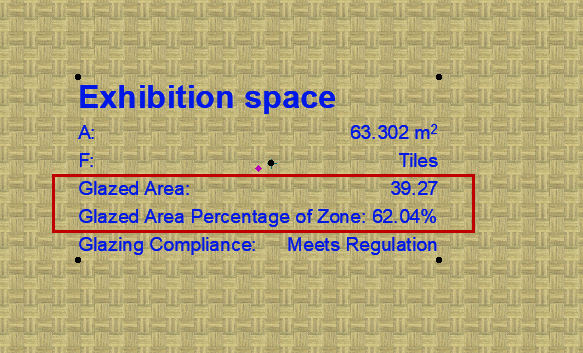
Example 7: Display Regulation-Compliance Data for an Element
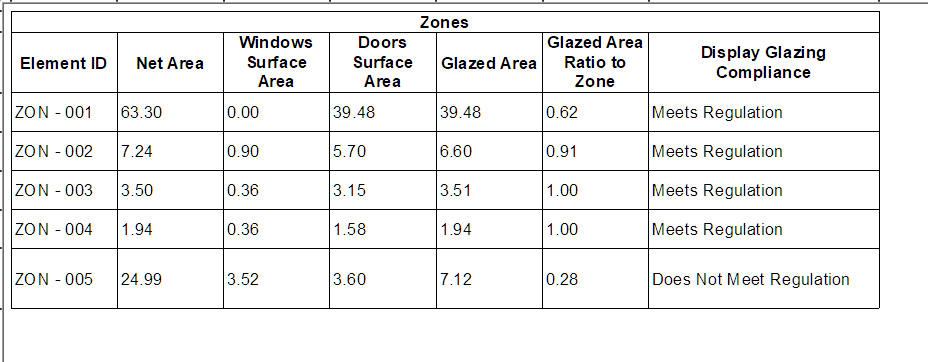
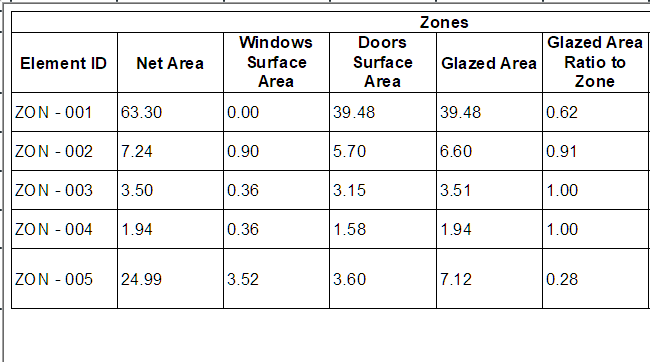
Given a regulation that a zone area must include 40% glazed area: Calculate the glazed area of a given Zone and display it in the Zone stamp.
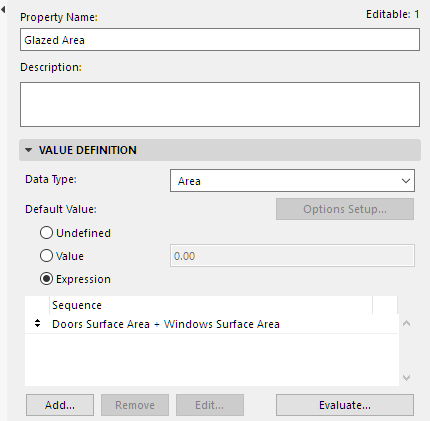
- Create a property (“Glazed Area”) that shows total glazed area (door plus window). Here, you add two existing element properties together.
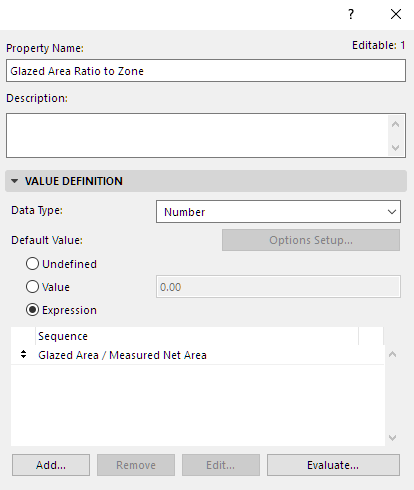
- Create another property (“Glazed Area Ratio to Zone”) that shows the ratio of the glazed area to the Zone’s Measured Net Area.
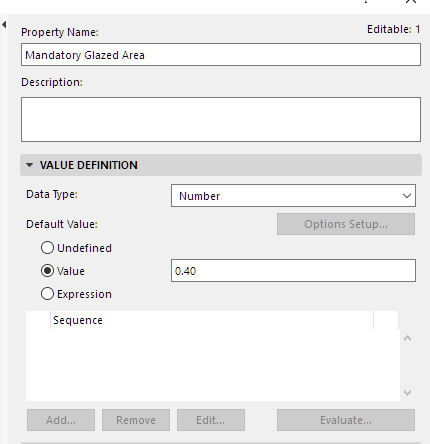
- Create another property (“Mandatory Glazed Area”) that defines the glazing area regulation (40 percent). This is a fixed value (not an expression.)
- Create another property (“Display Glazing Compliance”) to return one of two strings for each zone: meets/does not meet minimum glazed area regulation.
- Use the
IFfunction for this purpose.See
If Multiple [IFS]for information on this function’s arguments and data types.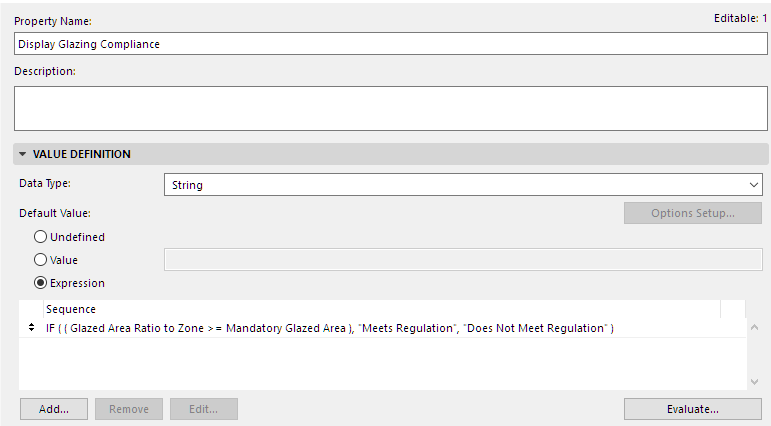
- Use the
- Add the text from this property (“Display Glazing Compliance”) to the Zone Stamp.
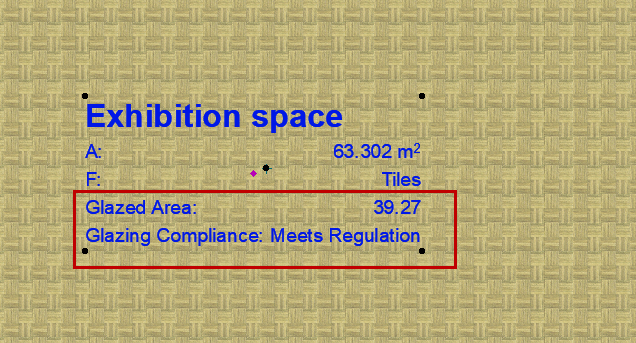
- You can also create and display another property: Glazed Area Percentage of Zone. The resulting value will be a String which includes the percentage symbol.
In this new Expression:
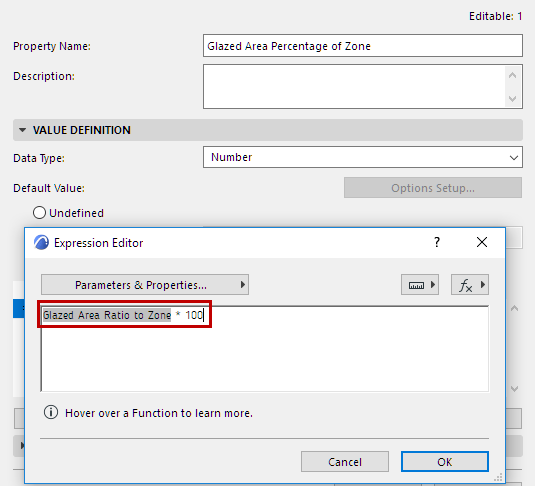
- Start with the existing “Glazed Area Ratio to Zone” property. This property expresses the resulting number as a decimal (with Data Type of Number). To convert this decimal to a percentage, multiply it by 100:
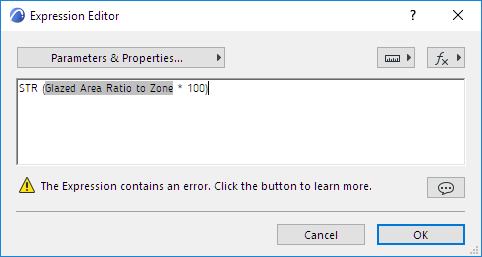
- Now convert this Number-type value to a String, using the STR function:
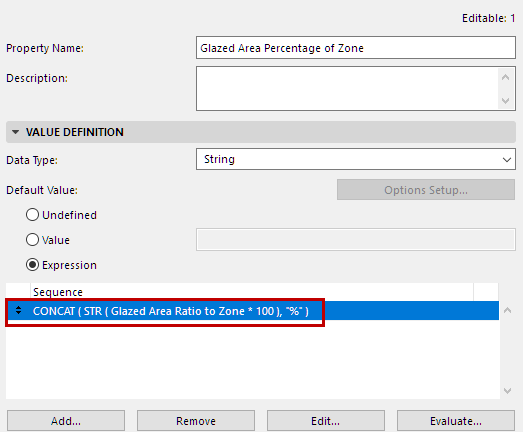
- Change the property’s Data type to String.
- Finally, use CONCAT to join this String to another String (the second String is the percentage sign, which you must put into quotation marks):
See
Convert to String [STR]andMerge Strings [CONCAT]for information on these functions’ arguments and data types. - Add this property to the Zone Stamp