Graphic Override Combinations
A Graphic Override Combination is a collection of Graphic Override Rules, applied to the elements of the model view.
Apply Graphic Override Combination
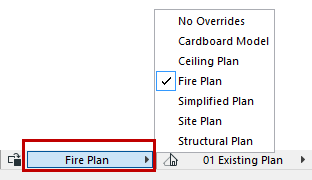
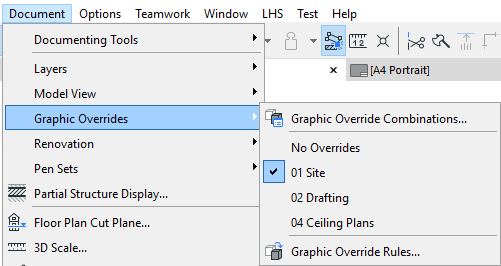
To apply a Combination to the active view, select it from one of the following:
Graphic Override Combinations Dialog Box
Use this dialog to create named combinations of Graphic Override Rules.
To open it, do one of the following:
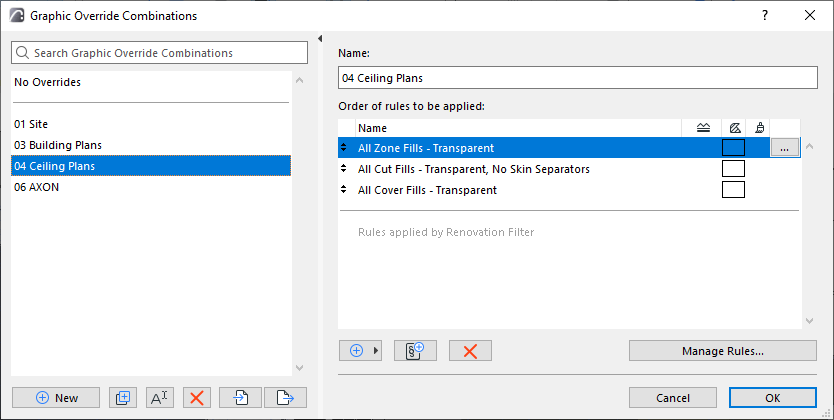
The left side lists the project’s defined Graphic Override Combinations.
The top Combination, No Overrides, is predefined and not editable.
Click New... to create a new or duplicate Combination.
Add Existing Rule
Choose from the list of defined Graphic Override Rules to add them to the current Combination:
- Click Add existing rule
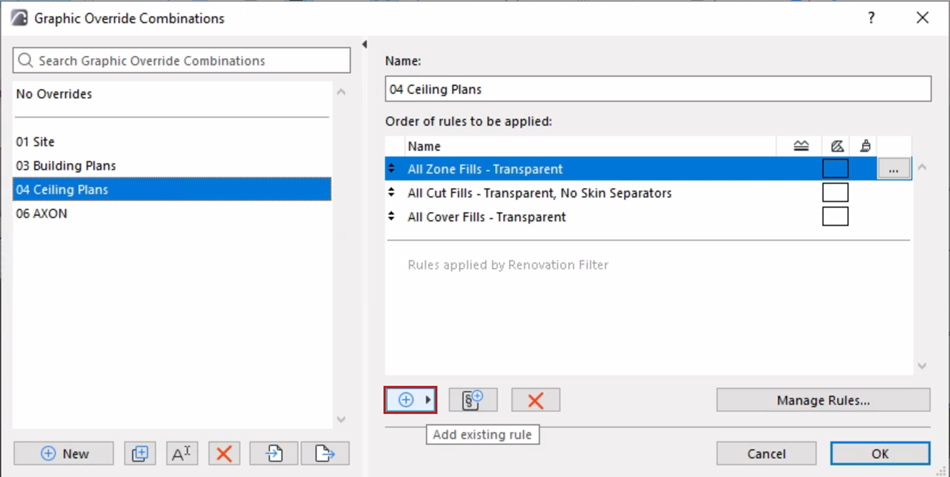
- From the appearing list, search to find and select the rules you
need.
If the name of the rule is in blue, this means it is a new you just created (in the Rules dialog, while the Graphic Overrides Combinations dialog is open), or just imported as part of a Combination - so it is easier to find.
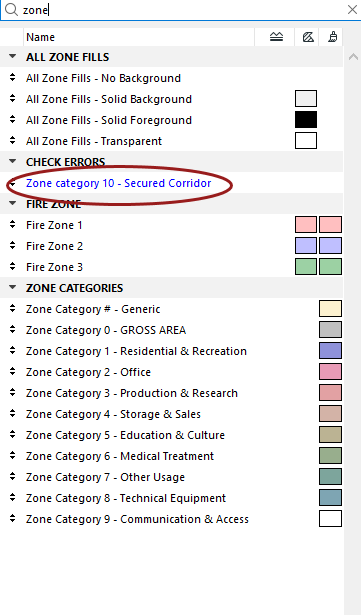
- To add selected rules to current Combination, do one of the following:
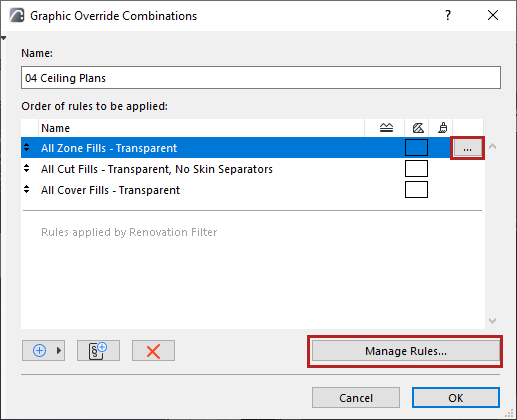
Manage Rules
To manage and edit rules, you need the Graphic Override Rules dialog.
To open this from the Combination dialog, do one of the following:
Add New Rule
This lets you add a new or duplicate rule to the current Combination.
- Click the Add new rule button
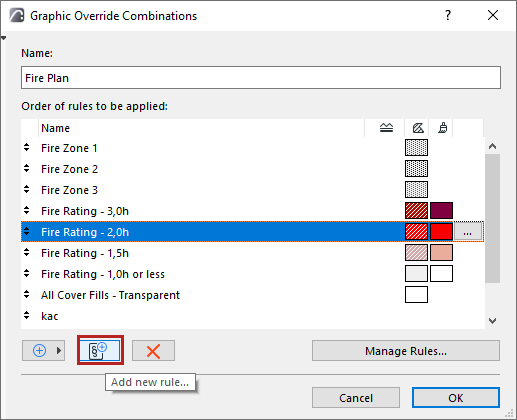
- From the appearing dialog, choose New or Duplicate, and give the rule a name.
- The new rule is added to the current Combination. Set up its
criteria now or later.
For details, see Graphic Override Rules.
Order of rules
Rules in a Graphic Override Combination are applied in the order that they are listed.
If two rules both apply, but can’t be applied simultaneously, then the rule that is higher up applies.
- For example: All plaster walls are blue, and all elements with a Fire Rating of 30 min are red. A wall that fits both of these rules will get the override from the rule that is higher up in the list.
To change the order, drag a rule up and down using the arrows the left edge of its row in the list.
Rules applied by Renovation Filter are at the bottom of the list (lowest priority), and this position cannot be changed.
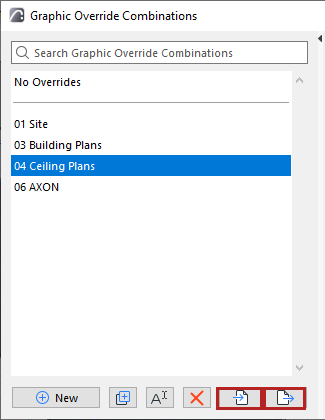
Export/Import Graphic Override Combination
Use your Graphic Override Combinations in other projects.
Merge Rules of Imported Combination
At import: The incoming Combination and all of the rules it contains are merged with those of the current project.
If an imported rule has the same name as a rule already in the project: