Graphic Override Rules
Use this dialog to create and edit rules.
To open it, do one of the following:
- Document > Graphic Overrides > Graphic Override Rules
- in Graphic Override Combinations dialog box: Click Manage Rules
- in Renovation Filter Options dialog box: Click Graphic Override
Rules
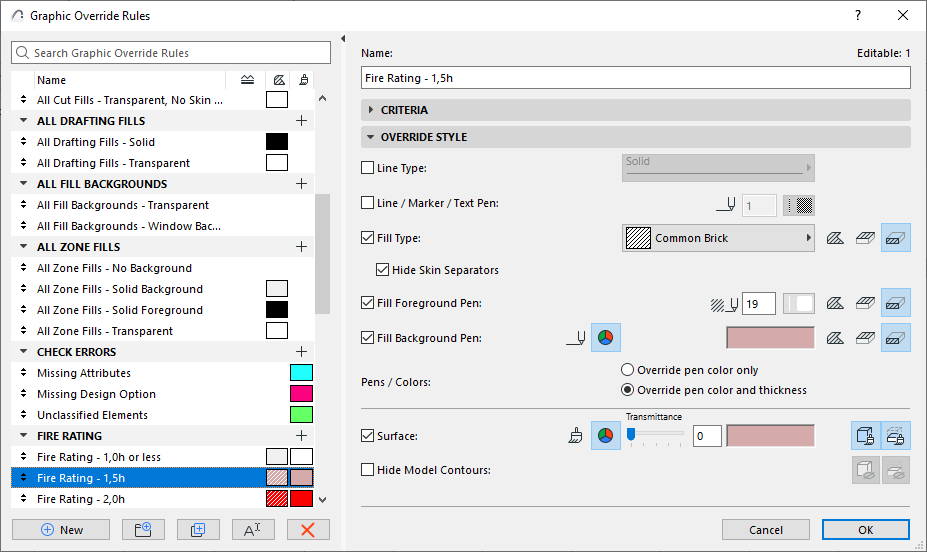
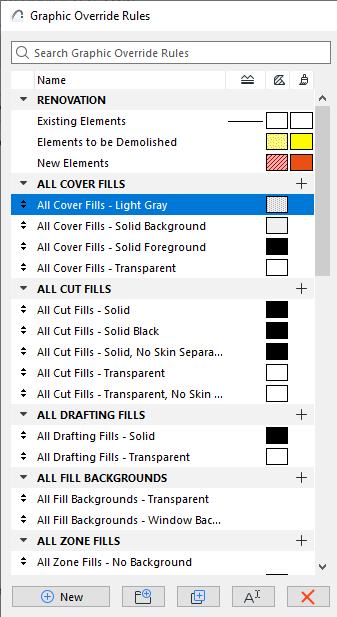
Rules are listed on the left side of the dialog box. Colorful icons indicate the Line Type, Fill Type, Foreground and Background Pens, and the Surface (if any) defined for each rule.
The first three rules correspond to the three Renovation Statuses: Existing, To be Demolished, and New.
Select any rule to see its Criteria and Override Style panels on the right.
Add New Rule
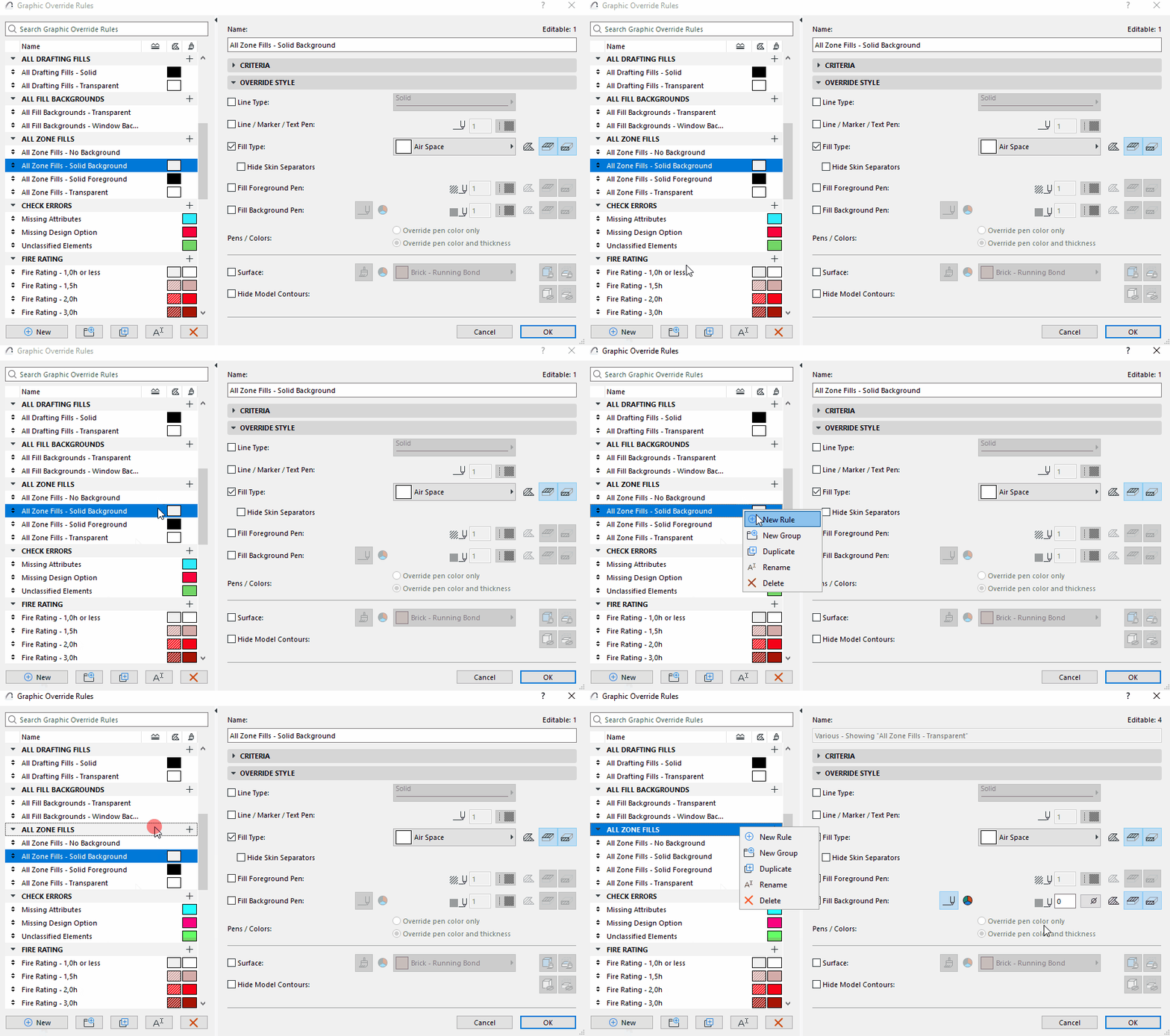
Organize Rules in groups
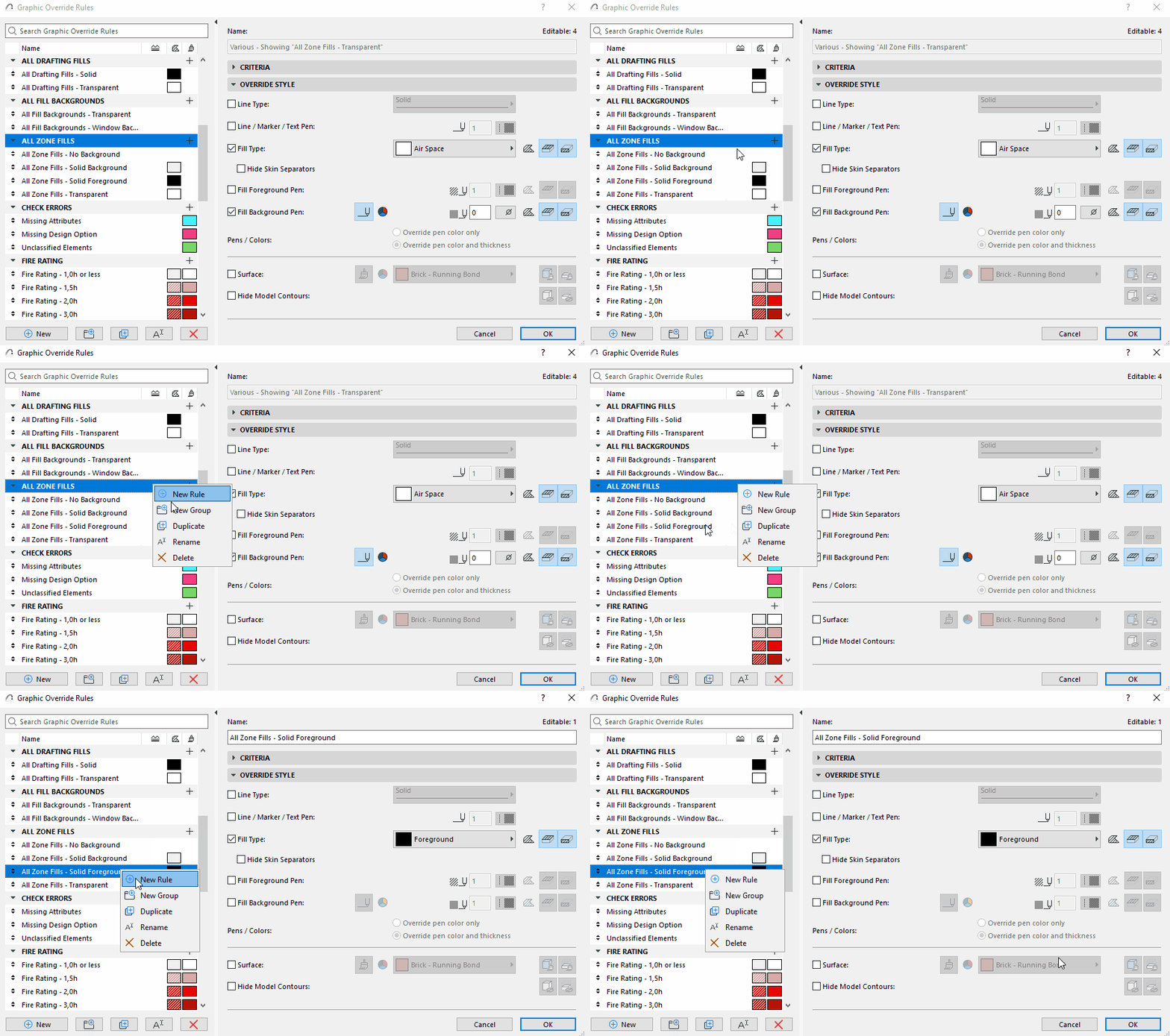
Add new Rule Group
Click New Group
Define Rule Criteria
These criteria define which elements should get the override.
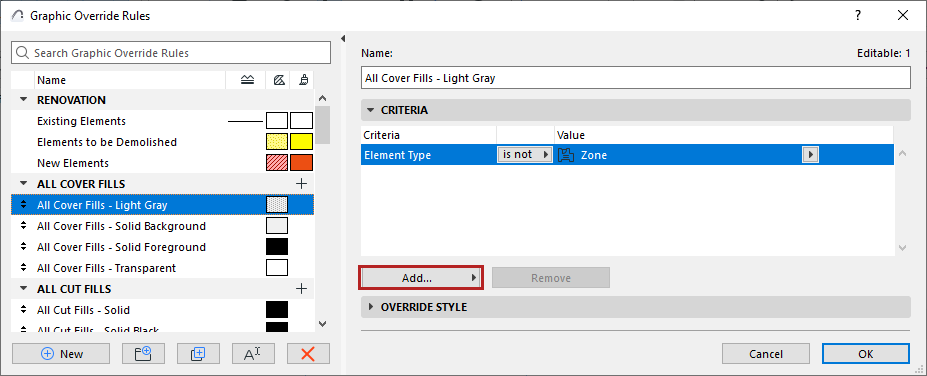
- In the Criteria list, the first line is always Element Type. (Sub-elements, such as Curtain Wall Panel or Morph face, are not available here.)
- Select this first line, then click the black arrow at the end of the row to choose the element type(s) to which this rule should apply.
- To define additional criteria, click the Add... button to bring up a list of Parameters & Properties.
- Select one or more parameters (use the search field at the top to find it more quickly), then click Add (or press Enter) to add them to the list.
- Define additional criteria. The list of available criteria depends on the element(s) defined in the row(s) above.
Define Override Style
Override Style defines what the override should look like.
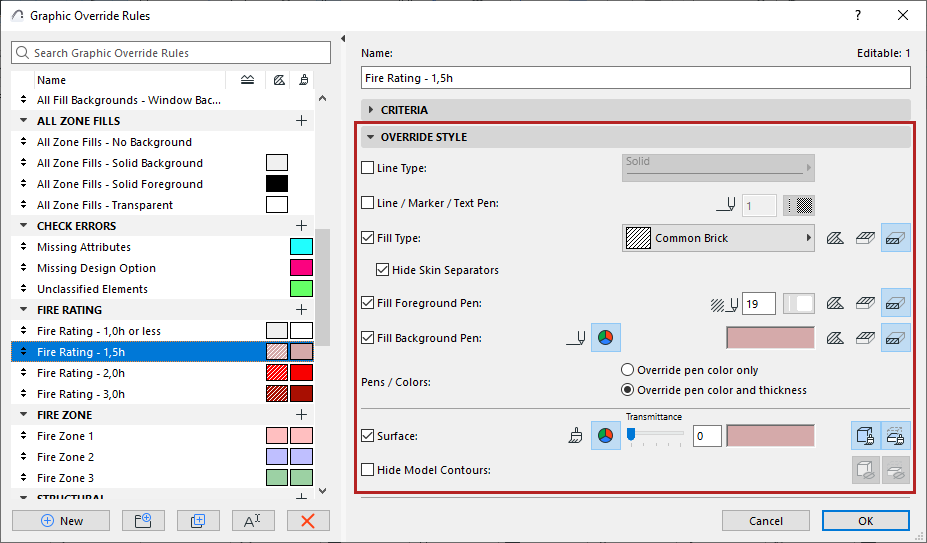
Check the boxes of the attributes you want use in this Graphic Override.
- For Fill-related controls (Fill Type, Fill Pen, Fill Background Pen):
- Click one or more icons to choose which category (Drafting Fill, Cover Fill, Cut Fill) should be affected by the override.
- Use either the pen number or color picker control to choose a color.
- Cover Fills include Fill elements in the “Surface (Cover Fill)” category.
- Cut Fills include Fill elements in the “Building Material (Cut Fill)” category.
- For Surface: Click one or both icons to apply the override to Cut and/or Uncut Surfaces.
Assign Renovation Status to Elements
Surface Criteria in Graphic Override Rules and Collision Detection