Working with Layouts
Open a Layout
Do one of the following:
- Double-click its name Navigator Layout Book or the Organizer palette’s Layout Editor.
- Click the Layout’s name from the Window menu
- Click the Open Layout command from the Layout drop-down in the Mini-Navigator Toolbar. Activate the desired Layout from the appearing Open Layout list.
The white area represents the usable print area of the paper delimited by a blue frame.
The gray area represents the non-printing area (margins) of the paper.
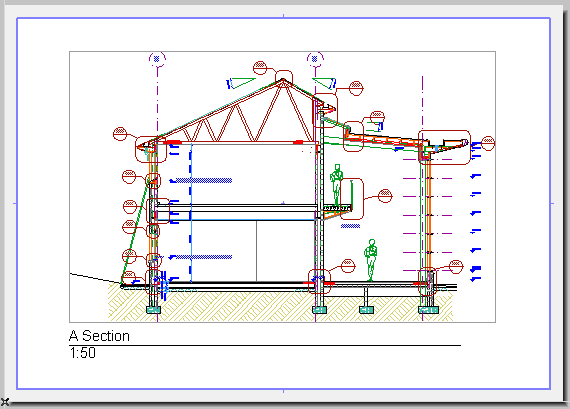
When you open a new layout or Master Layout, it can either replace the opened one, or be opened in a separate new tab. Change this tab-opening preference in Options > Work Environment > More Options.
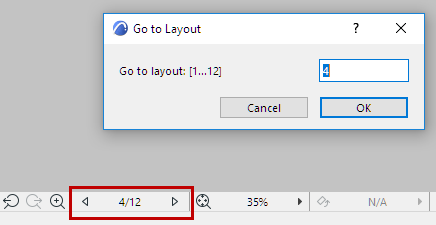
Navigate Among Layouts
To navigate sequentially among Layouts in the Layout Book:
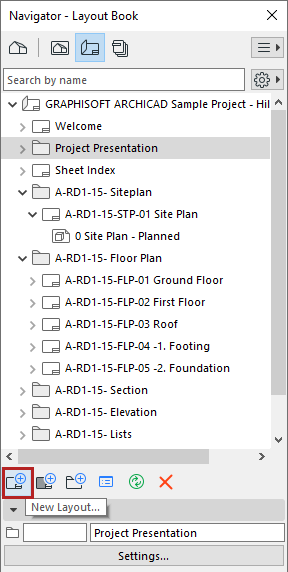
Create New Layout
Do one of the following:
Delete Layouts
You can delete any Layout in the Layout Book except the last one: The Layout Book must always contain at least one Layout.