Manage Local Teamwork Data
You may have joined Teamwork projects in the past that are no longer active; in this case, you should delete the unneeded local data that is just taking up space on your machine.
The Local Data Manager (Teamwork > Project > Local Data Manager) feature gives you feedback to help you manage the local data from Teamwork projects you have joined.
Get Feedback on Local Teamwork Project/Library Data
Review Status and Properties of Local Data
What is Local Data?
When you join a Teamwork project or link a Drawing from an external project, local copies of that project and of its libraries are created on your hard drive.
Local data are stored in your Local Data Folder, which by default is located in the “Graphisoft” folder, under your user data, on your hard drive.
All data from all Teamwork projects, regardless of project version, are saved to this one location.
See also Save Local Copy of Teamwork Project.
When you Leave a Teamwork project, the local data for that project are deleted automatically. The problem of unneeded data only arises for projects that you remain joined into.
Get Feedback on Local Teamwork Project/Library Data
To see the status and amount of local Teamwork data stored on your computer, go to the Local Data Manager dialog box (Teamwork > Project > Local Data Manager).
In this dialog box:
Review Status and Properties of Local Data
Each project and library is listed with:
- Status: The project or library data’s status with respect to the server, e.g. “Unsent Changes” or “Detached”.
- Location: The folder of the project/library on the BIMcloud
- Last Used: This date is the last time you accessed this
project.
For libraries, this date is the last time the library was downloaded to your machine (usually, the last time you opened a Teamwork project using this library).
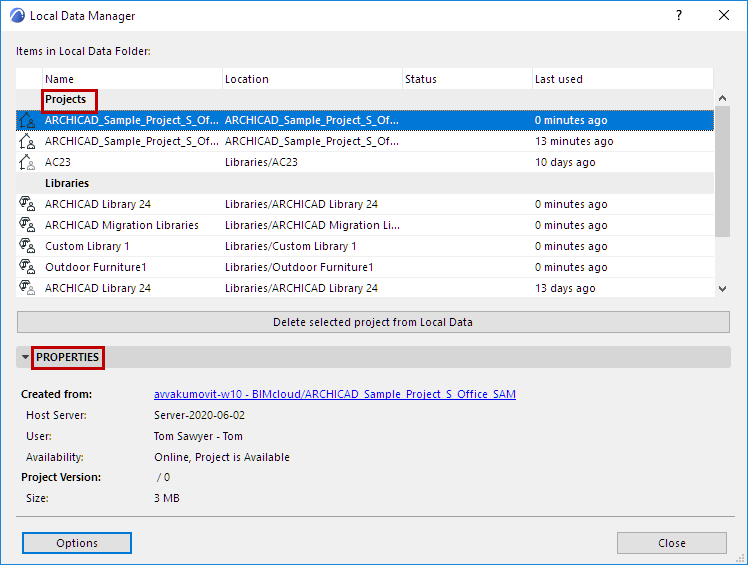
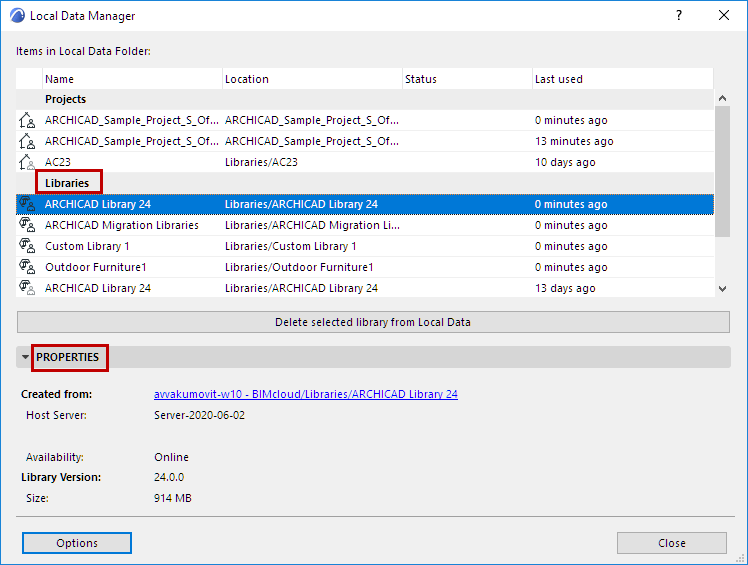
For any selected Project or Library in the list, view the Properties tab page for information on: