Ventilation data
- Create Ventilation system using Ductwork elements
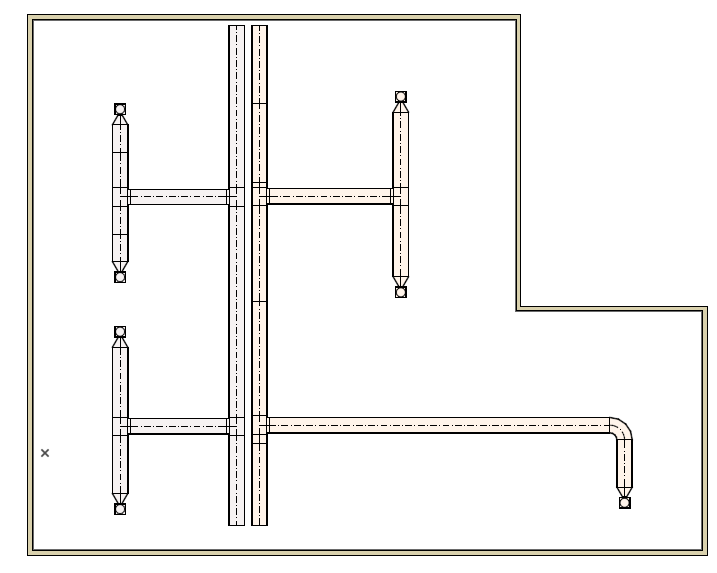
- For duct route and terminal elements (in settings dialog or Info Box)
- Add the ventilation systems to System Browser (see Add MEP System to System Browser)
- Check System calculations in the browser: Select a System in the top
half of the browser to see dimensions and calculations for its elements listed below:
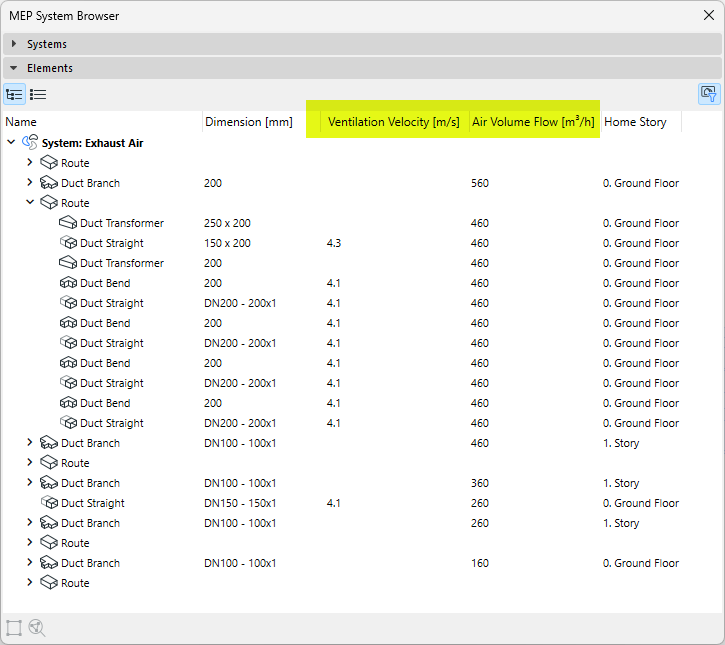
- Volume flows are added up to the System start point
- Velocity is calculated for the routes and segments
These data are based on element dimensions and the Volume Flow data you entered for the system’s terminal elements and open-ended duct route.
Note: When loops occur in the system, the volume flow and velocity can’t be calculated. Such loops are marked in the System Browser.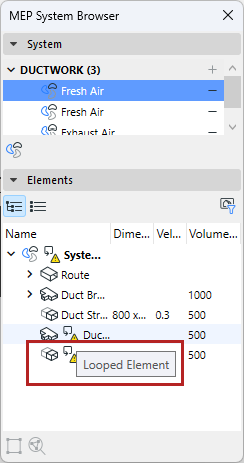
- Optimize Duct dimensions: Based on the data shown in the System Browser, use the Duct Optimizer tool to adjust dimensions as needed.
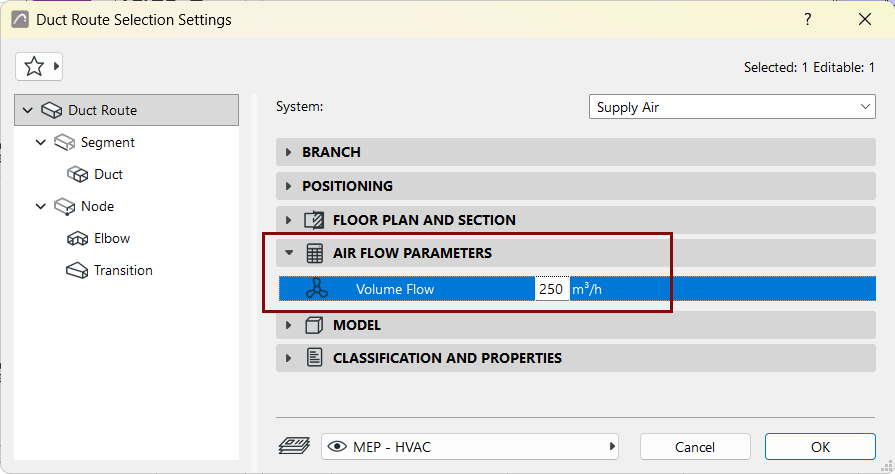

You can display these data for all parts of the system using labels and lists.
Having trouble displaying MEP data?
Sometimes the displayed data (e.g. in labels and schedules) is not refreshed. In this case:
- Make sure you have added the system to the System Browser to trigger the calculation (see Add MEP System to System Browser)
- With nothing selected in the plan, use the context menu command: Rebuild MEP Properties