Energy Evaluation Report Dialog
After the dynamic energy simulation is finished, the Evaluation Report dialog appears. Use the controls on the left side to customize certain aspects of the Energy Performance Evaluation report’s content before saving it.
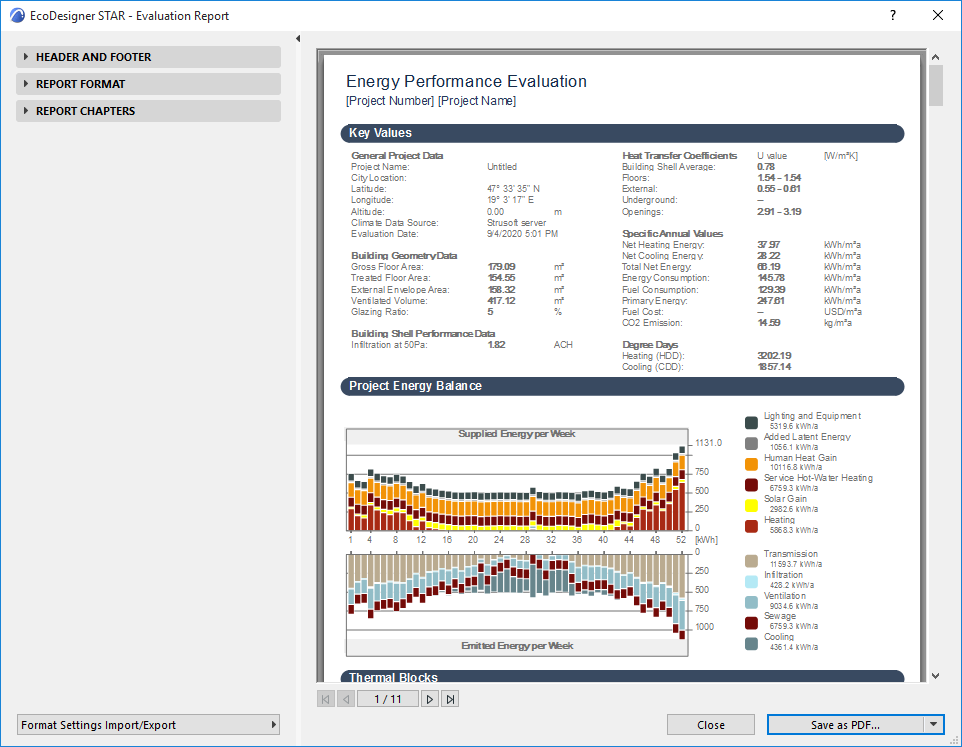
The right side of the dialog contains a preview of the Energy Performance Evaluation report PDF document.
Header and Footer Settings
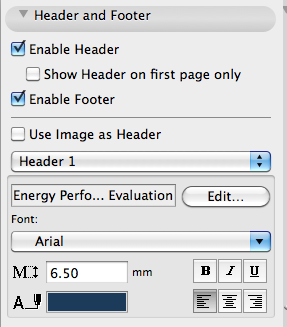
Use the controls of the Header and Footer Settings dialog to fill the two Header rows as well as the Footer of the PDF Energy Performance Report with custom content.
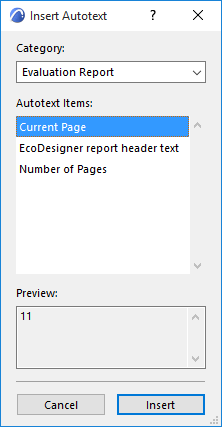
This content can also be an Image or even Autotext, which allows for a wide range of smart report title customization.
Report Format
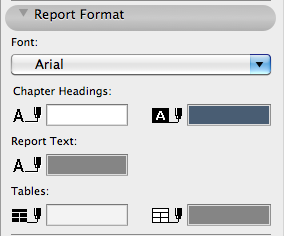
This dialog defines font format and pen colors used for the Energy Performance Evaluation report PDF.
Report Chapter Settings
In the Report Chapters section the content of the Energy Performance Evaluation report PDF is listed.
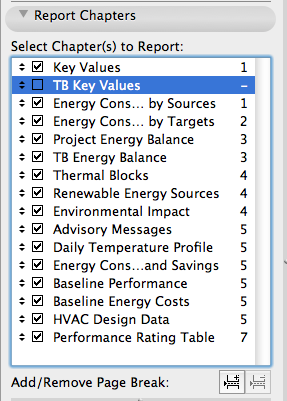
Change the order of the chapters by grabbing them with the arrows displayed before their names and dragging them. Use the buttons below the list to Add/Remove Page Breaks.
Some of the report chapters can be further customized by applying certain chapter-specific settings:
- Key Values Chapter Settings: Choose one of the three available Energy unit options: kWh, kBtu, MJ
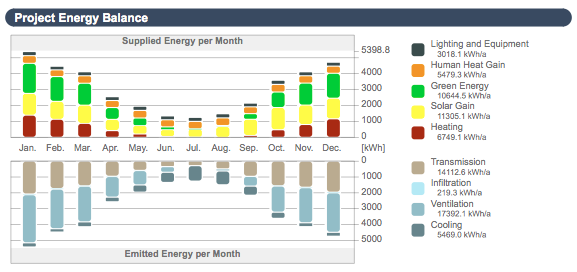
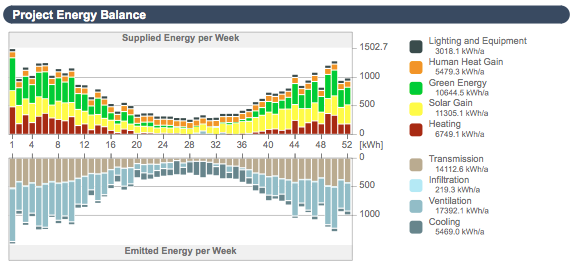
- Project Energy Balance Chapter Settings: Choose Weekly or Monthly for Time interval, and specify the Energy unit (kWh, kBtu, MJ). It is also possible to customize the colors of the bar chart.
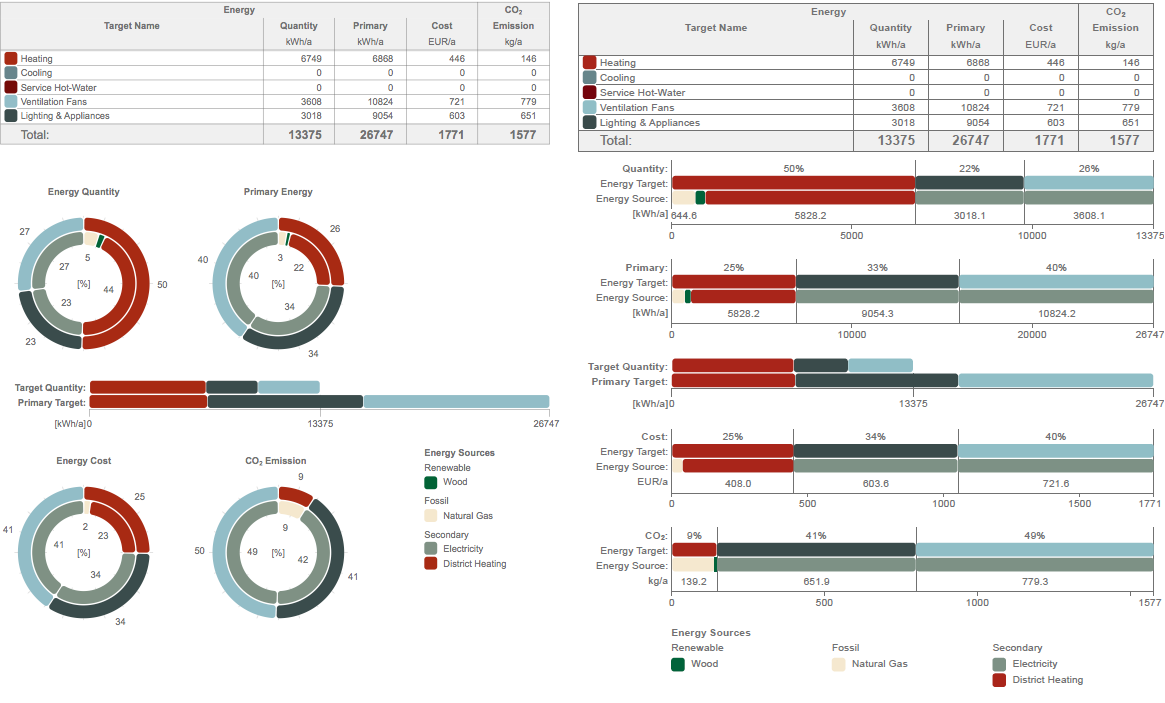
- Energy Consumption by Targets and by Sources Chapters - Settings: Toggle between Pie or Bar Chart Display
Format Settings Import/Export
This button on the bottom left corner of the Evaluation Report dialog makes it possible to migrate PDF report formats between projects (e.g. to apply a company template format to the Energy Performance Evaluation report PDFs of every project).
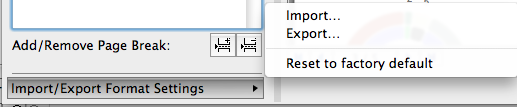
There’s also an option to reset the format of the Energy Performance Evaluation report to factory default.
Close and Save as Commands
At the bottom of the Evaluation Report:
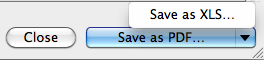
- The Close button takes you back to the Energy Model Review palette, allowing you to further adjust the input data.
- Save as PDF lets you specify a location to which to save the Evaluation Report in PDF format
- Click the button with the triangle in the bottom right corner to save the detailed monthly energy balance data in Microsoft Excel file format.