Input Constraints and Guides Dialog Box
(Options > Work Environment > Input Constraints and Guides)
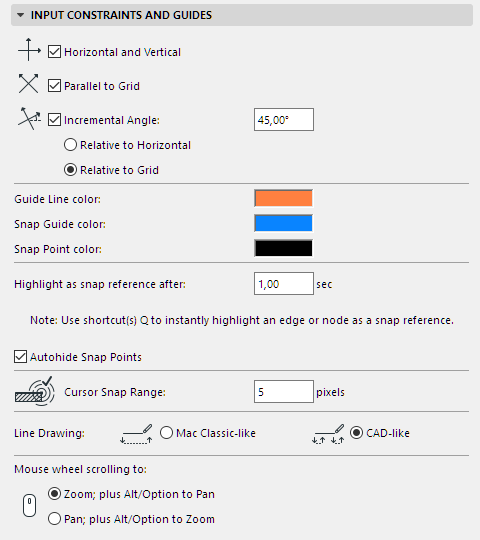
Horizontal and Vertical: Check this box to constrain cursor movement to 0°, 90°, 180° and 270° from any Edit Origin by holding down the Shift key.
Parallel to Grid: Check this box to interpret ‘Horizontal and Vertical’ constraint in the direction of the rotated grid’s main axes.
Incremental Angle: Check this box to enable cursor constraint at the defined Fixed Angle from any Edit Origin by holding down the Shift key.
Enter an Angle value here for cursor constraint.
- Relative to Horizontal: Check this box to interpret ‘Incremental Angle’ constraint relative to the horizontal grid’s main axes.
- Relative to Grid: Check this box to interpret ‘Incremental Angle’ constraint relative to the rotated grid’s main axes.
Guide Line Color: Choose a color for the Guide Lines.
Snap Guide color: Choose a color for the Snap Guides.
Snap Point color: Use the color chooser to set a custom color for the Snap Point, if desired.
For more information, see Snap Points.
Autohide Snap Points: This option is checked by default. Special Snap Points (if enabled) will disappear on their own after a set interval. If you disable this checkbox, the snap points will remain visible until you either place an element or change to another view or story.
Cursor Snap Range: Enter a value here in pixels for the distance at which the cursor snaps to an element.
Line Drawing: Set the line drawing method here by clicking one of the buttons.
Mac Classic-like: Select this option to use the standard click-drag drafting method.
Example: To draft a Line, click the Mouse button at the first endpoint, drag while holding it down and release at the other endpoint.
CAD-like: Select this option to use the standard CAD click-click drafting method (default).
Example: To draft a Line, click the mouse button at the first endpoint and release it, move to the other endpoint and click to complete the Line.
Choose your Mouse wheel scrolling preference: