Line-type Tool Settings
Applies to Line, Arc, Polyline and Spline.
Uniform Settings for Line Tools: Check this to apply the settings made in this dialog box to all line-type tools: Line, Arc/Circle, Spline, Polyline.
Favorites of any of the four Line-type tools (Line, Arc, Polyline, Spline) can be applied to any of the other Line-type elements.
Line General Settings Panel
- Select a Line type from the pop-up selection palette.
- Type a Pen number (1-255) for the Line/Arc/Polyline/Spline.
- Click the color for a Pencolor selection palette for the Line/Arc/Polyline/Spline.
- For polylines only: Choose a preference for handling the pattern of a dashed line type.
- Check the Zone Boundary box to allow lines to delimit automatically placed Zones.
Arrowhead
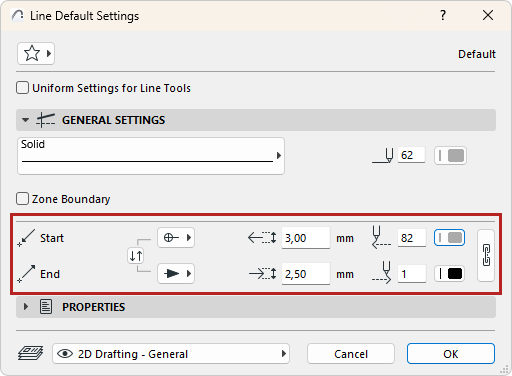
Use the Arrowhead type picker to add arrowheads at the start and end of a Line/Arc/Polyline/Spline.
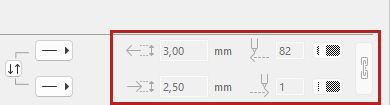
- Enter height values for the Start and End Arrowhead marker.
- Type a Pen number (1-255) for the Start and End Arrowhead marker.
- Click for Pencolor selection palette for the Start and End Arrowhead marker.
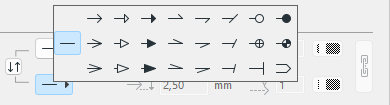
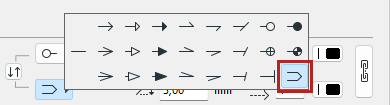
- Click and choose an arrowhead from the Arrowhead pop-up icons for selection of marker types.
Note:


Line Properties Panel
The Line Properties panel is identical for the Line, Arc/Circle, Polyline and Spline tools.
Lines, Circles, Polylines, Splines
Working in Tool Settings Dialog Boxes