View differences close up
Check layout differences in detail
Click any layout to view it. (Once you’ve viewed it, it’s no longer bold in the Layout list.)
For example, this door schedule layout.
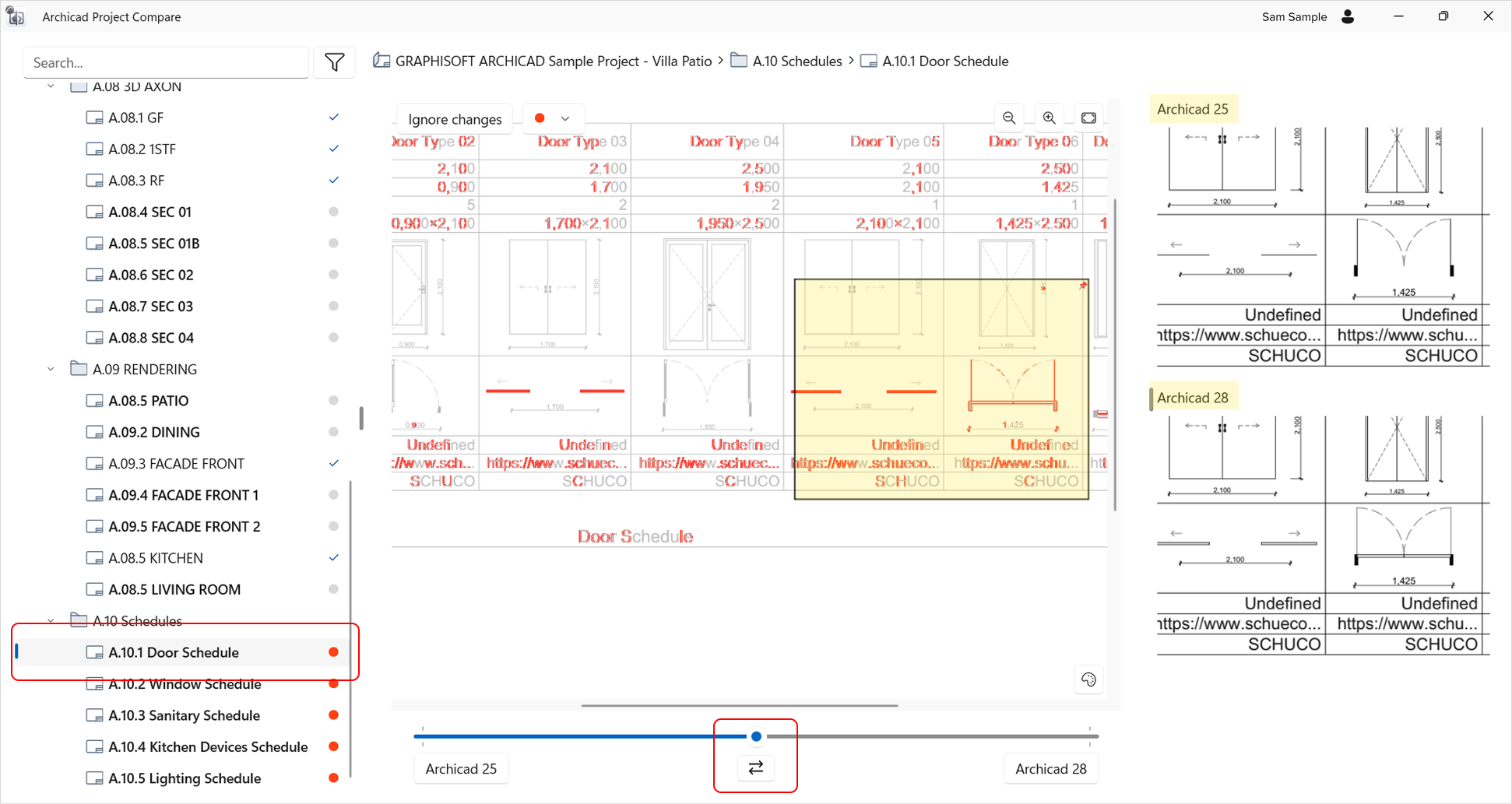
- By default, both versions of the layout are overlaid in the window, with equal intensity, and differences are highlighted in red
- Hover your cursor over the layout to move the focus frame: the layout part currently inside the frame is shown in the two detailed views at right. Move the frame to any part you want to see close up, and click to fix the frame.
- The two detailed views on the right unpack both versions of the framed area in detail - so you can compare them up close
- Use Zoom and Fit in Window as needed
- Continue moving the frame around to examine the differences
- Below the layout:
- Use the slider to adjust which layout version should dominate in the window
- At the middle of the slider, click the “switch” icon to toggle between the two layout versions
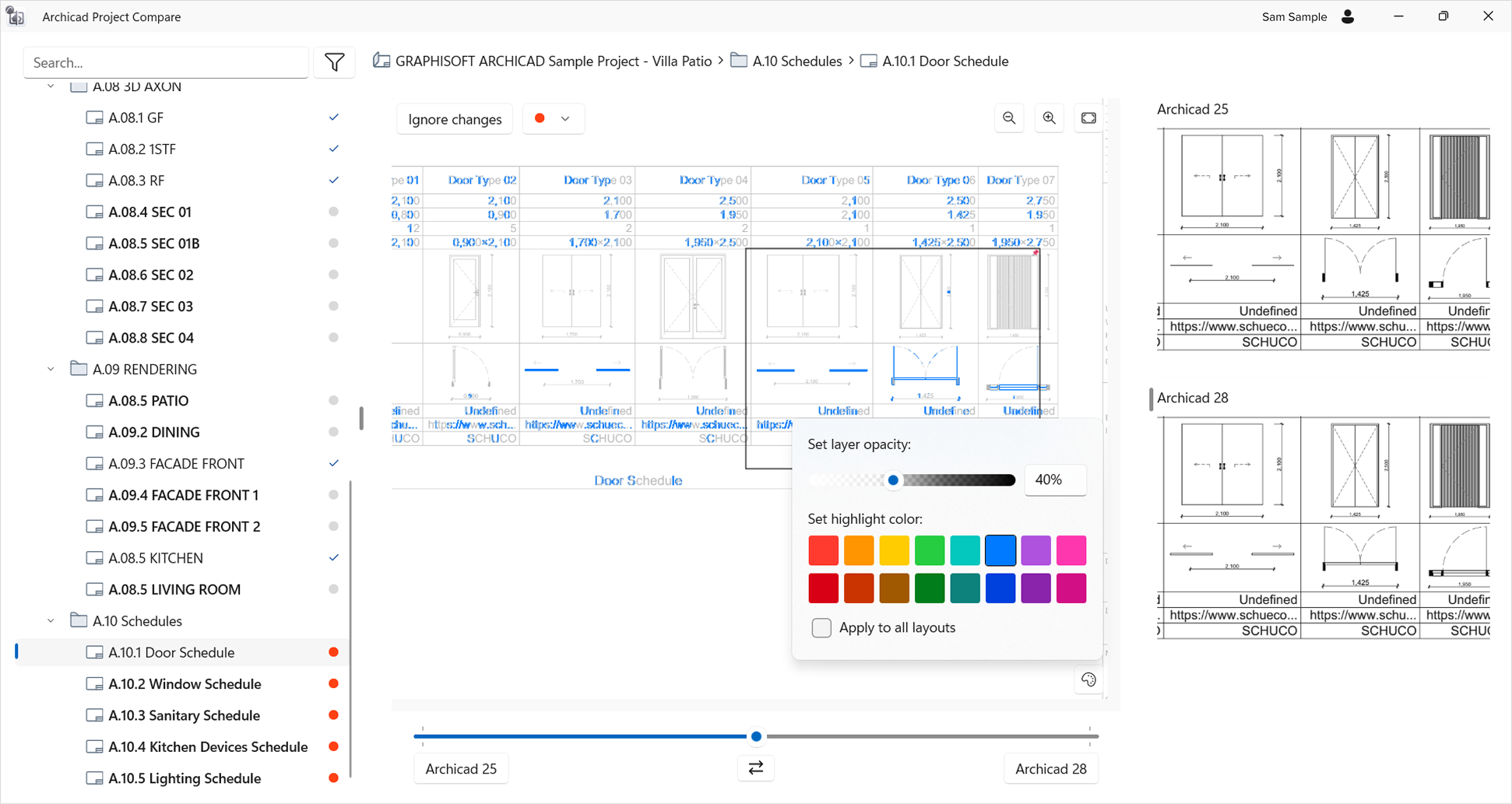
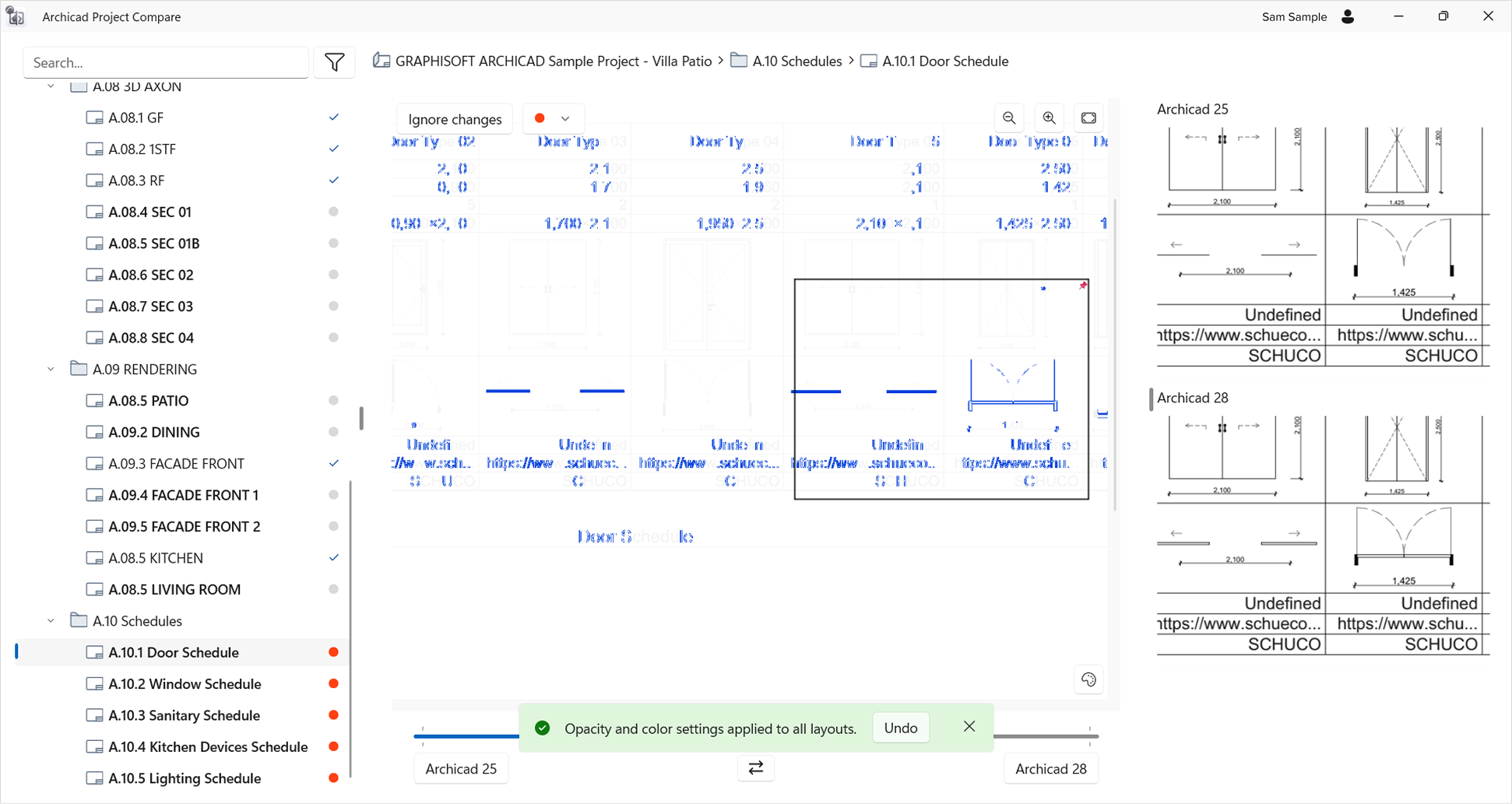
- Adjust highlight color and layout opacity to enhance visibility