Migration preferences
To open this dialog, click Migration preferences at the bottom of the Select projects to migrate screen.
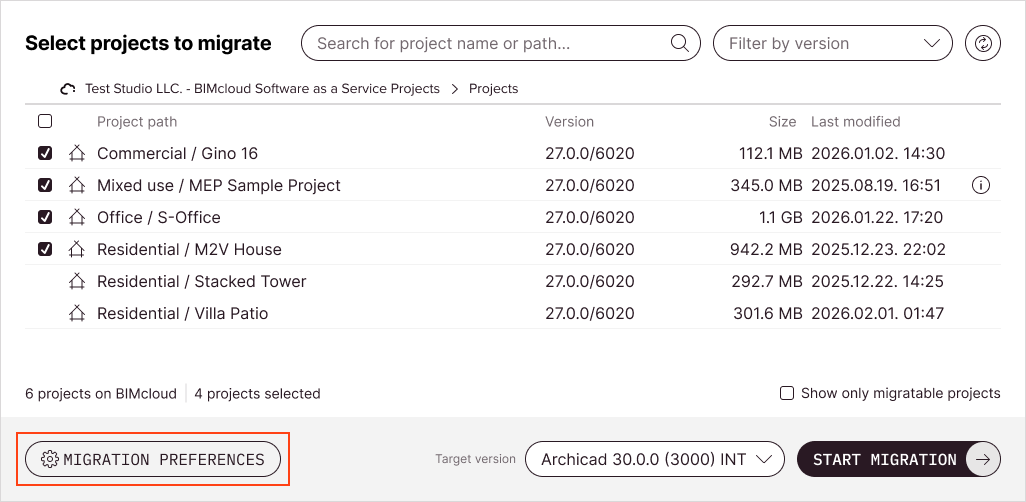
Settings here apply to each Teamwork project migrated in the current process.
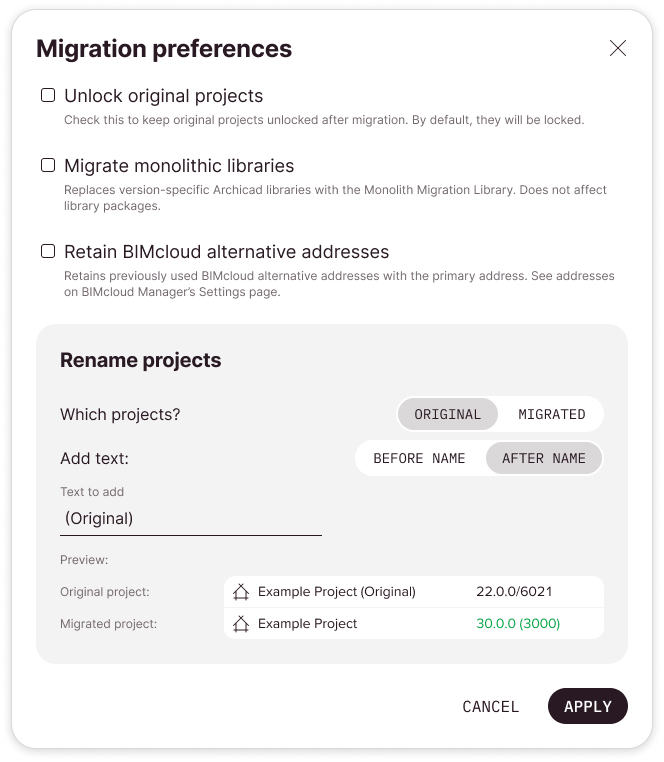
Unlock original projects
It's recommended that you leave this box unchecked. This way, after migration, the original projects will be locked, ensuring that collaborators use the migrated projects instead of the originals.
With this option checked, the original projects remain accessible and your team can keep working on them.
Migrate monolithic libraries
For projects that use version‑specific monolithic Archicad libraries (for example, “Archicad 26 Library”): this option replaces references to the version-specific library with references to the Monolith Migration Library.
- This option does not upload the Monolith Migration Library itself. As a result, checking this option could result in missing library parts.
- This option does not affect projects that use Global Libraries (library packages)
Retain BIMcloud alternative addresses
For projects with external content uploaded via alternative BIMcloud addresses, checking this option will preserve those references. If unchecked, references are replaced with the BIMcloud primary address. See Server Connections for details about BIMcloud addresses.
Rename projects
Choose a prefix (before name) or suffix (after name) to distinguish original or migrated projects. A preview shows you the expected result.