Display of Surfaces in Renderings
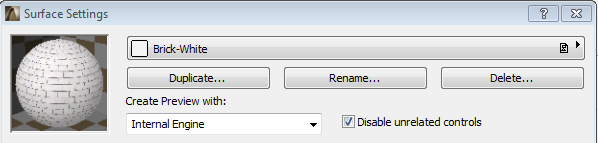
Different Rendering Engines have different capabilities for displaying surfaces. Thus, when editing a Surface in the Surface Settings dialog box, some of the available controls may not have any effect on the surface’s rendered appearance. To streamline the process, choose your intended Rendering Engine as the Preview Engine in the Surface Settings dialog box and check the Disable unrelated Controls box.
See Surface Settings Dialog Box.
This way, only those controls will be available in Surface Settings that will actually affect the final rendered appearance.
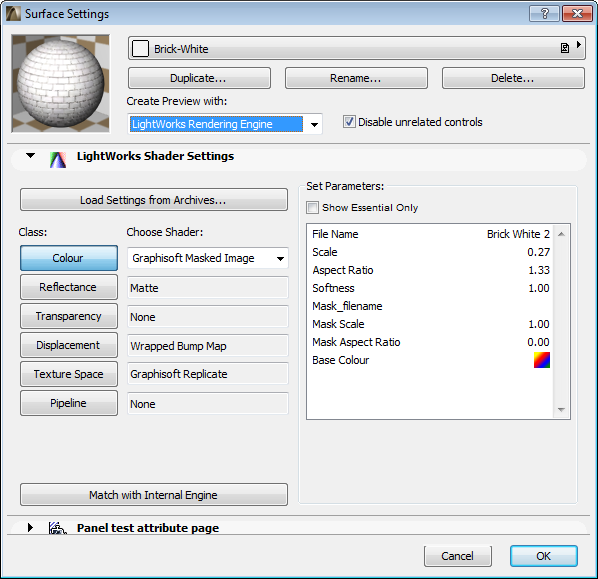
If you intend to render with LightWorks, choose the LightWorks Rendering Engine in Surface Settings, and check Disable unrelated controls. The LightWorks Shader Settings panel is now the only one you need to edit in Surface Settings.
See LightWorks Shader Settings.
Renderings display all surface characteristics except vectorial hatching. The general appearance of your renderings is defined in the PhotoRendering Settings dialog box, whose settings apply to all surfaces in the rendering.