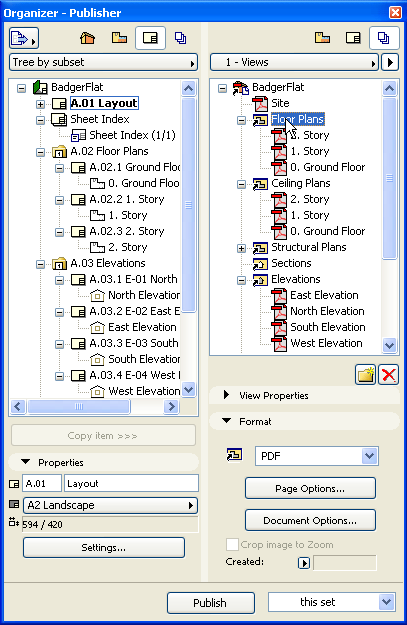
The Publisher function is controlled by the Publisher Map, available in both the Navigator and the Organizer.
Open the Publisher map of the Navigator or Organizer:
•Select its icon at the top of the Navigator/Organizer; or
Use the Document > Publisher > Publish menu command.
The Publisher map contains this project’s Publisher Sets: collections of Publisher items, each of which refers to either a View or a Layout. Publisher Sets are stored with the project, so you can access them any time, adjust settings if needed, and re-publish them.
Manage Publisher Sets
To see a list of all Publisher Sets defined in this project, click the “One level up” button to display the Publisher Set Chooser and Manager.
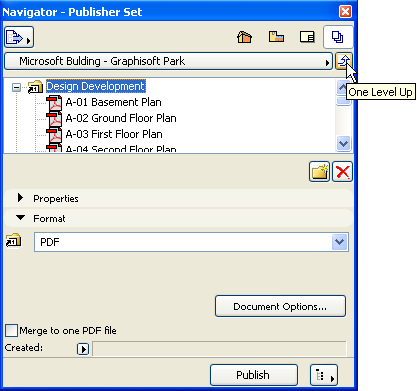
Use this view of the Publisher to manage any of the selected Publisher Sets in the list:
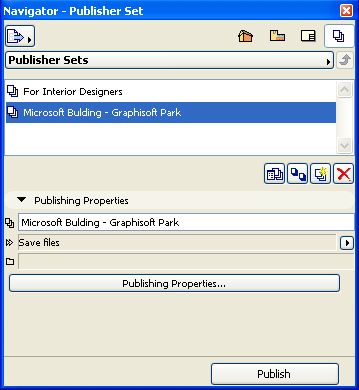
•Duplicate or Delete the selected Publisher Set
•Access its Publishing Properties
•Create a new Publisher Set
See also Defining a Publisher Set.
•Double-click any of the listed publisher sets to view and manage their contents.
Publisher Items
The items listed in a Publisher set are Publisher items. Each Publisher item refers directly to a View or to a Layout (in effect, the Publisher item is a shortcut to the View/Layout).
The properties of each Publisher item are displayed at the bottom of the Publisher, but are not editable.
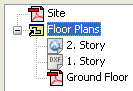
The only additional settings controlled in the Publisher are the output format and related options (these are accessible in the Format tab page at the bottom of the Publisher). The icon of each Publisher item corresponds to its output format. In the image here, each of the Floor Plans is set to a different output format: DWG, DXF and PDF.
By clicking the Publish button, you can publish a single set or all defined publishing sets or even selected views.
See Publishing Process.