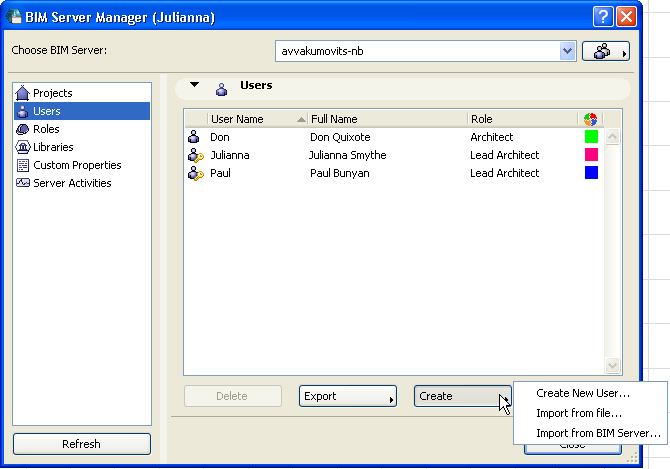
On the Users page of BIM Server Manager, click Create and choose one of the three options for adding a new user to the BIM Server:
•Create New User: The New User Settings dialog box appears.
See Define User Settings.
•Import from File: Browse for a BIM Server Users file, containing user settings, that was earlier exported (from this or any other BIM Server) and saved as a .bimusers file.
See Export Users.
Users in the imported file, with their settings, will be added to the current server.
See also Role Conflict upon User Import.
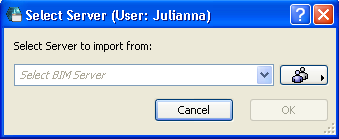
•Import from BIM Server: If you choose this, you must select a server from which to import users, then click OK.
In the appearing dialog box, check the Import box next to the users you wish to import to your BIM Server.
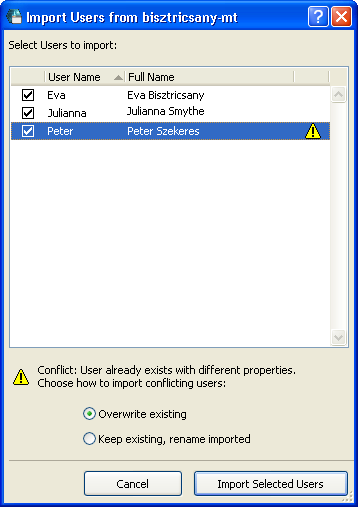
A yellow warning triangle appears alongside any user name which already exists on your server, if the user settings (or associated roles) differ in any way. You must decide how to handle these cases by clicking on one of the two options:
•Keep existing users, and rename the imported users
Role Conflict upon User Import
When you import a user to a BIM Server, the server will alert you in case of a role conflict. For example, the imported “Draftsman” role already exists on your server under the same name, yet the settings of the two Draftsman roles are different.
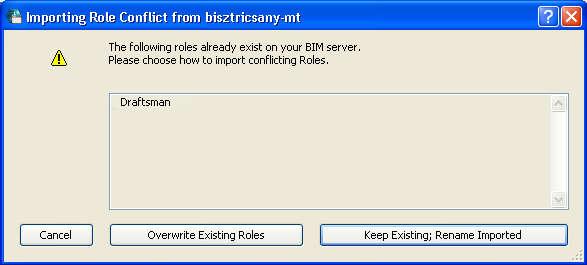
You must decide how to handle these conflicts by clicking on one of the two options:
•Overwrite existing roles
•Keep existing roles, Rename imported roles