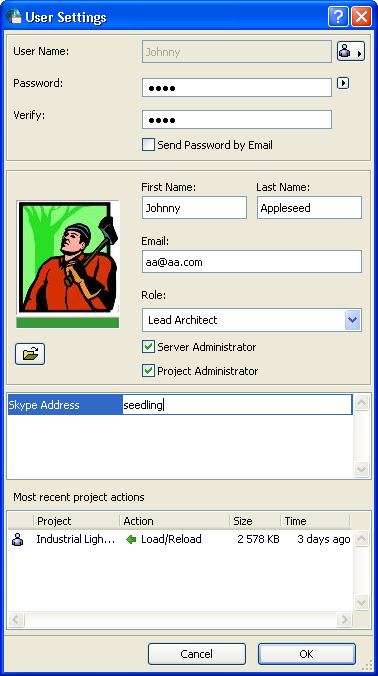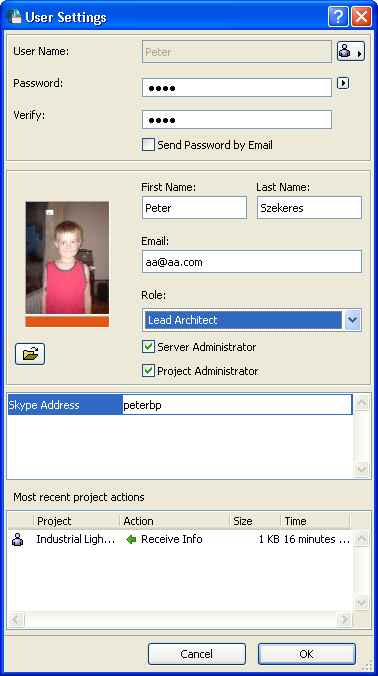
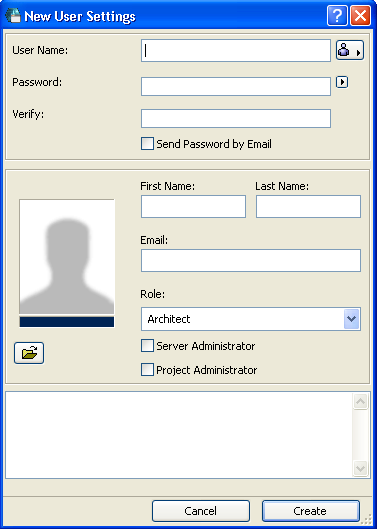
To define the settings of any user on this server, select the user name from the Users page of BIM Server Manager, and click Settings to bring up User Settings.
Notes: The controls are nearly identical for User Settings and for New User Settings.
Within a Teamwork Project, any user may also click User Settings from the Teamwork Palette to access his/her own user settings. Regular users are authorized to change only certain of their own settings; the user settings of others are shown but not editable. (In contrast, the Server Administrator can modify the settings of all users.)
Enter the User Name. (For an existing user, the name is not editable.)
Click the pop-up at far right to define the User Status:
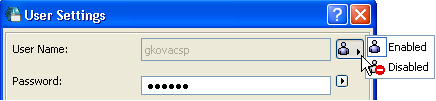
•Enabled: Enabled users are able to access any project on this server.
•Disabled: Revokes a user’s access to all projects on this server.
Enter a Password. To generate a random password automatically, click Generate Password from the pop-up arrow to the right.
Click Send Password by Email to send the new password to the User, along with his/her user name.
Enter the user’s First Name, Last Name and Email address.
Define User Image and User Color
Optionally, upload an image file to help identify the user. Every user-specific Teamwork interface - Info Tags, user lists, messages - will show the user’s photo.
Note: If you don’t want to see the user photos on the Teamwork interface, uncheck the option called Show User Photos in Lists: this is at Options > Work Environment > Dialog Boxes and Palettes.
Below the photo frame, the stripe displays the user’s default color, used in all projects on this BIM Server. User colors can be helpful:
•to distinguish users of a project from each other, in the Teamwork Palette
•to distinguish their workspaces by color, if you use the Show Reservations by User option.
See Colored Workspaces.
This user color will be displayed together with user-specific information throughout the Teamwork project interface.
For example, if Bob’s default color is blue, then all users will see Bob listed with a blue color in the Teamwork Palette, and will see Bob’s reservations in blue when using “Show Reservations by User.”
To change this default color, click the stripe: the color chooser palette appears. Click on the color of choice.
Any user can also redefine user colors on their local machine.
See Redefine User Colors Locally.
However, all other users will always see the default user color assigned in User Settings.
Define Default User Role
Choose a default Role for this user. By default, the User will henceforth have this role in all projects on this server.
Optionally, assign Server Administrator or Project Administrator Rights to this user.
See Administrator Rights.
See also Change a User’s Role or Rights.
Enter Custom Properties
In the field below, the user’s data for any Custom Properties (e.g. Skype address) is shown and can be edited, either by the user or by an Administrator.
To define new Custom Properties, use the Custom Properties page of the BIM Server Manager.
See BIM Server Manager: Custom Properties.
List of User’s Recent Project Actions
Note: This field is visible to Server or Project Administrators only.
In User Settings, the user’s “Most recent project actions” is the list of the last project-related activity for each project which he/she is joined into.