Change a User’s Role or Rights
Note: You must be a Server Administrator to use this function.
In User Settings, a Server Administrator can change a user’s default role for all projects on the BIM Server.
Select the user and open his/her User Settings from one of the following locations:
•from the Teamwork Palette
•from the BIM Server Manager’s Users page
In User Settings, change the user’s role or the related access rights as needed.
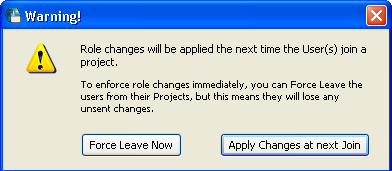
If you have changed a user’s role or related access rights, click OK to close User Settings. You (the Administrator) are now reminded that the changes will take effect only after the user leaves, then re-joins the project.
You can make the changes take effect either immediately (Force Leave Now) or else the next time that the user leaves, then re-joins the project:
•Force Leave Now: This option will immediately force the affected user to leave the project; the affected user is notified of what has happened.
See Force User to Leave a Project.
•Apply Changes at Next Join: If you choose this option, the role changes you have made will not take effect until the affected user leaves the project, then re-joins it. You can tell the affected user to save and send his/her project changes, and then leave and re-join the project, to avoid any loss of modifications.
To change a user’s role on a particular project only (instead of for all projects on the BIM Server): see Customize User Roles for a Project.