A Project Administrator or Server Administrator can force any project user to leave the project.
As a result, the user cannot send his/her changes to the project and will lose all his/her reservations.
Unless you also remove the user from the project’s user list, this user will be able to re-join the project immediately.
Alternatively, the user can opt to “Continue in Detached mode”.
In detached mode, the user can keep working on the local copy without losing any changes, but cannot send any data to/from the BIM Server.
Consequently, the “Force Leave” function is a temporary situation that can serve to
•force the release of reserved elements or data, without waiting for the owner to release them
•enable changes to a user’s access rights to take effect. For example, if the Administrator has changed the access rights of a user, either in Project Settings (for a particular project), or in User Settings, the new settings will not take effect until the user leaves, then re-joins the project.
See Customize User Roles for a Project. See also Define User Settings.
To force a user to leave the project:
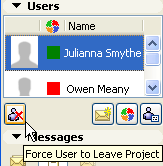
•Use Teamwork Project Settings or the Teamwork Palette: select the user name from the Users panel, then click the “Force Leave” button.
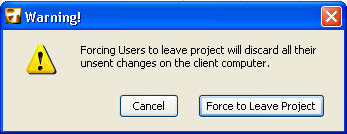
A Warning tells you that the user will not be able to send his/her unsent changes to the project.
The user is notified that he/she has been forced to leave the project, and about the options for continuing.
At this point, the user is forced out, and receives the following message:
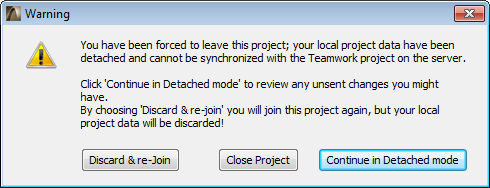
Discard & Re-Join: Choose this option to discard your changes, then re-join the project immediately.
Close Project: Choose this option to discard your changes and close the project.
Continue in Detached Mode: Choose this if you want to retrieve important changes. You cannot send your changes to the BIM Server, but you can paste or merge them into the current version of the project once you re-join it.