Customize User Roles for a Project
It is possible to customize any user’s role for a particular project.
This topic describes how to customize a user’s role on a particular project only, by using Teamwork Project Settings. (The user’s default role for all projects, in contrast, is defined by a Server Administrator on the BIM Server.)
See Change a User’s Role or Rights.
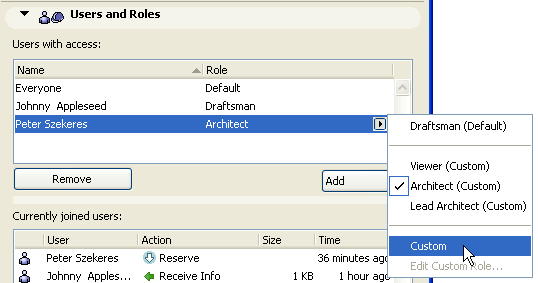
Go to the Users and Roles panel of Teamwork Project Settings and select the user name whose role you wish to customize.
From the pop-up at the right end of the selected user name, choose the Custom option.
This brings up a list of access rights, allowing you to define (by checking and unchecking the boxes in the list) the role of this user, for this project. The user’s default role (e.g. Draftsman) is shown in the column on the right, for information purposes.
Here, the selected user will be assigned additional rights relating to external content, by marking the appropriate checkboxes.
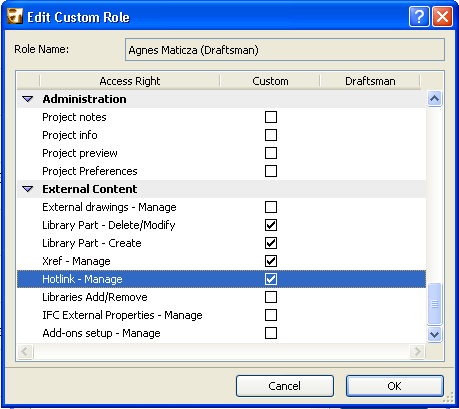
Click OK. The user’s role is now listed as Custom in the Users panel here.
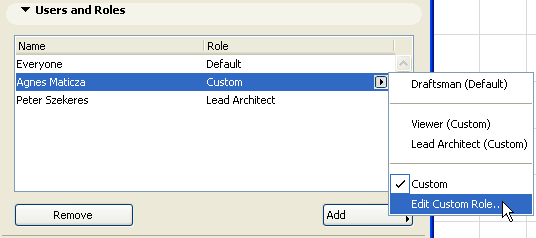
Choose Edit Custom Role from the pop-up if you want to further modify this custom role.
After you have changed a user’s role or related access rights, click OK to close Project Settings. You (the Administrator) are now reminded that the changes will take effect only after the user leaves, then re-joins the project.
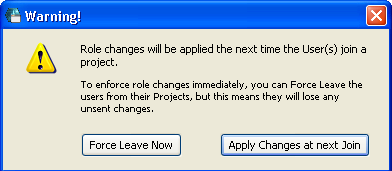
You can make the changes take effect either immediately (Force Leave Now) or else the next time that the user leaves, then re-joins the project:
•Force Leave Now: This option will immediately force the affected user to leave the project; the affected user is notified of what has happened.
See Force User to Leave a Project.
•Apply Changes at Next Join: If you choose this option, the role changes you have made will not take effect until the affected user leaves the project, then re-joins it. You can tell the affected user to save and send his/her project changes, and then leave and re-join the project, to avoid any loss of modifications.