You may have any number of Server Administrators and Project Administrators on a server.
The original Server Administrator is defined during the BIM Server Configuration process.
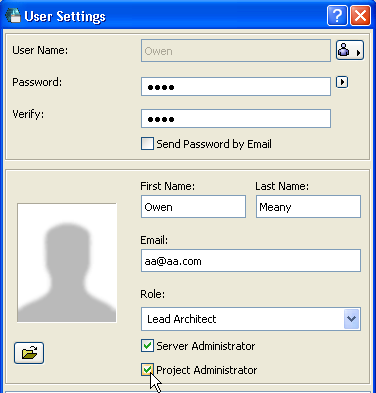
When you add users using BIM Server Manager (Users page), you are able to define each new user as a Server Administrator, a Project Administrator, or neither, using the checkboxes in the User Settings dialog box.
To open User Settings, select the user name from the Users page of BIM Server Manager and click Settings.
Note: The Server Administrator’s rights encompass all Project Administrator rights, so if you check the first box, the second is automatically checked, too.)
The Project Administrator (icon: silver key) has the following rights in all of the projects on the server:
•Share projects from ArchiCAD
See Share a Teamwork Project in ArchiCAD.
•Access and modify all Teamwork Project Settings from ArchiCAD
•Manage the libraries (e.g. upload, delete, update) on the server
See Manage BIM Server Libraries.
•Force a user to leave the project
•Create Teamwork Support Package for project-specific error reporting
The Server Administrator (icon: golden key) has all of the rights of the Project Administrator, plus:
•full access to the BIM Server Manager and all of its controls:
Add Users to the server with their User Settings (including each user’s default roles, enabled/disabled status, Administrator status)
Create Roles and define Access Rights associated to each Role
Manage Projects on this server (e.g. export, create, delete)
See also Monitoring BIM Server Performance.