
Note: You must be a Server Administrator to use this function.
This page of BIM Server Manager allows you to define the default Roles of users on this server.
A Role defines what a user is allowed to do in a Teamwork Project.
A Role is a set of access rights. The access rights enable a user to create, delete/modify, and/or manage particular element types or data types.
In BIM Server Manager, the roles defined apply globally to all projects on the server. For example, the access rights you assign here to the Lead Architect are assigned to all users who fill the Lead Architect role on every project located on this server. You can fine-tune these role definitions, though you may just opt to use the default roles.
For any given project, the Administrator is able, if needed, to further tailor the access rights that are attached to any of these roles.
See Customize User Roles for a Project.
If the Administrator changes any role definition while a project is running, any user whose role has been affected by the changes must leave the project (then re-join it) in order for the role changes to take effect. (It is not enough for the user to be offline; he/she must leave the project.)
See Change a User’s Role or Rights.
The following functions of the Roles page are described in the sections below:
See also: List of Access Rights.
To see the access rights associated with a specific role, select the role, then click Settings.
The appearing Role Settings dialog box (for a single selected role) shows the Role Name at the top (in our case, Lead Architect). If you wish, you can edit this Role Name.
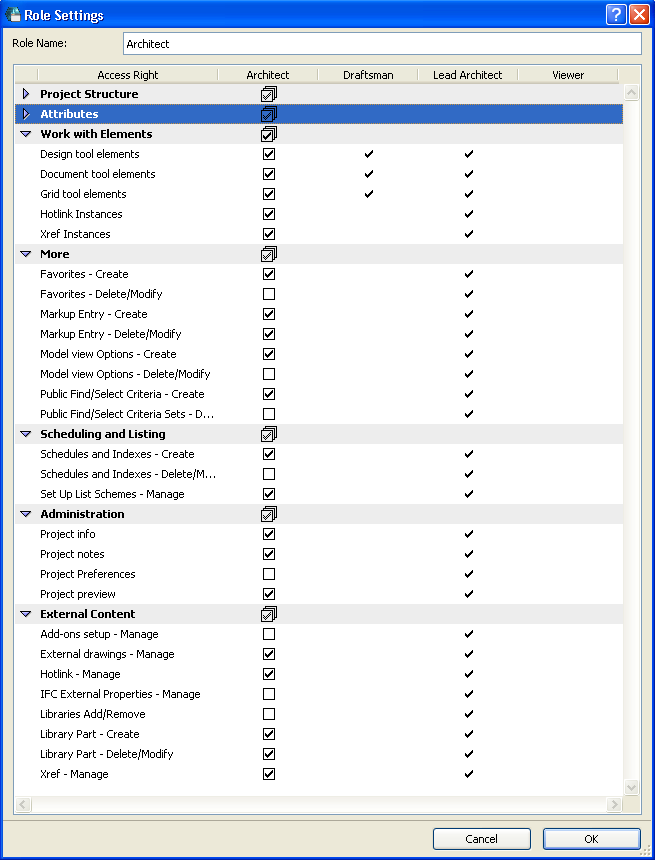
Access rights, divided into seven categories, are listed on the left. Use the scrollbar at the right edge of the dialog box to view the list, or open/close the category panels as needed.
Checkboxes indicate which access rights belong to the currently selected role. Access role information for the other roles is shown for information only.
Access roles are editable (by checking/unchecking access rights) only for the currently editable role.
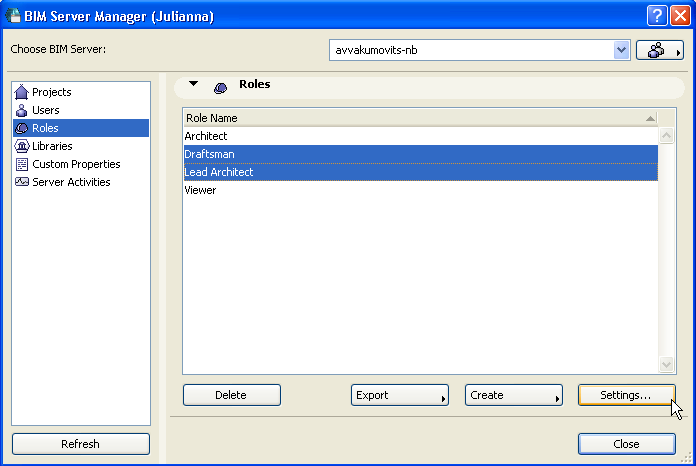
To edit multiple roles simultaneously, multi-select from the BIM Server Manager, then click Settings.
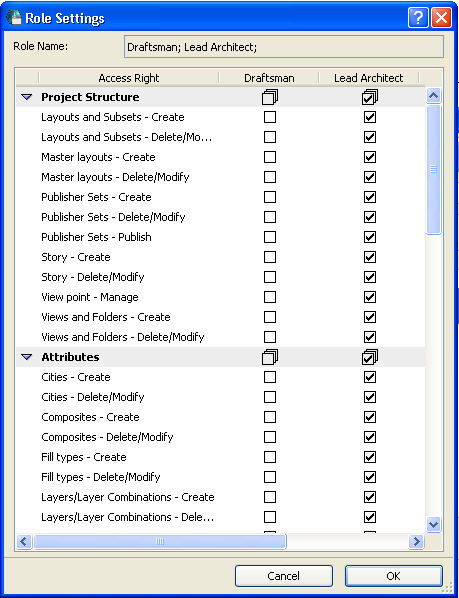
In the appearing Role Settings dialog box, the access rights of both selected roles can now be edited side by side. (The Role Name, for multi-selected roles, is not editable.)
Here, too, access rights of other roles are displayed for information purposes only.
At the bottom of the Roles page, click Create and choose one of the four options for adding a new role to the BIM Server:
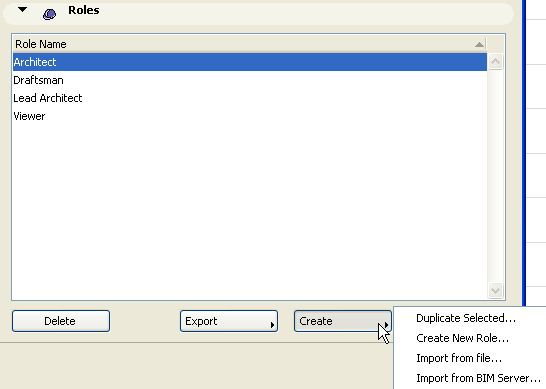
•Duplicate Selected: Use this if you want to create a role that is similar to an already existing role that you have selected from the list. Give the duplicate role a new name. Then open the Role Settings dialog box to define its access rights by checking the appropriate boxes.
•Create New Role: The Create Role dialog box appears. Enter a Role Name, then define its access rights by checking the appropriate boxes.
•Import from File: Browse for a BIM Server Roles file that was earlier exported (from this or any other BIM Server) and saved as a .bimroles file.
See Export Roles.
Roles from this imported file will be added to the current server.
•Import from BIM Server: If you choose this, you must select a server from which to import roles. Click OK.
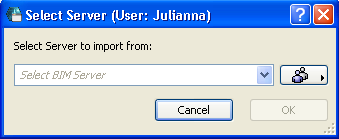
In the appearing dialog box, check the Import box next to the roles you wish to import to your BIM Server.
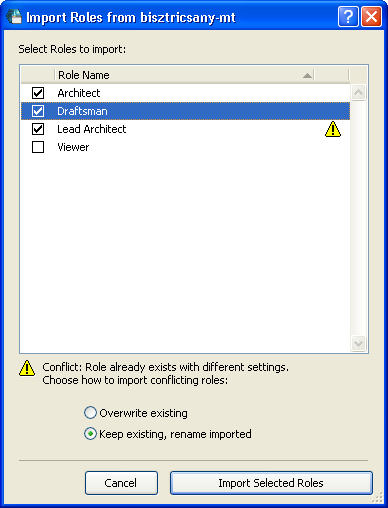
A yellow warning triangle appears alongside any role which already exists on your server, if the role settings differ in any way. You must decide how to handle these cases by clicking on one of the two options:
•Overwrite existing roles
•Keep existing roles, and rename the imported roles
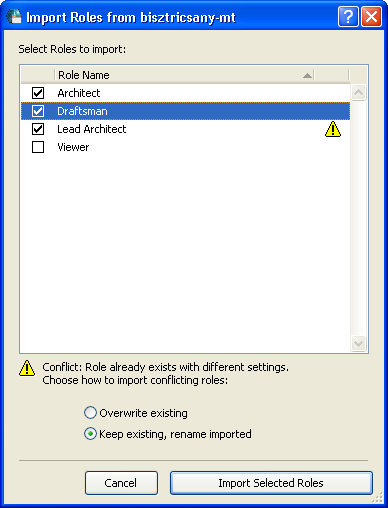
If any role in the “Import Roles” list already exists on your BIM Server under the same name and with identical settings, you cannot import it. (Such roles are marked here with an equal sign on the right.)
Use this function if you want to transfer role settings from one BIM Server to another.
Go to the Roles page of BIM Server Manager.
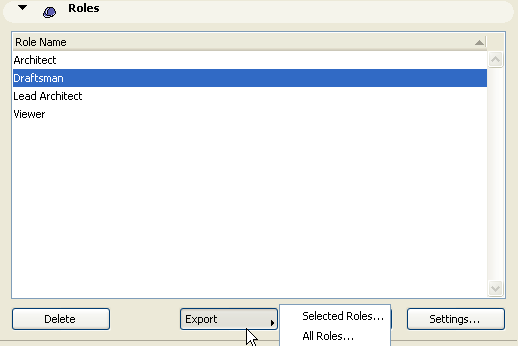
•To export only certain roles, select one or more roles from the list.
Click Export, then Selected Roles...
•To export all roles, do not select any of them. Click Export, then All Roles...
In the appearing dialog box, browse for a location for the saved file. Data for all the roles you are exporting will be placed into a single file, with extension .bimroles.
You can now import this Roles file to another BIM Server.
See Create a New Role.