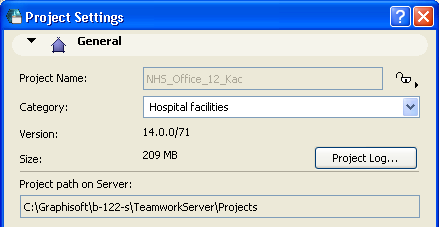
For a new project, enter the Project Name.
Note: If you have opened the Project Settings of an already existing project, its name is not editable. Once a Teamwork Project is named, you cannot rename it.
Choose a Project Category, if desired, from the pop-up below. (Categories can make it easier to sort and locate specific projects if you have a large number of Teamwork projects stored on this server.) Click New Category to define any custom Category, or No Category if preferred.
Note: Custom Project Categories may also be defined on the Custom Properties page.
For more information, see BIM Server Manager: Custom Properties.
Version: This is the version number of the ArchiCAD program the project is running on. To open the project in Teamwork, you must be running this version of ArchiCAD.
Size: Project size.
Project Log: Click this button to access the Project Log.
See Project Log.
Project path on Server: This field provides information on the project’s location on the server (default path plus folder name), as defined during BIM Server Configuration. This path is not editable.
Use the lock/unlock toggle control at the top right of the General Panel of Project Settings to temporarily lock all users out from accessing this Teamwork Project on the BIM Server.
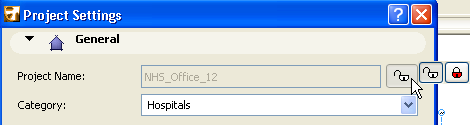
If the project is locked, it means that users can keep working on the project, but will not be able to send or receive project data to or from the BIM Server. Use this locking function if you want to ensure that the project remains unmodified by all of its users for a period of time. (Afterwards, unlock the project again to allow users to access the project.)