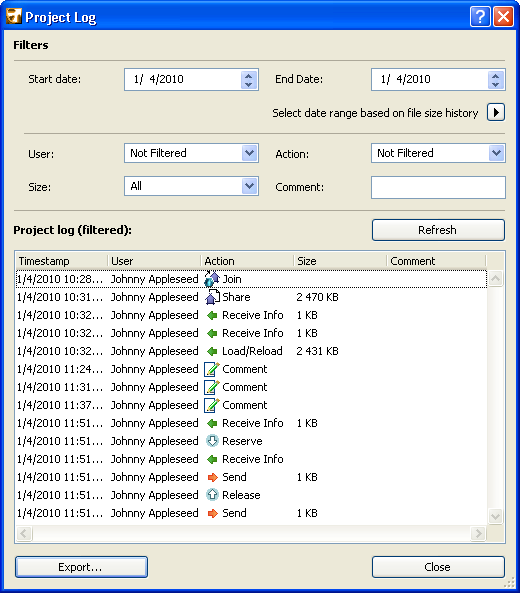
The Teamwork Project Log is an automatically generated list of events which affect the status of the project model on the BIM Server.
The Project Log is useful for providing a snapshot of project progress within a given time frame: for example, to check whether all users really did send in their changes last night. In the event of a program crash, you can check the Project Log for information on changes made since the last backup.
Note: The Project Log is the same list, in project-specific form, as the one shown in the Server Activities page of BIM Server Manager.
See Server Activities.
To bring up the Project Log dialog box, do one of the following:
•From Teamwork Project Settings: click the Project Log button
•File > Info > Teamwork Comments & Log
The Project Log lists the current project’s activities that involve the BIM Server:
•Join/Leave
•Share, Receive, Load
•Comments
•Send (including any Comments)
•Release of Project Data (including any Comments)
•Backups (both manual and automatic)
Note: Comments are optional texts that are recorded in the Project Log.
See Add Comment to Log.
You cannot clear the project history on command. However, you can easily filter the events in the project history by date, user, action, and/or comment.
Filter Project Log by Date
In the Filters section of the Project Log dialog box, enter “From”/“To” dates to narrow the display of events by date.
Alternatively, Select date range based on file size history. To do this, click the arrow next to this command to bring up the Project size history graph, which shows how the project’s file size has varied over the life of the project. (The two dates below the graph are the project’s starting date and the current date.)
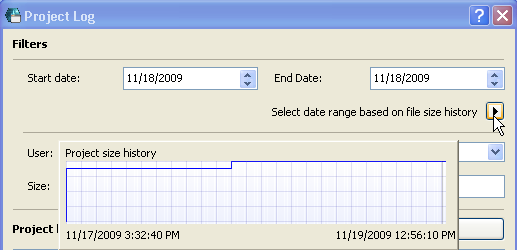
On this graph, use your cursor to select an area of interest.
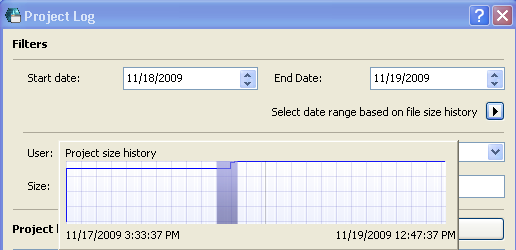
Now click Refresh. Note that the Start date and End date of the Project Log (at the top of the dialog box) now reflect the day(s) you selected on the graph, and the listed events below are limited to this period.
Filter Project Log by Other Criteria
•User: Choose a user from the pop-up list to display his/her events only. (Or choose Not filtered.)
•Action: Choose a type of event to display. (Or choose Not Filtered.)
•Size: List the project activities by the size of the data event.
•Comment: Type in a text or fragment to display all events whose comments include it. (Or leave this field blank.)
Click Refresh to display the filtered list.
Click the Export button to save the Project Log as a text file to any location.