Assign Users and Roles to Teamwork Project
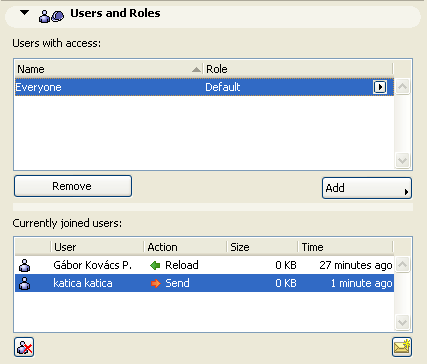
The Users and Roles panel of Teamwork Project Settings lets you control the list of users who have access to this project (“Users with access”). In addition, use these controls to edit the project-specific role of a selected user, or to create a customized role, for this project only.
Note: The same controls are available during the Share process, in the Share this Project dialog box.
By default, “Everyone” can access the project: “Everyone” is a special Group user which includes every user defined on the BIM Server.
To add individual users, click the Add button and choose the names, from the BIM Server’s user list, which you wish to add to this project.
See Add New User on BIM Server.
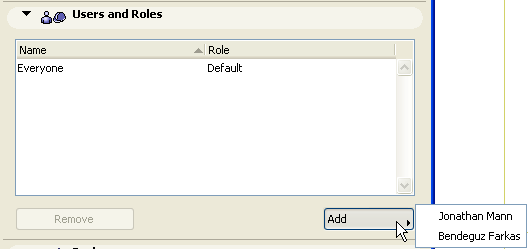
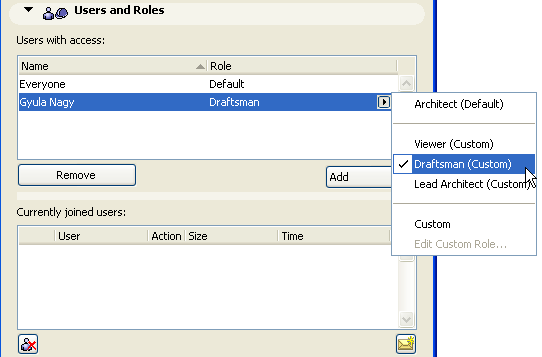
Even if you keep Everyone as user, you can add some of the user names individually to assign them a project role that is not their default role. Use the pop-up at the end of the selected item to change the user’s role, for this project only.
Here, Everyone is registered as a user on this project in their default roles. However, another user has been assigned a role other than his default role: he has been added to this project as Draftsman, instead of his default role as Lead Architect.
To remove a user from this project, select the user name from the list and click the Remove button.
The Remove button removes users from the project, but not from the BIM Server.
See also Customize User Roles for a Project.